

Migrating a WordPress website, at its core, involves relocating every component of your site – the database, files, and sometimes the configuration itself – from one hosting environment to another. This process, while seemingly straightforward, carries inherent risks, the most critical of which is downtime. Imagine your website as a physical storefront. During a traditional move, you’d likely close your doors for a period, causing a disruption to your business. In the digital realm, downtime means lost visitors, potential revenue, and a negative impact on your search engine rankings. Your objective, therefore, is to execute this move without ever closing those digital doors.
Several scenarios necessitate a WordPress migration. You might be upgrading your hosting plan for better performance, moving to a more specialized WordPress host, or relocating your site to a new domain name. Perhaps you are consolidating multiple websites onto a single server or performing a critical security audit that requires a temporary sandbox environment. Each of these situations demands a careful, calculated approach to avoid any interruption in service. The challenge lies in orchestrating this transition with precision, ensuring that at no point does your live site become inaccessible to your users. It’s akin to changing the engine of a running car without it ever stalling.
The Perils of Unplanned Downtime
Unplanned downtime, even for a few minutes, can have significant repercussions. Search engine crawlers, upon encountering an inaccessible site, may interpret it as a permanent closure or a technical issue, leading to a drop in your search engine ranking. This “crawl budget” is a finite resource, and you want search engines to spend it indexing your valuable content, not encountering error messages. Furthermore, user experience is paramount. A visitor encountering a “site not found” error or a blank page is unlikely to return, potentially leading to a loss of customer trust and brand loyalty. For an e-commerce site, even a brief outage can translate directly into lost sales and revenue. Consider the scenario of a holiday shopping rush; a minute of downtime could represent thousands of dollars in lost transactions. Beyond the immediate financial impact, there’s the intangible cost of damaged reputation. In a competitive online environment, reliability is a key differentiator.
Defining “Seamless” and “No Downtime”
When you discuss “seamless” WordPress migration, you are talking about an experience where the transition from the old host to the new host is imperceptible to the end-user. It means your website remains online and fully functional throughout the entire process. “No downtime” reinforces this; it guarantees that your website is accessible 100% of the time, with no periods of unavailability. This is not merely an idealistic goal; it’s a strategically achievable outcome through careful planning and execution. Achieving this requires a multi-faceted approach, often involving a parallel environment, meticulous data synchronization, and a precisely timed DNS propagation. Think of it as a carefully choreographed ballet, where each movement is perfectly timed to maintain continuity.
If you’re looking to ensure a seamless transition while migrating your WordPress site without downtime, you might find it beneficial to explore related topics such as the advantages of dedicated hosting. Dedicated hosting can provide the stability and performance necessary for a smooth migration process. For more insights on this, check out the article on why dedicated hosting is the perfect solution for your website at this link.
Pre-Migration Preparations: Laying the Groundwork
Before initiating any migration, a thorough preparation phase is crucial. This stage serves as your blueprint, minimizing the potential for errors and ensuring a smooth transition. Skipping these steps is akin to building a house without a foundation: it’s likely to crumble.
Comprehensive Backup Strategies
The first and arguably most critical step is to execute a complete and reliable backup of your existing WordPress site. This includes both your database and all your website files. These backups act as your safety net, allowing you to restore your site to its original state should any unforeseen issues arise during the migration process. You should not rely solely on your hosting provider’s backups; create your own independent backups and store them in a secure, off-site location. Consider using specialized backup plugins like UpDraftPlus or BackWPup, which offer automated and comprehensive backup solutions, including the ability to store backups on cloud services like Google Drive or Amazon S3. Performing this step is like having a spare tire; you hope you never need it, but you’re profoundly grateful when you do.
Hosting Environment Assessment
Next, you need to meticulously assess both your current and your new hosting environments. Document the PHP version, MySQL version, server operating system, and all relevant server configurations of your current host. Then, compare these specifications with your target hosting environment. Discrepancies in these configurations can lead to unexpected errors or compatibility issues post-migration. For example, if your current site runs on an older PHP version and your new host enforces a much newer version, your plugins or themes might not be compatible without updates. You need to ensure a harmonious environment where your WordPress instance can thrive without conflict. This assessment is like checking the compatibility of a new organ for a transplant; you want a perfect match.
Plugin and Theme Audit
Your WordPress site likely uses numerous plugins and themes. Before migrating, perform a thorough audit of these components. Deactivate and ideally uninstall any unused or outdated plugins and themes. These can not only bloat your site and slow it down but also introduce security vulnerabilities or compatibility issues during migration. Update all active plugins and themes to their latest stable versions. This ensures maximum compatibility with newer PHP versions and reduces the likelihood of encountering errors in the new environment. Think of this as decluttering your digital home before moving; less baggage makes the move simpler and faster.
Establishing a Staging Environment: The Sandbox Approach
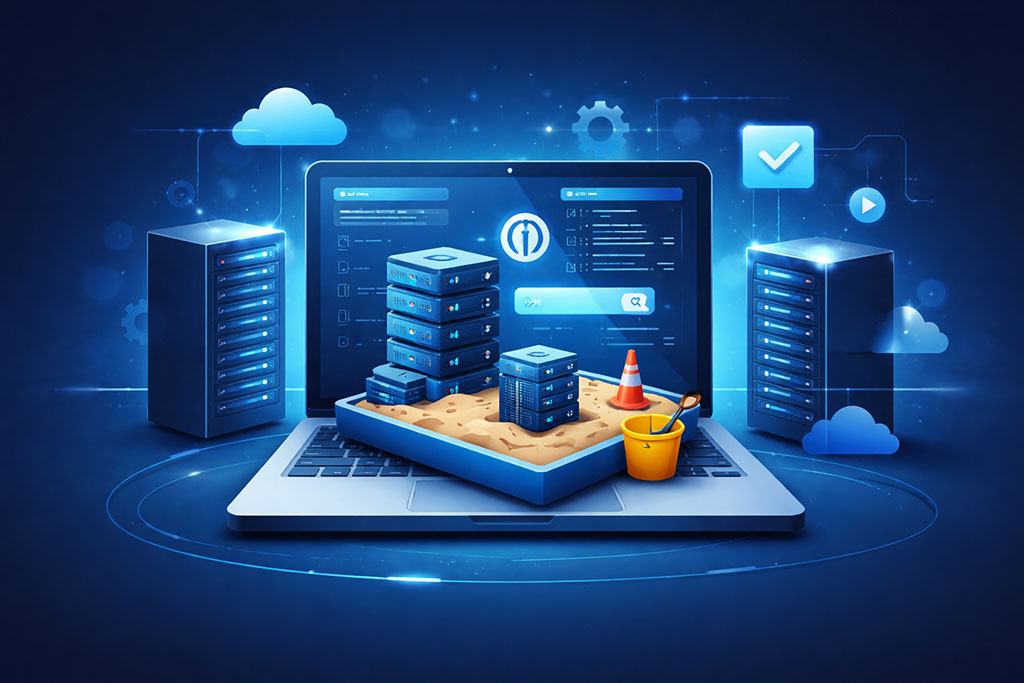
A core principle of seamless migration is the utilization of a staging environment. This is a duplicate of your live website, hosted on the new server or a temporary subdomain, where you can perform the migration and testing without affecting your live site. This “sandbox” allows you to iron out any kinks before the final switch.
Duplicating Your Site
The first step in setting up a staging environment is to duplicate your entire WordPress site – files and database – onto your new hosting server. This can be achieved manually through FTP and database exports, or more efficiently through specialized migration plugins such as All-in-One WP Migration or Duplicator. These plugins facilitate the bundling of your entire WordPress installation into a single, importable file. Once the duplication is complete, you will have an exact replica of your website, residing on your new server but not yet publicly accessible. This is your dress rehearsal, performed in private before the grand opening.
Database Adjustments and Configuration
After migrating the files and database to the staging environment, you will likely need to adjust the database and certain configuration files. Specifically, you’ll need to update the wp-config.php file to reflect the new database credentials (database name, username, password, and host). You will also need to update the site’s URL within the database, referencing the temporary URL of your staging site rather than your live domain. Many migration plugins handle these database serializations automatically, but manual intervention might be necessary for more complex setups. Tools like Search and Replace DB script can be invaluable for safely updating URLs within your database. This is like updating the new address on your utility bills; you need everything pointing to the correct new location.
Thorough Testing and Validation
The staging environment is where you will conduct comprehensive testing. Navigate through every page, post, and custom post type on your duplicated site. Test all forms, e-commerce functionalities, third-party integrations, and user login/registration processes. Ensure all images, videos, and media files are loading correctly. Check for broken links, JavaScript errors, and any CSS inconsistencies. This rigorous testing phase is critical for identifying and resolving any issues before your site goes live on the new server. It is during this phase that you discover and rectify any potential discrepancies that could cause downtime or a degraded user experience. This crucial step is your quality assurance checkpoint, ensuring every component functions as intended.
The DNS Propagation Strategy: The Big Switch
The most critical phase for achieving zero downtime is the carefully managed DNS propagation. This is where you essentially tell the internet that your website’s address has changed, directing traffic to your new server.
Understanding DNS Records
The Domain Name System (DNS) acts as the internet’s phonebook, translating human-readable domain names (like yourwebsite.com) into machine-readable IP addresses. Your website’s accessibility is dictated by its DNS records, particularly the A record, which points your domain to your server’s IP address. During a migration, you’ll be changing this A record to point to the IP address of your new hosting server. The challenge lies in the propagation time – the period it takes for these changes to be reflected across the vast network of DNS servers worldwide. This propagation can take anywhere from a few minutes to up to 48 hours, a period often referred to as “DNS cache.”
Leveraging a Low TTL
To minimize the impact of DNS propagation, you should significantly reduce your domain’s Time-To-Live (TTL) value several hours, or even a day, before initiating the final DNS switch. The TTL value dictates how long DNS resolvers should cache your DNS records. By setting a low TTL (e.g., 300 seconds or 5 minutes), you instruct DNS servers to refresh their cached information more frequently. This means when you eventually update your A record, the change will propagate much faster. This is like telling all your acquaintances to update your new address more frequently, ensuring everyone gets the memo quickly.
The Atomic Switch: Pointing Your Domain
Once you are absolutely confident that your staged site is fully functional on the new server and you’ve reduced your TTL, you can initiate the “atomic switch.” This involves updating your domain’s A record at your domain registrar or DNS management service to point to the IP address of your new server. Simultaneously, if you are using specific DNS records for email (MX records) or other services, ensure they are correctly configured for your new hosting environment. The goal is to perform this switch quickly and accurately, leveraging the reduced TTL to ensure a rapid transition of traffic to your new host. This is your moment of truth, where the old infrastructure seamlessly hands off to the new, without a hitch.
If you’re looking to expand your online presence after migrating your WordPress site without downtime, you might find it helpful to explore strategies for launching your brick-and-mortar store online. This step-by-step guide provides valuable insights on how to effectively transition your physical store into the digital realm, ensuring a smooth integration with your existing online platforms.
Post-Migration Verification and Optimization: Ensuring Stability
Once you are completely confident in the stability and performance of your migrated site on the new server, you can then safely decommission your old hosting environment. However, it is advisable to keep the old site intact for a short period (e.g., a week or two) as a final fallback, just in case any unforeseen issues emerge. A complete shutdown should only occur after a period of stable operation on the new host. This final step is about tidying up and closing the old chapter, knowing your new digital home is fully established and operational.
FAQs
What are the key steps to migrate a WordPress site without downtime?
The key steps include backing up your entire site, setting up the new hosting environment, transferring files and databases, updating DNS settings, and thoroughly testing the new site before making it live. Using tools like migration plugins or staging environments can help ensure a smooth transition with no downtime.
Can I migrate my WordPress site without technical expertise?
Yes, many migration plugins and hosting providers offer user-friendly tools that simplify the process. However, having a basic understanding of WordPress, databases, and DNS settings is beneficial. For complex sites, consulting a professional may be advisable to avoid errors.
How long does a typical WordPress site migration take?
The duration depends on the site’s size, complexity, and the method used. Small to medium sites can often be migrated within a few hours, while larger sites may take longer. Planning and using efficient migration tools can minimize the time and prevent downtime.
What are common causes of downtime during WordPress migration?
Downtime can occur due to DNS propagation delays, incomplete data transfer, incorrect configuration on the new server, or failure to update URLs and database references. Proper planning, testing, and using techniques like temporary domain mapping can help avoid these issues.
Is it necessary to update DNS settings during migration, and how does it affect downtime?
Yes, updating DNS settings is essential to point your domain to the new hosting server. DNS propagation can take anywhere from a few minutes to 48 hours, which may cause temporary downtime. Using low TTL (Time to Live) values before migration and migrating during low-traffic periods can reduce the impact.









Add comment