
Safeguarding Your Digital Storefront: The Foundation of WordPress Maintenance
Your small business website is often the first impression potential customers have of your brand. In today’s digital landscape, a website isn’t just an online brochure; it’s a dynamic sales tool, a customer service portal, and a crucial marketing asset. If your site is built on WordPress, you’ve chosen a powerful and flexible platform. However, like any valuable asset, it requires regular care and attention to perform optimally and remain secure. Ignoring WordPress maintenance is akin to neglecting your physical storefront – eventually, things will break, security will be compromised, and customers will walk away. This comprehensive checklist will guide you through the essential maintenance tasks you need to perform to keep your small business WordPress website thriving, secure, and performing at its peak. Think of this as your proactive playbook to prevent costly downtime, protect your valuable data, and ensure your online presence consistently reflects the professionalism of your business.
Why Neglecting Maintenance Is a Costly Mistake
You might be tempted to set up your WordPress site and then forget about it, especially when you’re busy running your business. However, this “set it and forget it” approach is a recipe for disaster. Outdated plugins can create security vulnerabilities that hackers can exploit, leading to data breaches and a damaged reputation. A slow website can drive away potential customers, as studies show users abandon sites that take longer than a few seconds to load. Furthermore, a broken website can lead to lost sales, frustrated customers, and a significant hit to your brand credibility. Regular maintenance isn’t just about fixing problems; it’s about preventing them, ensuring your website remains a reliable and effective tool for your business.
For small business owners looking to enhance their online presence, maintaining a well-functioning website is crucial. A comprehensive WordPress Maintenance Checklist can help ensure that your site runs smoothly and efficiently. To further support your journey in the digital landscape, you might find it beneficial to explore this related article on how to start a blog in 2023. It offers valuable insights and tips that can complement your website maintenance efforts. You can read it here: How to Start a Blog in 2023.
Fortifying Your Defenses: Security and Updates
Security is paramount for any website, especially for a small business that can ill-afford the consequences of a cyberattack. WordPress, while robust, is also a popular target for malicious actors due to its widespread use. Staying vigilant and proactive with your security measures is non-negotiable.
Regular Core, Theme, and Plugin Updates
This is arguably the most critical aspect of WordPress maintenance. WordPress, its themes, and its plugins are constantly being updated by their developers. These updates aren’t just about adding new features; they often include crucial security patches that address newly discovered vulnerabilities.
Understanding the Update Process
When you see update notifications in your WordPress dashboard, don’t ignore them. Each update typically includes bug fixes, performance improvements, and, most importantly, security enhancements. Running outdated software is like leaving your front door unlocked – you’re inviting trouble.
Best Practices for Updating
Before initiating any updates, especially major ones, always create a full backup of your website (more on this later). This gives you a safety net if something goes wrong. Test updates on a staging environment first if possible. This allows you to identify any compatibility issues or unexpected errors without affecting your live site. If you don’t have a staging environment, update one item at a time, starting with plugins, then themes, and finally the WordPress core. After each update, quickly check your website’s functionality to ensure everything is working as expected.
Implementing Robust Security Measures
Beyond regular updates, you need to actively implement security measures to protect your WordPress site.
Strong Passwords and User Permissions
This might seem obvious, but weak passwords are a common entry point for hackers. Enforce strong password policies for all user accounts, especially administrators. Use a combination of uppercase and lowercase letters, numbers, and symbols. Additionally, limit user permissions to the absolute minimum required for their role. For instance, your content writers don’t need administrator access. The principle of least privilege significantly reduces your attack surface.
Installing a Security Plugin
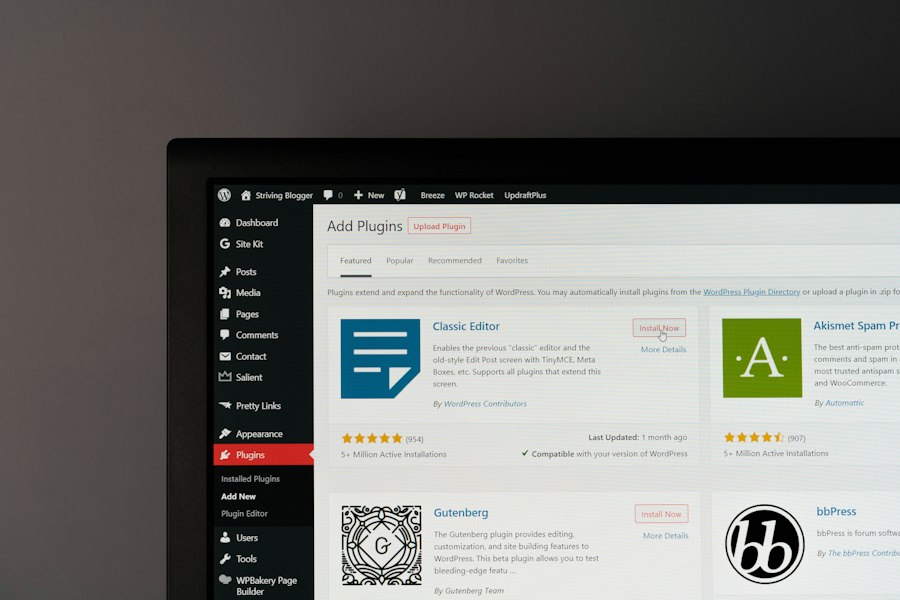
A reputable security plugin like Wordfence Security, Sucuri Security, or iThemes Security can provide a comprehensive layer of protection. These plugins offer features such as malware scanning, firewall protection, brute-force attack prevention, login attempt limiting, and file integrity monitoring. Configure these plugins carefully and regularly review their scan reports and security recommendations.
Regularly Scanning for Malware
Even with a security plugin, it’s wise to run occasional manual scans or use external scanning tools to ensure no malicious code has slipped through the cracks. Many security plugins offer this functionality, but independent scanners can sometimes catch things others miss. A clean website is a safe website.
Preserving Your Investment: Backup and Recovery Strategy
Imagine logging into your website one day only to find it completely gone, or riddled with errors, or worse, hacked. Without a robust backup strategy, all your hard work, content, and potentially crucial customer data could be lost forever. A reliable backup is your ultimate safety net.
Establishing an Automated Backup Schedule
Manual backups are prone to human error and can easily be forgotten. The most effective backup strategy involves automation.
Choosing a Reliable Backup Solution
There are numerous WordPress backup plugins available, such as UpdraftPlus, BackWPup, or VaultPress (now Jetpack Backup). Many hosting providers also offer their own backup solutions. Look for a solution that allows you to schedule automatic backups of both your WordPress files (themes, plugins, uploads) and your database.
Storing Backups Securely and Off-Site
Never store your backups on the same server as your website. If your server goes down or is compromised, your backups will be lost too. Store them in a separate, secure location, such as cloud storage (Google Drive, Dropbox, Amazon S3), a remote server, or an external hard drive. Maintain multiple backup copies and regularly test their integrity to ensure they are restorable. A common strategy is to keep daily backups for a week, weekly backups for a month, and monthly backups for a year.
Testing Your Restoration Process
Having backups is only half the battle; you need to be confident that you can actually restore your website from those backups when needed.
Performing Regular Test Restores
At least once or twice a year, perform a test restore of your website to a staging environment or a local development setup. This process will identify any issues with your backup files or your restoration procedure before a real emergency strikes. It’s better to discover a problem with your backup when you’re not under pressure.
Documenting Your Recovery Plan
Create a clear, step-by-step document outlining how to restore your website from a backup. This documentation will be invaluable in a crisis, especially if someone else needs to perform the restoration. Include details on where backups are stored, credentials for accessing them, and the specific steps for using your chosen backup solution.
Optimizing for Performance: Speed and Efficiency
A slow website frustrates visitors, negatively impacts your search engine rankings, and ultimately costs you business. Optimizing your WordPress site for speed and efficiency is not a luxury; it’s a necessity in today’s fast-paced digital world.
Image Optimization
Images often make up the bulk of a webpage’s size. Large, unoptimized images can significantly slow down your site.
Compressing and Resizing Images
Before uploading images to your WordPress media library, ensure they are properly sized for their display dimensions. There’s no need to upload a 4000px wide image if it will only be displayed at 800px. Use image editing software or online tools to resize them. Furthermore, compress your images to reduce their file size without sacrificing noticeable quality. Plugins like Smush, EWWW Image Optimizer, or Optimole can automate this process upon upload.
Utilizing Lazy Loading
Lazy loading is a technique where images (and other media) are only loaded when they become visible in the user’s viewport. This means the browser doesn’t have to load all images on a page at once, significantly speeding up initial page load times. Most modern WordPress themes and performance plugins offer built-in lazy loading, or you can use a dedicated plugin.
Database Maintenance and Cleanup
Over time, your WordPress database can become cluttered with old revisions, spam comments, trashed items, and transient data. A bloated database can slow down your website.
Deleting Unused Themes and Plugins
Every installed theme and plugin, even if inactive, consumes server resources and can potentially introduce security vulnerabilities. Regularly review your installed themes and plugins and delete any that you are not actively using. Keep your WordPress installation lean.
Optimizing the Database
Plugins like WP-Optimize or Advanced Database Cleaner can help you clean and optimize your database. They can remove post revisions, trashed comments, orphaned post metadata, and other unnecessary data. Schedule this to run periodically to keep your database tidy. Before performing any database optimization, always create a full backup of your website.
Caching Implementation
Caching is a powerful technique that significantly improves website speed by storing frequently accessed data so that it doesn’t have to be regenerated every time a user visits a page.
Installing a Caching Plugin
A good caching plugin is essential for any WordPress site. Popular options include WP Rocket, WP Super Cache, and W3 Total Cache. These plugins generate static HTML versions of your dynamic WordPress pages, serving them to visitors much faster. Configure your caching plugin according to its recommendations and test its effects on your site’s loading speed.
Leveraging Browser Caching
Browser caching instructs visitors’ browsers to store certain static files (like CSS, JavaScript, and images) for a period of time. This means that when a user revisits your site or navigates to another page, their browser doesn’t need to re-download those files, leading to faster subsequent page loads. Most caching plugins handle browser caching, but you can also configure it directly via your server’s .htaccess file.
For small business owners looking to enhance their online presence, understanding the importance of regular website upkeep is crucial. A comprehensive WordPress Maintenance Checklist for Small Business Websites can help ensure that your site runs smoothly and efficiently. Additionally, if you’re considering expanding your business online, you might find it beneficial to explore this step-by-step guide on launching your brick-and-mortar store online, which provides valuable insights into establishing a successful digital storefront.
Maintaining a Healthy Ecosystem: Content and Functionality
| Task | Frequency | Description | Recommended Tools/Plugins |
|---|---|---|---|
| Backup Website | Weekly | Create full backups of website files and database to prevent data loss. | UpdraftPlus, BackupBuddy |
| Update WordPress Core | As Updates Release | Keep WordPress core updated to latest version for security and performance. | Built-in WordPress updater |
| Update Themes and Plugins | Weekly | Update all themes and plugins to latest versions to fix bugs and vulnerabilities. | WP-CLI, ManageWP |
| Check Website Security | Monthly | Scan for malware, vulnerabilities, and unauthorized access attempts. | Wordfence, Sucuri Security |
| Test Website Functionality | Monthly | Verify forms, checkout, and other interactive elements work properly. | Manual Testing, Browser Developer Tools |
| Optimize Database | Monthly | Clean up database tables to improve performance and reduce overhead. | WP-Optimize, Advanced Database Cleaner |
| Check Website Speed | Monthly | Analyze and improve page load times for better user experience. | Google PageSpeed Insights, GTmetrix |
| Review SEO Performance | Monthly | Monitor search rankings, fix broken links, and update meta tags. | Yoast SEO, SEMrush |
| Review Analytics | Monthly | Analyze visitor data to understand traffic and user behavior. | Google Analytics |
| Check SSL Certificate | Quarterly | Ensure SSL certificate is valid and website is served over HTTPS. | SSL Labs, Let’s Encrypt |
Beyond the technical backend, the actual content and user experience of your website also require regular attention. A website that is easy to navigate, free of broken links, and presents fresh, relevant content will keep visitors engaged and returning.
Checking for Broken Links
Broken links (404 errors) create a frustrating user experience and can negatively impact your search engine optimization (SEO). They signal to search engines that your site might not be well-maintained.
Using a Broken Link Checker
Plugins like Broken Link Checker can scan your entire website for broken internal and external links. While useful, these plugins can sometimes be resource-intensive, so it’s often better to run them periodically and then deactivate them when not in use. Alternatively, online tools like Ahrefs Broken Link Checker or Google Search Console can also identify broken links on your site.
Fixing or Redirecting Broken Links
Once identified, you need to fix or redirect broken links. For internal links, simply correct the URL. For external links, you might update them to a new, valid source or remove them if the content is no longer relevant. If a page on your site has been moved or deleted, implement a 301 redirect to guide users (and search engines) to the new location or a relevant alternative page.
Reviewing and Updating Content
Your website’s content is its voice and its value proposition. Stale or inaccurate content can quickly make your business appear outdated or unprofessional.
Updating Outdated Information
Regularly review your “About Us” page, contact information, service descriptions, pricing, and any other time-sensitive content. Ensure all information is current and accurate. This includes team member bios, business hours, and location details.
Refreshing Blog Posts and Articles
If you have a blog, revisit older posts. Can they be updated with new information, statistics, or examples? Can you add new insights or expand on existing topics? Updating older content not only keeps your site fresh but can also boost its SEO performance as search engines favor up-to-date information.
Ensuring Form Functionality
Contact forms, inquiry forms, and newsletter sign-up forms are crucial for lead generation and customer communication. If they break, you could be missing out on valuable opportunities.
Testing All Forms Regularly
At least once a month, submit a test entry through every form on your website. Check that the submission goes through successfully, you receive the notification email, and any auto-responder emails are sent correctly. This simple check can prevent significant communication breakdowns.
Checking Form Integrations
If your forms integrate with CRM systems, email marketing platforms, or other third-party services, verify that these integrations are still working as expected. API changes or updates to either service can sometimes break these connections.
For small business owners looking to enhance their online presence, maintaining a website is crucial, and a comprehensive WordPress Maintenance Checklist can be a valuable resource. Additionally, understanding the broader landscape of web hosting can significantly impact your site’s performance and reliability. For insights into the future of web hosting, consider reading this informative article on how US data centers are set to dominate the market by 2025, which can help you make informed decisions about your hosting needs.
Monitoring and Analytics: Understanding Your Audience and Site Health
Beyond the technical upkeep, it’s vital to understand how your website is performing from a user perspective and to keep an eye on its overall health. Analytics provide invaluable insights into your audience, while uptime monitoring ensures your site is always accessible.
Setting Up and Reviewing Google Analytics
Google Analytics is a free and powerful tool that provides deep insights into your website traffic and user behavior.
Tracking Key Metrics
Ensure Google Analytics is correctly installed on your WordPress site. Regularly review key metrics such as:
- Audience Data: Who are your visitors? (demographics, interests, location)
- Acquisition Channels: How are visitors finding your site? (organic search, social media, direct, referral)
- Behavior Flow: What pages do visitors look at? What is their path through your site?
- Conversion Rates: Are visitors completing desired actions (e.g., filling out a contact form, making a purchase)?
Understanding these metrics helps you identify what’s working well and where your website might need improvement in terms of content, navigation, or calls to action.
Identifying Performance Issues
Analytics can also highlight potential performance issues. A sudden drop in traffic, a high bounce rate on specific pages, or significantly longer average session durations could indicate a problem with content, page load speed, or user experience that needs investigation.
Implementing Uptime Monitoring
Your website can’t generate leads or serve customers if it’s down. Uptime monitoring services continuously check your website’s availability and alert you immediately if it experiences downtime.
Choosing an Uptime Monitoring Service
Many services (like UptimeRobot, StatusCake, or even some hosting providers) offer free or affordable uptime monitoring. They ping your website at regular intervals (e.g., every 5 minutes) from different global locations.
Setting Up Instant Notifications
Configure your uptime monitor to send you instant alerts via email, SMS, or Slack if your website becomes unreachable. This allows you to address issues immediately, minimizing potential lost business and preserving your brand’s reliability. Knowing quickly that your site is down means you can react faster, diagnose the problem, and get it back online before many of your customers notice.
FAQs
What is included in a WordPress maintenance checklist for small business websites?
A WordPress maintenance checklist for small business websites typically includes tasks such as updating WordPress core, themes, and plugins, backing up the website regularly, monitoring website security, optimizing website performance, and checking for broken links.
How often should a small business website undergo maintenance?
It is recommended that small business websites undergo maintenance on a regular basis, ideally at least once a month. However, the frequency of maintenance may vary depending on the website’s size, complexity, and traffic.
Why is it important to update WordPress core, themes, and plugins regularly?
Updating WordPress core, themes, and plugins regularly is crucial for maintaining website security, improving performance, and ensuring compatibility with the latest web technologies. Outdated software can make a website vulnerable to security threats and may lead to functionality issues.
How can small business owners back up their WordPress websites?
Small business owners can back up their WordPress websites using plugins such as UpdraftPlus, BackupBuddy, or VaultPress. These plugins allow users to schedule automatic backups, store backups offsite, and easily restore their websites in case of data loss.
What are some common security measures to include in a WordPress maintenance checklist?
Common security measures to include in a WordPress maintenance checklist for small business websites include installing security plugins like Wordfence or Sucuri, using strong passwords, enabling two-factor authentication, limiting login attempts, and regularly scanning for malware.







Add comment