

You’ve bought a domain name. You have ideas. Perhaps you’re launching a personal blog, a small business website, or a portfolio to showcase your work. But how do you actually get that name, that digital identifier you so carefully chose, to point to the place where all your website’s files will live – your hosting server? This is where the Domain Name System, or DNS, comes into play.
DNS is often described as the internet’s phonebook. While this analogy is useful, it simplifies a complex and critical system. Think of it more like a highly distributed, fault-tolerant, and continuously updated directory service that translates human-readable domain names into machine-readable IP addresses. Without DNS, you’d have to remember long strings of numbers for every website you wanted to visit, which is obviously impractical. Understanding how it works will empower you to control your online presence effectively.
Before diving into DNS itself, it’s essential to grasp the two core components it orchestrates: domain names and IP addresses.
What is a Domain Name?
Your domain name, like yourdomain.com, is your unique address on the internet. It’s chosen for memorability and brand recognition.
The Structure of a Domain Name
A domain name has a hierarchical structure, read from right to left.
Top-Level Domains (TLDs)
The rightmost part is the Top-Level Domain (TLD). These include generic TLDs (gTLDs) like .com, .org, .net, and country-code TLDs (ccTLDs) like .uk, .de, .jp. The TLD indicates the general purpose or geographic location of the domain.
Second-Level Domains (SLDs)
The next part is the Second-Level Domain (SLD), which is your chosen name, such as “yourdomain”. This is what you typically register.
Subdomains
Beyond the SLD, you can have subdomains, like blog.yourdomain.com or shop.yourdomain.com. These are used to organize different sections of your website.
What is an IP Address?
An IP (Internet Protocol) address is a numerical label assigned to each device connected to a computer network that uses the Internet Protocol for communication. It’s the actual street address of your server on the internet.
IPv4 and IPv6
You’ll encounter two primary versions of IP addresses.
IPv4 Addresses
These are the older, more common addresses, formatted as four sets of numbers separated by periods (e.g., 192.168.1.100). Due to the exhaustion of IPv4 addresses, a new system was developed.
IPv6 Addresses
IPv6 addresses are longer and use hexadecimal digits separated by colons (e.g., 2001:0db8:85a3:0000:0000:8a2e:0370:7334). They provide a vastly larger address space.
The Need for Translation
Humans find names easy to remember. Computers rely on numerical IP addresses for routing traffic. DNS bridges this gap.
Understanding DNS is crucial for anyone looking to establish an online presence, as it plays a vital role in connecting your domain to hosting servers. For those interested in exploring additional ways to generate income through web hosting, you might find the article on passive income with reseller hosting particularly insightful. This article discusses how leveraging reseller hosting can provide a steady stream of recurring revenue, complementing your knowledge of DNS and domain management.
How DNS Facilitates the Connection
DNS is the system that makes the magic happen, enabling you to type a domain name and reach the correct website. It’s a distributed system, meaning it’s not stored on a single server, making it resilient and scalable.
The DNS Resolution Process
When you type a domain name into your browser, a series of steps occurs behind the scenes.
Step 1: Checking Your Local Cache
Your computer and your web browser maintain a local DNS cache. If you’ve recently visited a website, its IP address may already be stored here, leading to a faster response.
Browser Cache
Your web browser stores DNS records for a set period.
Operating System Cache
Your operating system also has its own DNS cache.
Step 2: Querying the Recursive Resolver
If the IP address isn’t found in your local cache, your computer sends a DNS query to a Recursive DNS Resolver. This is usually provided by your Internet Service Provider (ISP) or a public DNS service like Google DNS (8.8.8.8) or Cloudflare (1.1.1.1).
The Role of Recursive Resolvers
The recursive resolver’s job is to go out and find the IP address for you. It doesn’t hold all the answers itself but knows where to ask.
Step 3: Querying the Root Name Servers
The recursive resolver starts by querying the Root Name Servers. These are the highest level in the DNS hierarchy and know where to find the authoritative name servers for the Top-Level Domains (TLDs).
Understanding Root Servers’ Function
Root servers are like the index of the phonebook. They can’t tell you a specific person’s number but can point you to the section for a particular last name.
Step 4: Querying the TLD Name Servers
Once the recursive resolver knows which TLD name servers are responsible for your domain’s TLD (e.g., .com), it queries those servers. The TLD name servers then direct the resolver to the authoritative name servers for your specific domain.
Examples of TLD Server Responsibilities
For a .com domain, the .com TLD name servers would be consulted.
Step 5: Querying the Authoritative Name Servers
Finally, the recursive resolver queries the Authoritative Name Servers for your domain. These name servers hold the actual DNS records for your domain, including the IP address of your hosting server.
What Authoritative Servers Contain
These servers have the definitive answers for your domain, much like a personal contact list.
Step 6: Returning the IP Address
The authoritative name server returns the IP address to the recursive resolver. The recursive resolver then caches this information for future requests and returns it to your computer. Your browser can now connect to the IP address and load your website.
Configuring Your Domain’s DNS Records
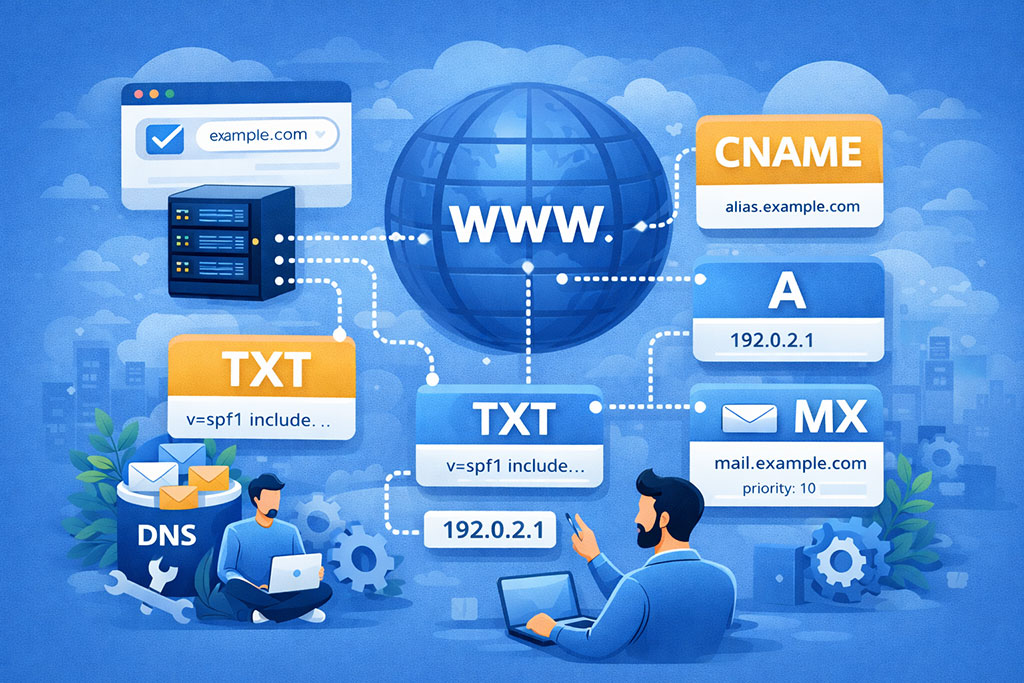
You don’t typically interact directly with the entire DNS resolution process. Instead, you manage your domain’s DNS records through your domain registrar or your hosting provider’s control panel.
Domain Name Registrars
These are companies where you purchase and manage your domain names (e.g., GoDaddy, Namecheap, Google Domains). They are responsible for registering your domain and pointing it to your chosen DNS servers.
The Role of the Registrar in DNS Management
When you buy a domain, your registrar records its existence in the global DNS database. Crucially, they store the “nameserver” records for your domain. These records tell the world which DNS servers are authoritative for your domain.
Hosting Providers
When you sign up for web hosting, you get server space and an IP address for your website. Your hosting provider often offers DNS management tools, or you’ll configure your domain to use their designated DNS servers.
DNS Hosting vs. Domain Registration
It’s important to distinguish between where you register your domain and where you host your website. You can often register a domain with one company and host your website with another. In such cases, you must ensure your domain registrar is configured to point to your hosting provider’s DNS servers.
Common DNS Record Types
Understanding the different types of DNS records is crucial for effective configuration.
A Records (Address Records)
These records map a hostname to an IPv4 address. This is the most fundamental record, pointing your domain name (e.g., yourdomain.com) to the IP address of your web server.
Example of an A Record
| Host | Type | Value | TTL |
| :- | : | : | :- |
| @ | A | 192.0.2.1 | 3600 |
In this example, @ often represents the root domain itself (yourdomain.com), and 192.0.2.1 is the IPv4 address of your server.
AAAA Records (IPv6 Address Records)
Similar to A records, but they map a hostname to an IPv6 address.
Example of an AAAA Record
| Host | Type | Value | TTL |
| :- | : | : | :- |
| @ | AAAA | 2001:0db8:85a3::8a2e:0370:7334 | 3600 |
CNAME Records (Canonical Name Records)
These records create an alias, mapping one hostname to another existing hostname. They are useful for pointing subdomains to other services or for simplifying management.
When to Use CNAME Records
You might use a CNAME to point www.yourdomain.com to yourdomain.com, or to point a subdomain to a third-party service like a CDN or a hosted e-commerce platform.
Example of a CNAME Record
| Host | Type | Value | TTL |
| :- | :- | : | :- |
| www | CNAME | yourdomain.com | 3600 |
MX Records (Mail Exchanger Records)
These records specify the mail servers responsible for receiving email on behalf of your domain. They are critical for email deliverability.
Understanding Mail Server Prioritization
MX records have a priority value, allowing you to designate primary and backup mail servers. Lower priority numbers indicate higher priority.
Example of MX Records
| Host | Type | Priority | Value | TTL |
| :- | : | :- | :– | :- |
| yourdomain.com | MX | 10 | mail.yourdomain.com | 3600 |
| yourdomain.com | MX | 20 | backupmail.yourdomain.com | 3600 |
TXT Records (Text Records)
These records allow administrators to store arbitrary text strings associated with a host. They are often used for verification purposes, such as with SPF, DKIM, and DMARC for email security.
SPF Records (Sender Policy Framework)
An SPF record helps prevent email spoofing by specifying which mail servers are authorized to send email on behalf of your domain.
DKIM Records (DomainKeys Identified Mail)
DKIM adds a digital signature to outgoing emails, allowing receiving servers to verify that the email was indeed sent by your domain and hasn’t been tampered with.
DMARC Records (Domain-based Message Authentication, Reporting & Conformance)
DMARC builds on SPF and DKIM, providing a policy for how receiving servers should handle emails that fail these checks and enabling reporting on email authentication results.
Updating Your Nameservers
The most critical DNS setting for connecting your domain to your hosting server is the nameserver record. This record tells the global DNS system where to find the authoritative DNS information for your domain.
Identifying Your Hosting Provider’s Nameservers
Your hosting provider will provide you with their nameservers. These usually look something like ns1.hostingprovider.com and ns2.hostingprovider.com.
Making the Change at Your Registrar
You will log into your domain registrar’s control panel and find the section for managing your domain’s nameservers. Here, you will replace the existing nameservers with the ones provided by your hosting provider.
Propagation Time
It’s important to understand that DNS changes are not instantaneous. Once you update your nameservers, it can take anywhere from a few minutes to 48 hours for these changes to propagate across the entire internet. During this period, some visitors might reach your old site (if it was active) while others reach the new one.
Troubleshooting Common DNS Issues
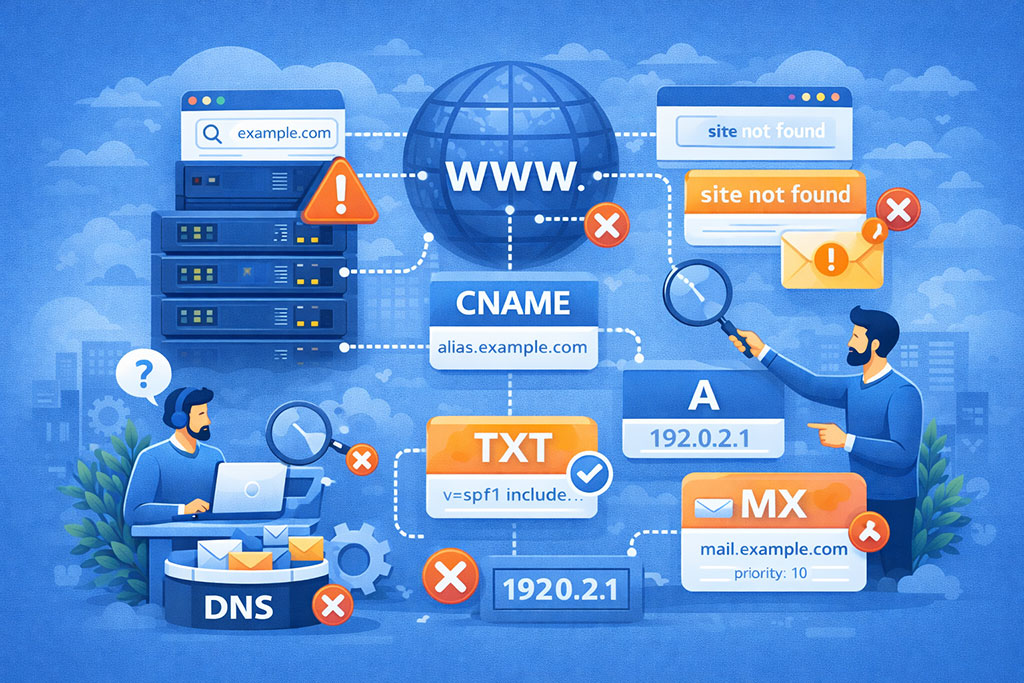
Despite its robust nature, issues with DNS configuration can arise. Knowing how to identify and resolve them is a valuable skill.
My Website Isn’t Loading
This is the most common symptom of a DNS problem.
Verifying Nameserver Settings
The first step is to double-check that your nameserver records at your registrar are correctly pointing to your hosting provider’s nameservers. A typo here can cause the entire connection to fail.
Checking DNS Propagation
Use online DNS lookup tools (like whatsmydns.net) to see if your DNS changes have propagated globally. If you see different IP addresses or server names in different locations, propagation is still in progress.
Confirming IP Address Accuracy
Even if nameservers are correct, ensure the A or AAAA records on your authoritative DNS servers are pointing to the correct IP address of your hosting server.
Email is Not Working
If your website loads but you’re not receiving emails, the issue likely lies with your MX records.
Verifying MX Record Configuration
Ensure your MX records are correctly configured to point to your mail servers. Check for any typos in the mail server hostnames or incorrect priority values.
Checking Mail Server IP Addresses
If your MX records point to hostnames, verify that those hostnames resolve to the correct IP addresses of your mail servers.
Subdomains Are Not Resolving Correctly
Subdomains rely on their own DNS records, often A, AAAA, or CNAME records.
Checking Subdomain Records
Log into your DNS management panel and verify that the specific records for your subdomain are correctly set up. For example, if you have blog.yourdomain.com, ensure there’s an A record or CNAME record for it.
Propagation for Subdomains
Remember that changes to subdomain records also require propagation time.
Using DNS Diagnostic Tools
Several tools can help you diagnose DNS problems.
nslookup and dig Commands
These command-line utilities are powerful for querying DNS servers directly and examining DNS records.
nslookup Example
“`bash
nslookup yourdomain.com
“`
This will show you the IP address associated with yourdomain.com.
dig Example
“`bash
dig yourdomain.com
“`
dig provides more detailed output, including the type of record and the authoritative server.
Online DNS Checkers
Websites like whatsmydns.net, dnschecker.org, and MXToolbox.com offer user-friendly interfaces to check DNS records from various locations around the world.
Understanding how DNS works is crucial for anyone looking to establish a strong online presence. For those interested in exploring how effective hosting can further enhance your website’s performance and ultimately boost your online sales, you might find this article on business hosting particularly insightful. It delves into the relationship between hosting services and revenue generation, providing valuable tips for maximizing your website’s potential.
DNS and Website Security
These technologies encrypt DNS queries, enhancing user privacy by preventing ISPs and other network intermediaries from seeing which websites you are visiting.
Benefits of Encrypted DNS
- Privacy: Prevents man-in-the-middle attacks and snooping on your browsing habits.
- Security: Protects against DNS hijacking and spoofing.
Implementation and Adoption
While adoption is growing, there are still considerations regarding their implementation at scale and their potential impact on network management.
New gTLDs and Their Impact
The introduction of hundreds of new generic Top-Level Domains (gTLDs) has expanded the namespace and created new opportunities for branding and identification. This also means a more complex DNS landscape to manage.
In conclusion, understanding DNS is fundamental to managing your online presence. By grasping the roles of domain names, IP addresses, and the intricate resolution process, and by learning how to configure your DNS records correctly, you gain control over how users find and connect with your website and services. While the technical underpinnings can seem daunting, the tools and resources available make it an accessible and essential aspect of digital ownership.
FAQs
What is DNS?
DNS stands for Domain Name System, and it is a system that translates domain names into IP addresses. This allows users to access websites and other resources using easy-to-remember domain names, rather than having to remember the numerical IP addresses of the servers hosting those resources.
How does DNS connect your domain to hosting servers?
When a user enters a domain name into their web browser, the DNS system is used to look up the IP address associated with that domain. Once the IP address is found, the user’s browser can then connect to the hosting server associated with that IP address to retrieve the website or other resources.
What are DNS servers?
DNS servers are specialized servers that store and manage the IP address information for domain names. When a user’s device needs to look up the IP address for a domain, it sends a request to a DNS server, which then provides the necessary information to connect to the hosting server.
How does DNS propagation work?
DNS propagation refers to the time it takes for DNS changes, such as updating the IP address associated with a domain, to be reflected across all DNS servers on the internet. This process can take anywhere from a few hours to a couple of days, as DNS information is cached and distributed across multiple servers.
What are the different types of DNS records?
There are several types of DNS records, including A records (which map a domain to an IP address), CNAME records (which map a domain to another domain), MX records (which specify the mail servers for a domain), and more. Each type of record serves a specific purpose in the DNS system.









Add comment