
You’ve poured your heart and soul into your WordPress website. You’ve meticulously crafted your content, chosen the perfect theme, and added plugins to enhance functionality. Then, it happens. Something breaks. A cryptic error message appears, a page refuses to load, or your beloved site simply throws a digital tantrum. Panic sets in. You’re not a coder, you don’t speak fluent tech jargon, and the thought of unraveling lines of code sends shivers down your spine. But here’s the good news: troubleshooting WordPress without deep technical skills is not only possible, it’s often easier than you think. This guide is designed to equip you with the knowledge and confidence to tackle common WordPress issues, even if your technical prowess is limited to clicking buttons.
You’ve encountered an error. It might be the dreaded “White Screen of Death,” a database connection error, or a peculiar message that makes no sense. Don’t fret. Most of these errors are not indicators of catastrophic failure, but rather minor hiccups that can be resolved with a systematic approach. The key is to approach them with patience and a methodical mindset.
The Infamous White Screen of Death (WSOD)
This is perhaps the most unnerving error. Your entire site, or a specific section, turns stark white, offering no clues as to what went wrong. Fear not, for this is often a solvable problem.
Identifying the Culprit: Plugins
The most frequent cause of the WSOD is a faulty plugin. A recent update to a plugin, or conflicts between plugins, can easily trigger this issue.
Deactivating Plugins One by One: The most effective way to diagnose a plugin issue is to systematically deactivate them. This requires access to your WordPress admin area. If you can still access your dashboard, navigate to Plugins > Installed Plugins. Select all plugins using the checkboxes, and from the Bulk Actions dropdown, choose Deactivate. If your site immediately springs back to life, you’ve found your culprit. Now, reactivate your plugins one by one, refreshing your site after each activation. When the WSOD reappears, the last plugin you activated is the one causing the problem.
Troubleshooting via FTP/File Manager (If Dashboard is Inaccessible): If the WSOD has rendered your dashboard inaccessible, you can still deactivate plugins. This involves using an FTP client (like FileZilla) or your web hosting provider’s file manager. Navigate to your WordPress installation’s wp-content folder. Within wp-content, you’ll find a folder named plugins. Rename the plugins folder to something else, like plugins_old. This effectively deactivates all plugins. If your site comes back, you know a plugin is the issue. Then, rename the folder back to plugins. Re-enter the plugins folder and rename each individual plugin’s folder one by one (e.g., rename akismet to akismet_old). After each rename, check your website. When the WSOD returns, the plugin folder you last renamed is the problematic one.
Theme Troubles: Another Common Suspect
While less frequent than plugin issues, a theme can also be the source of a WSOD.
Switching to a Default Theme: If deactivating plugins doesn’t resolve the WSOD, your theme could be the cause. You can switch to a default WordPress theme (like Twenty Twenty-One, Twenty Twenty-Two, etc.) via your FTP client or file manager. Navigate to wp-content/themes and rename your active theme’s folder. This will force WordPress to revert to a default theme. If your site returns, your theme is indeed the culprit. You’ll then need to investigate the theme’s code (or contact the theme developer).
Debugging: Peeking Behind the Curtain
WordPress has a built-in debugging mode that can reveal more information about errors.
Enabling WP_DEBUG: Access your WordPress installation’s root directory via FTP or file manager and locate the wp-config.php file. Open this file and find the line that says define( 'WP_DEBUG', false );. Change false to true. You might also want to add the following lines below it to log errors to a file:
“`php
define( ‘WP_DEBUG_LOG’, true );
define( ‘WP_DEBUG_DISPLAY’, false );
@ini_set( ‘display_errors’, 0 );
“`
This will prevent errors from being displayed directly on your screen but will log them to a file named debug.log within your wp-content folder. Examine this file for specific error messages. This often provides more technical insight, but even without fully understanding it, the error message itself can be a valuable clue for online searches.
Database Connection Errors: When Your Site Can’t Talk to Its Brain
Another common frustration is the “Error establishing a database connection.” This means your WordPress site can’t communicate with its database, which is where all your content, settings, and user information are stored.
Checking Your Database Credentials
The most straightforward reason for this error is incorrect database credentials in your wp-config.php file.
Verification and Updates: Locate your wp-config.php file again. Look for these lines:
“`php
define( ‘DB_NAME’, ‘your_database_name’ );
define( ‘DB_USER’, ‘your_database_username’ );
define( ‘DB_PASSWORD’, ‘your_database_password’ );
define( ‘DB_HOST’, ‘localhost’ );
“`
Ensure that the database name, username, and password exactly match the credentials provided by your web hosting provider. If you’re unsure, log into your hosting account’s control panel (cPanel, Plesk, etc.) and look for the “Databases” section. There you’ll find your database names, usernames, and you can often reset your password. If DB_HOST is not localhost, your hosting provider will specify what it should be.
Database Server Issues
Sometimes, the problem isn’t with your credentials but with the database server itself.
Contacting Your Host: If you’ve verified your credentials and are still facing the error, it’s highly likely an issue with your hosting provider’s database server. Reach out to their support team and inform them of the “Error establishing a database connection” on your WordPress site. They can check the status of their servers and resolve any underlying issues.
Database Corruption
In rarer cases, your database might become corrupted.
Repairing the Database: WordPress can automatically attempt to repair your database. To enable this, add the following line to your wp-config.php file:
“`php
define( ‘WP_ALLOW_REPAIR’, true );
“`
After adding this line, visit yourwebsite.com/wp-admin/maint/repair.php in your browser. You’ll see an option to repair your database. It’s recommended to remove the WP_ALLOW_REPAIR line after the repair process is complete.
If you’re looking to enhance your WordPress experience while addressing common issues without needing technical skills, you might find it helpful to explore how effective hosting can impact your website’s performance. A related article that delves into this topic is “How Business Hosting Can Boost Your Online Sales and Revenue,” which discusses the importance of choosing the right hosting service for your business needs. You can read more about it here: How Business Hosting Can Boost Your Online Sales and Revenue.
Keeping Your WordPress Site Shipshape: Updates, Backups, and Maintenance
Proactive maintenance is your best defense against most WordPress headaches. Regularly updating your core, themes, and plugins, and having a reliable backup system in place, can save you from countless hours of troubleshooting.
The Importance of Regular Updates
Think of updates as your site’s health check. They patch security vulnerabilities, introduce new features, and fix bugs.
WordPress Core Updates
When WordPress releases a new version, you’ll see a notification in your dashboard.
Performing Core Updates: Simply click the “update now” button. It’s always recommended to back up your site before performing any major updates.
Theme and Plugin Updates
Similar to core updates, you’ll be notified of available updates for your installed themes and plugins.
Updating Themes and Plugins: Navigate to Dashboard > Updates to see all available updates. You can update them individually or in bulk. Again, take a backup before proceeding.
Why Updates Matter for Security
Outdated software is a prime target for hackers. Security patches are released to close known vulnerabilities. By keeping everything up-to-date, you significantly reduce your site’s risk of being compromised.
Your Digital Safety Net: The Power of Backups
Imagine losing all your hard work. A comprehensive backup system is your insurance policy against data loss, accidental deletions, or even a hacked website.
Types of Backups
There are several ways to back up your WordPress site.
Manual Backups (FTP/Database): This involves manually downloading your website files via FTP and exporting your database from your hosting control panel. While effective, it’s time-consuming and prone to human error.
Plugin-Based Backups: This is the most user-friendly approach for non-technical users. Many excellent backup plugins are available.
Popular Backup Plugins:
- UpdraftPlus: A very popular and feature-rich plugin that allows you to schedule automatic backups and store them in cloud storage like Dropbox, Google Drive, or Amazon S3.
- VaultPress (part of Jetpack): Offers real-time backups and is highly reliable.
- BackupBuddy: A premium plugin with advanced features and a user-friendly interface.
Automating Your Backups
Manual backups are easily forgotten. Automation is key. Most backup plugins allow you to schedule regular backups (daily, weekly, monthly) and choose where to store them.
Storing Backups Off-Site: It’s crucial to store your backups in a location separate from your web server. If your server crashes, your backups will be safe with an off-site solution like Dropbox or cloud storage.
Essential Website Maintenance Tasks
Beyond updates and backups, a few simple maintenance tasks can keep your site running smoothly.
Cleaning Up Your Database
Over time, your WordPress database can accumulate unnecessary data.
Using a Database Optimization Plugin: Plugins like WP-Optimize or Advanced Database Cleaner can help you clean up post revisions, spam comments, trashed posts, and temporary transients. These plugins also offer database optimization features, which can improve your site’s speed.
Checking for Broken Links
Broken links are bad for user experience and can negatively impact your SEO.
Using a Broken Link Checker Plugin: Plugins like Broken Link Checker can scan your entire website for broken internal and external links, allowing you to fix or remove them.
When Things Go Wrong Visually: Theme and Plugin Conflicts
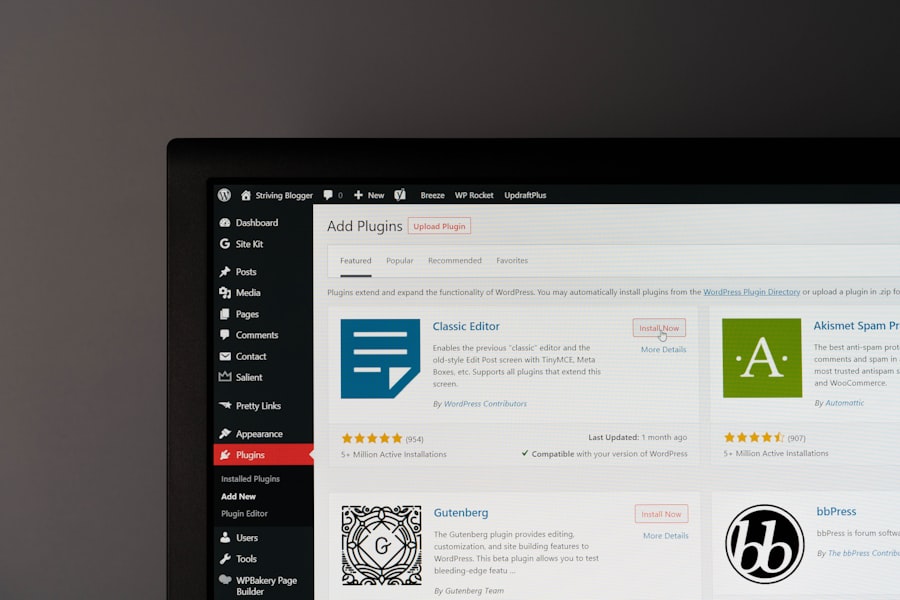
Sometimes, your site might look fine, but certain elements are not displaying correctly, or entire sections are broken. This often points to a conflict between your theme and a plugin, or between two or more plugins.
Identifying Visual Glitches
Visual problems can be subtle or glaringly obvious.
Specific Page or Element Issues
If a particular page is misbehaving or a specific feature (like a contact form or a slider) isn’t working as expected, it’s a good starting point.
Deactivating Plugins (Again, with a Focus): Similar to the WSOD, the first step is to deactivate plugins. However, this time, your focus is on functionality rather than the entire site going down. If deactivating a plugin resolves the visual issue on a specific page or element, you’ve likely found the offender.
Inspecting Elements with Browser Tools
Even without coding knowledge, you can use your browser’s developer tools to get a peek at what’s happening behind the scenes.
Using Browser Developer Tools (F12): Right-click on the problematic element on your webpage and select “Inspect” or “Inspect Element.” This will open a panel showing the HTML and CSS code. Look for any red error messages or suspicious-looking attributes in the console tab. While you might not understand the code, an error message in the console can be a valuable search term for troubleshooting.
Theme and Plugin Compatibility
Not all themes and plugins play nicely together.
Checking Plugin Documentation
Before installing a new plugin, it’s wise to check its documentation for known conflicts with popular themes.
Theme Updates and Support
If you suspect your theme is causing issues, ensure it’s up-to-date. If the problem persists, contact your theme developer for support. They are the experts on their own code.
Leveraging Online Resources: Your Community of Helpers

You are not alone in your WordPress struggles. The WordPress community is vast and incredibly helpful. For every problem you encounter, chances are someone else has faced it before and found a solution.
The Power of the WordPress Knowledge Base
The official WordPress.org website is a treasure trove of information.
WordPress Support Forums
The WordPress.org Support Forums are where users and developers help each other. You can search for existing solutions or post your own question. When asking for help, be as detailed as possible about the problem, what you’ve already tried, and any error messages you’re seeing.
WordPress Codex/Developer Resources
While the Codex might be more technical, it contains in-depth explanations of WordPress functionality. Even if you don’t understand the code, you might find descriptions that help you articulate your problem.
Search Engines: Your Best Friend
Google is your ally in troubleshooting.
Effective Search Queries
When you encounter an error message, copy and paste the exact text into Google. For instance, if you see “PHP Fatal error: Call to undefined function…”, search for that specific phrase.
Combining Keywords: Combine error messages with keywords like “WordPress,” “plugin name,” or “theme name” for more targeted results. For example: “WordPress HTTP Error 500 plugin XYZ” or “WordPress database connection error localhost.”
Reading Forum Threads and Blog Posts
You’ll often find discussions on forums or blog posts detailing similar issues and their resolutions. Don’t be afraid to try solutions that worked for others.
If you’re looking to enhance your WordPress experience without diving into technical complexities, you might find it helpful to explore related topics such as web hosting options. For instance, understanding the fundamentals of Linux hosting can significantly impact your website’s performance and reliability. You can read more about this in the article on Linux hosting, which provides insights that can help you make informed decisions for your WordPress site.
When to Call in the Professionals
| Common WordPress Issue | Possible Solution |
|---|---|
| White Screen of Death | Deactivate plugins, switch to default theme, increase memory limit |
| 404 Error | Check permalinks, update .htaccess file, check for conflicting plugins |
| Internal Server Error | Check .htaccess file, increase PHP memory limit, check for plugin conflicts |
| Connection Timed Out | Check internet connection, disable VPN, clear browser cache |
| Plugin Compatibility Issues | Update plugins, deactivate conflicting plugins, check for plugin updates |
While this guide empowers you to tackle many common WordPress issues, there comes a time when professional help might be the most efficient and effective solution.
Identifying Complex Problems
Some errors are deeply ingrained or involve advanced configurations.
Persistent Issues After Troubleshooting
If you’ve exhausted all the troubleshooting steps outlined here and your site is still not functioning correctly, it might be time to consider professional assistance.
Security Breaches and Malware Removal
If you suspect your site has been hacked or infected with malware, attempting to fix it yourself without proper expertise can often exacerbate the problem. Security experts can effectively identify, remove, and secure your site.
Performance Optimization Challenges
While basic performance can be improved with plugins, achieving significant speed improvements for high-traffic or complex sites often requires advanced optimization techniques that are best left to professionals.
How to Find Trusted WordPress Experts
The WordPress ecosystem is filled with talented individuals and agencies.
Freelance Platforms
Platforms like Upwork, Fiverr, and Toptal have many skilled WordPress developers and troubleshooters. Look for profiles with high ratings, positive reviews, and relevant experience.
WordPress Agencies
Many agencies specialize in WordPress development and maintenance. They often offer comprehensive support packages that include troubleshooting and ongoing site management.
Recommendations and Referrals
If you know other WordPress users, ask for recommendations for developers or agencies they’ve worked with and trust.
Even without a deep understanding of code, you can become a confident WordPress troubleshooter. By understanding common errors, practicing good maintenance habits, and knowing how to leverage the vast online community, you can keep your website running smoothly and effectively. Remember, patience and a systematic approach are your most powerful tools.
FAQs
1. What are some common WordPress issues that can be fixed without technical skills?
Some common WordPress issues that can be fixed without technical skills include website downtime, white screen of death, plugin conflicts, and broken links.
2. How can website downtime be fixed without technical skills?
Website downtime can be fixed without technical skills by checking the hosting provider for any server issues, clearing the browser cache, and disabling recently installed plugins.
3. What can be done to resolve the white screen of death in WordPress without technical skills?
To resolve the white screen of death in WordPress without technical skills, users can deactivate all plugins, switch to a default theme, and increase the memory limit in the wp-config.php file.
4. How can non-technical users fix plugin conflicts in WordPress?
Non-technical users can fix plugin conflicts in WordPress by deactivating all plugins and then reactivating them one by one to identify the conflicting plugin.
5. What are some simple ways to fix broken links on a WordPress website without technical skills?
Simple ways to fix broken links on a WordPress website without technical skills include using a broken link checker plugin, manually checking and updating links, and setting up 301 redirects for broken links.









Add comment