
You’re building a fantastic WordPress website, a digital storefront, a creative portfolio, a hub for your community. You’ve got the design nailed, the content is flowing, and now it’s time to add that extra bit of functionality, that specific feature that will make your site truly shine. You’re thinking about plugins, those little powerhouses that extend WordPress’s capabilities. And that’s brilliant! Plugins are what make WordPress so versatile. But here’s a crucial truth you need to internalize: not all plugins are created equal. In fact, a poorly chosen plugin can be the silent killer of your website’s performance, turning your lightning-fast site into a sluggish, frustrating experience for your visitors. This is where the art of selecting efficient WordPress plugins comes into play, ensuring you enhance your site without inviting slowdowns.
Your website’s speed is paramount. In today’s fast-paced digital world, users expect instant gratification. A website that takes more than a few seconds to load risks losing visitors forever. Search engines, particularly Google, also heavily prioritize speed in their rankings. So, choosing plugins wisely isn’t just about functionality; it’s about safeguarding your user experience and your search engine optimization (SEO) efforts. This guide will equip you with the knowledge and strategies to navigate the vast plugin landscape, empowering you to make informed decisions that keep your WordPress site lean, mean, and remarkably fast.
Before you dive headfirst into the plugin directory, it’s essential to understand why plugins can cause slowdowns. Think of your WordPress site as a well-oiled machine. Each plugin you install is like adding a new gear or component. If that component is perfectly engineered, it integrates seamlessly, and the machine hums along beautifully. However, if that component is poorly designed, inefficiently coded, or simply unnecessary, it can create friction, strain the engine, and ultimately slow everything down.
The Hidden Costs of Poor Plugin Choices
It’s easy to get seduced by a plugin’s feature set. You see a plugin that promises to do something amazing, and you click “install.” But what you might not see is the underlying code, the database queries it’s running, the external scripts it’s loading, or the way it interacts with other parts of your site. These are the hidden costs that can lead to significant performance degradation.
Excessive Database Queries
Every time a user visits your site, or when you perform certain actions within the WordPress dashboard, your site makes requests to your database. Plugins that are inefficiently coded often perform a multitude of unnecessary database queries. Imagine asking for a single piece of information from a library, but instead of going directly to the shelf, you have to ask the librarian to open 10 different cabinets, then search through each one, before finally getting your answer. That’s what excessive database queries feel like to your server. Over time, this can lead to a bloated database and a significantly slower response time for every page load.
Bloated Code and Unnecessary Features
Many plugins are developed with a “more is more” philosophy, packing in every conceivable feature. While this might appeal to some users, it often results in bloated code. This means the plugin’s files are larger than they need to be, taking longer to download and process. Furthermore, even if you’re only using a fraction of a plugin’s features, the entire codebase is still loaded, contributing to a heavier website. This is akin to buying a complex, high-end tool when you only need a simple screwdriver; the complexity is unnecessary and potentially counterproductive.
Javascript and CSS Conflicts and Bloat
Plugins often enqueue their own Javascript and CSS files to provide their functionality and styling. When you have multiple plugins doing this, you can end up with a large number of these files. The browser has to download and parse all of them, which takes time. Worse still, Javascript and CSS files can conflict with each other, leading to broken features or unexpected visual glitches, and requiring even more time for the browser to sort out the mess.
External API Calls and Third-Party Scripts
Some plugins rely on external APIs or load third-party scripts to function. While these can be powerful, they introduce external dependencies. If the external server is slow to respond, or if the third-party script is not optimized, it can significantly hold up your page load times. You’re essentially adding another point of failure and delay to your website’s loading process.
When considering how to choose plugins that do not slow down WordPress, it’s also beneficial to explore additional resources that focus on optimization strategies. A related article that can provide valuable insights is titled “7 Essential WordPress Optimization Plugins for 2025,” which discusses various plugins that can enhance your site’s performance without compromising speed. You can read the article here: 7 Essential WordPress Optimization Plugins for 2025.
The Pillars of Efficient Plugin Selection
Now that you understand the potential pitfalls, let’s focus on the proactive steps you can take to select plugins that will enhance your site without hindering its performance. These pillars will guide your decision-making process.
1. Prioritize Functionality Over “Wow” Factor
The most important question to ask yourself when considering a plugin is: **”Do I truly need this functionality?”** It’s easy to get excited by a plugin that offers a dazzling array of features, but if those features are not essential to your website’s core purpose, you should reconsider.
Identify Your Website’s Core Needs
Before you even start browsing plugins, make a clear list of the essential functionalities your website requires. Are you building an e-commerce store? You’ll need a robust e-commerce plugin. Do you want to showcase your photography? A gallery plugin is essential. Trying to add too many “nice-to-have” features can quickly lead to a bloated and slow website. Focus on plugins that directly address your primary goals.
Explore Built-in WordPress Features First
Before reaching for a plugin, investigate if WordPress itself offers the functionality you need. WordPress has evolved significantly, and many common tasks are now handled by its core features. For example, you don’t need a plugin for basic image galleries, post formats, or user roles. Understanding WordPress’s native capabilities can save you from installing unnecessary third-party extensions.
Consider Simpler Alternatives
If a plugin offers a complex solution to a relatively simple problem, look for simpler, more streamlined alternatives. A plugin that adds social media sharing buttons is a prime example. Some are incredibly feature-rich, offering advanced customization and tracking, while others are incredibly lightweight and do exactly what you need them to do: share your content. Opt for the latter.
2. Scrutinize Plugin Quality and Reputation
Just like choosing a contractor for your home, you want to work with reputable and reliable plugin developers. The quality of the code and the ongoing support offered by a plugin developer are crucial indicators of its efficiency and long-term viability.
Check Plugin Reviews and Ratings
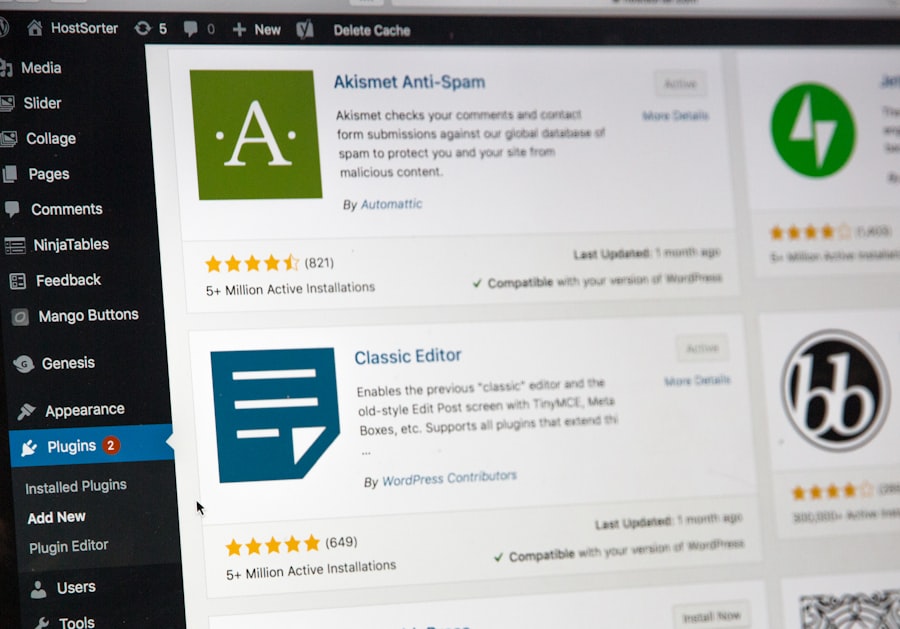
Plugin directories are brimming with user reviews and star ratings. While a few negative reviews are normal, a pattern of complaints about performance issues, bugs, or poor support should be a major red flag. Look for plugins with a consistently high rating and a large number of positive reviews. Pay attention to the content of the reviews, not just the star count. Are users praising its speed and efficiency, or are they complaining about it slowing down their site?
Examine the Last Updated Date and Update Frequency
A plugin that hasn’t been updated in a long time is a potential security risk and is likely not compatible with the latest versions of WordPress, its themes, or other plugins. This can lead to conflicts and performance issues. Conversely, a plugin that is updated too frequently might indicate a developer struggling to fix bugs, which can also be a sign of unstable code. Look for plugins that are regularly maintained and updated, demonstrating ongoing developer commitment. Ideally, you want to see updates within the last few months.
Investigate the Developer’s Website and Support Channels
Reputable plugin developers usually have a dedicated website where you can find more information about their products, read documentation, and access support forums or contact forms. A lack of transparency or a professional online presence can be a warning sign. Check their support forums to see if they actively respond to user queries and if they address performance-related issues promptly.
3. Assess Plugin Performance Impact
This is where you get hands-on. Before committing to a plugin, you need to understand how it will affect your website’s speed. There are several ways to do this.
Utilize Website Speed Testing Tools
Tools like Google PageSpeed Insights, GTmetrix, and Pingdom are invaluable for assessing your website’s performance. Before installing a new plugin, run a speed test on your current site. Then, install the plugin and run the test again. Compare the results. If there’s a significant drop in your scores, especially in metrics like “Time to Interactive” or “Largest Contentful Paint,” the plugin is likely impacting your speed negatively.
Perform Local Testing or Staging Environments
The absolute best way to test a plugin’s impact is to do so in an isolated environment. You can set up a local WordPress installation on your computer or create a staging environment (a copy of your live site) on your web host. This allows you to install and experiment with plugins without risking your live website’s performance. Thoroughly test all the functionalities you intend to use and run speed tests after each plugin installation.
Look for Lightweight and Modular Plugins
Many plugins are built with a modular approach. This means you can disable specific features or components within the plugin that you don’t need, reducing its overall footprint and impact on performance. Similarly, some plugins are specifically designed to be lightweight and minimalist, focusing on delivering core functionality efficiently. These are often your best bet.
When optimizing your WordPress site, it’s essential to consider not only the plugins you choose but also the underlying technology that powers your website. For instance, understanding the differences between storage options can significantly impact your site’s performance. A related article discusses the speed differences between NVMe and SSD drives for dynamic websites, which can be crucial when selecting a hosting solution that complements your plugin choices. You can read more about this topic in the article on NVMe vs SSD speed differences.
4. Understand Plugin Compatibility and Dependencies
A plugin doesn’t operate in a vacuum. It interacts with your WordPress core, your theme, and other plugins. Poor compatibility can lead to errors, conflicts, and performance bottlenecks.
Check Plugin Requirements and Compatibility Notes
Most well-developed plugins will clearly state their compatibility requirements. This includes the minimum PHP version, WordPress version, and any other plugins or themes they are known to work well with, or any known conflicts. Always read these notes before installation.
Minimize Plugin Overlap
Avoid installing multiple plugins that offer the same or very similar functionality. For instance, you likely only need one SEO plugin, one caching plugin, and one security plugin. Using multiple plugins for the same task not only adds unnecessary overhead but also increases the chances of conflicts.
Be Wary of Too Many Dependencies
Some plugins rely on a vast network of other plugins or external libraries to function. While this can enable powerful features, it also creates a complex web of dependencies. If one of those dependencies is slow or buggy, your entire plugin, and potentially your site, will suffer. Prioritize plugins with fewer external dependencies.
5. Optimize Your Plugin Usage and Maintenance
Once you’ve selected and installed your plugins, your work isn’t done. Ongoing optimization and maintenance are crucial for sustained performance.
Regularly Audit Your Installed Plugins
Periodically review your list of installed plugins. Are there any you are no longer using? Deactivate and delete them. Even deactivated plugins can leave behind database entries or orphaned files that can contribute to bloat. A lean plugin list is a fast plugin list.
Keep Plugins Updated (Wisely)
As mentioned, keeping plugins updated is vital for security and compatibility. However, it’s wise to do so cautiously. Always back up your site before performing major updates, and test thoroughly afterward to ensure no performance regressions have occurred. Consider updating plugins one by one to isolate any issues.
Leverage Caching Plugins Effectively
Caching plugins are essential for improving website speed by serving static versions of your pages to visitors, reducing the need for your server to process dynamic content. However, not all caching plugins are created equal, and improper configuration can sometimes lead to issues. Choose a reputable caching plugin and ensure you configure it correctly for your site.
Optimize Images and Media
While not directly a plugin selection strategy, remember that unoptimized images and media files are a major cause of slow websites. Plugins that handle image optimization (like Smush or ShortPixel) are incredibly valuable. However, even the best optimization plugin can’t fix the problem if you’re uploading enormous, uncompressed image files. Always compress and resize your images before uploading them, or ensure your optimization plugin is configured to do so automatically.
The “When in Doubt, Leave it Out” Philosophy
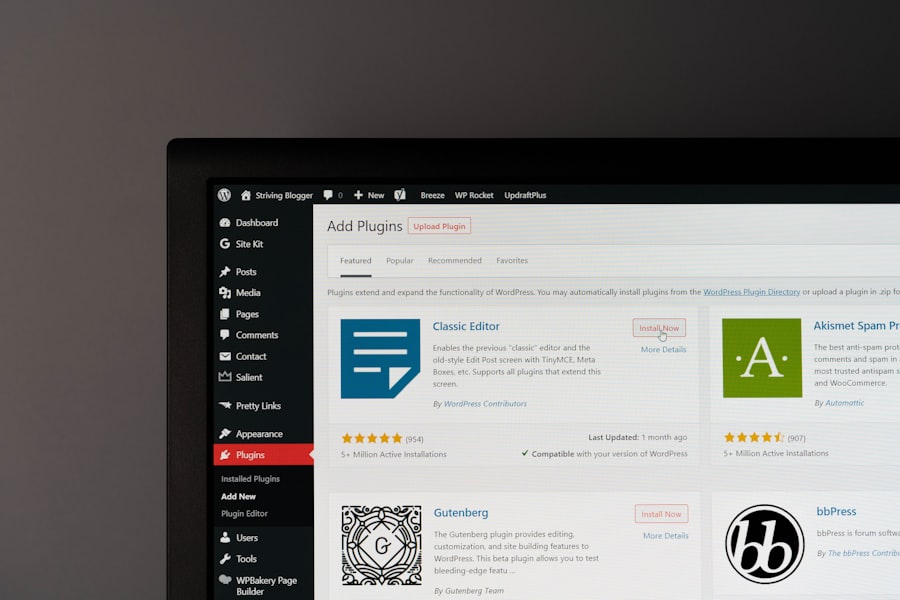
Ultimately, the most efficient WordPress plugin is often the one you don’t install. Every plugin adds code, resources, and potential points of failure to your website. Before you install any new plugin, ask yourself:
- Is this absolutely essential?
- Are there simpler alternatives, or can WordPress do this natively?
- What is the potential performance impact?
- Does the plugin have a strong reputation for quality and efficiency?
By adopting a critical and discerning approach to plugin selection, you can build a WordPress website that is not only packed with the functionality you need but also remains fast, responsive, and a joy for your visitors to use. Remember, a fast website is a successful website, and that journey begins with smart plugin choices. You are the architect of your website’s performance; choose your tools wisely, and your digital creation will thrive.
FAQs
1. What are the factors to consider when choosing plugins for WordPress?
When choosing plugins for WordPress, it’s important to consider factors such as the plugin’s reputation, reviews, compatibility with your WordPress version, frequency of updates, and the developer’s track record.
2. How can I determine if a plugin will slow down my WordPress site?
You can determine if a plugin will slow down your WordPress site by checking its performance impact using tools like P3 (Plugin Performance Profiler) or Query Monitor. Additionally, you can read reviews and user feedback to see if others have experienced performance issues with the plugin.
3. Are there specific types of plugins that are more likely to slow down WordPress?
Yes, certain types of plugins, such as those that make extensive database queries, load large external files, or have poorly optimized code, are more likely to slow down WordPress. It’s important to be cautious when installing plugins that fall into these categories.
4. What are some best practices for choosing plugins that do not slow down WordPress?
Some best practices for choosing plugins that do not slow down WordPress include researching the plugin’s performance impact, avoiding redundant or unnecessary plugins, regularly updating plugins, and using caching and optimization tools to improve site speed.
5. How can I optimize my WordPress site’s performance when using plugins?
To optimize your WordPress site’s performance when using plugins, you can implement techniques such as using a content delivery network (CDN), optimizing images, minifying CSS and JavaScript files, and utilizing caching plugins. Regularly monitoring your site’s performance and making adjustments as needed can also help maintain optimal speed.









Add comment