
You’ve built your WordPress site, poured your heart into its content, and perhaps even started seeing some traffic. Congratulations! But there’s a lurking danger in the digital realm: malware and login attacks. Ignoring these threats is like leaving your front door wide open in a bad neighborhood. You need to become your site’s cybersecurity guardian, and this comprehensive guide will show you how.
Before you can effectively defend your WordPress site, you need to understand why it’s a target. You might think your site is too small or insignificant to attract attention, but that’s a dangerous misconception. Attackers aren’t necessarily looking for specific individuals; they’re often casting wide nets, aiming for any vulnerable site they can exploit.
The Allure of WordPress
WordPress, as the world’s most popular Content Management System (CMS), is a double-edged sword. Its ubiquity means a massive ecosystem of themes, plugins, and developers, but it also makes it a prime target for malicious actors.
- Market Share Dominance: Over 40% of all websites on the internet run on WordPress. This sheer volume makes it an attractive target for attackers who develop exploits that can be leveraged across thousands, if not millions, of sites.
- Open-Source Nature: While a strength in terms of community and flexibility, the open-source nature means vulnerabilities can be discovered and, unfortunately, exploited by anyone, including those with nefarious intentions.
- Ecosystem Vulnerabilities: The vast array of themes and plugins, while offering incredible functionality, also introduces numerous potential entry points for attackers. A single poorly coded plugin can compromise an entire site.
The Motivations Behind Attacks
Understanding why attackers target your site helps you anticipate their methods. It’s not always about direct financial gain, though that’s often a significant factor.
- Website Defacement: Sometimes, attackers simply want to mar your site’s reputation, perhaps for ideological reasons or simply for “fun.” This can damage your brand and user trust.
- SEO Spam & Phishing: Compromised sites are often used to inject spammy links, redirect users to malicious websites, or host phishing pages designed to steal sensitive information from your visitors.
- Server Resources & Botnets: Attackers might hijack your server’s resources to send spam emails, launch Denial of Service (DoS) attacks against other targets, or become part of a larger botnet.
- Data Theft: If your site handles sensitive user data (e.g., e-commerce, membership sites), attackers might try to steal credit card information, personal details, or login credentials.
- Ransomware: In some extreme cases, your site’s data might be encrypted and held for ransom, demanding payment for its release.
By recognizing these motivations, you can better appreciate the importance of a layered security approach, preparing yourself for a multi-faceted defense.
To effectively safeguard your WordPress site from malware and login attacks, it’s essential to implement a comprehensive security strategy. In addition to the tips provided in our article on protecting WordPress, you may find valuable insights in this related article on how business hosting can enhance your online sales and revenue. By choosing the right hosting provider, you can improve your site’s performance and security, which ultimately contributes to a safer online environment. For more information, check out the article here: How Business Hosting Can Boost Your Online Sales and Revenue.
Fortifying Your Foundational WordPress Security
Your WordPress installation itself is the first line of defense. Just like building a house, a strong foundation is paramount. Overlooking these fundamental steps leaves your site vulnerable from day one.
Choosing a Reputable Web Host
Your web host is the bedrock of your online presence. A cheap or unreliable host can undermine even the most robust security measures you implement yourself.
- Managed WordPress Hosting: Consider managed WordPress hosting, which often includes server-level security, automatic updates, daily backups, and expert support. They handle core security aspects, freeing you to focus on your content.
- Server-Side Security: Inquire about their server-side security measures: firewalls, intrusion detection systems (IDS), denial-of-service (DoS) protection, and regular vulnerability scanning.
- Isolation and Resource Allocation: Ensure your host provides sufficient isolation between accounts on shared hosting to prevent one compromised site from affecting your own.
- Reputation and Support: Research their reputation for security and the responsiveness of their support team. When a breach occurs, you need immediate assistance.
Keeping Everything Updated
This is arguably the single most important security measure you can take. Outdated software is a hacker’s playground. Developers constantly release updates that patch security vulnerabilities, and if you don’t apply them, you’re leaving those holes wide open.
- WordPress Core: Enable automatic minor updates for WordPress. For major version updates, test them on a staging site first, but apply them promptly after they’re deemed stable.
- Themes: Update your themes regularly. If you use a premium theme, ensure you have an active license to receive updates.
- Plugins: This is often the weakest link. Keep all plugins updated. Before installing any plugin, check its last update date, compatibility with current WordPress versions, and user reviews. Remove any unused or abandoned plugins.
- PHP Version: Ensure your host is running the latest stable version of PHP. Newer PHP versions not only offer performance improvements but also come with enhanced security features. Old PHP versions are often riddled with known vulnerabilities.
Strong & Unique Passwords
You wouldn’t use the same key for your house, car, and office, would you? The same principle applies to passwords. Weak or reused passwords are an open invitation for attackers.
- Complexity: Use long, complex passwords that combine uppercase and lowercase letters, numbers, and symbols. Aim for at least 12-16 characters.
- Uniqueness: Never reuse passwords across different sites or services. If one site is breached, your other accounts remain secure.
- Password Manager: Employ a reputable password manager (e.g., LastPass, 1Password, Bitwarden). These tools generate strong, unique passwords and securely store them, so you only need to remember one master password.
- For All Users: Enforce strong password policies for all users on your WordPress site, especially administrators and editors.
Limiting User Privileges
The principle of least privilege is crucial in cybersecurity. Grant users only the minimum access levels they need to perform their tasks.
- Administrator Account: You should have only one (or a very limited number of) administrator account. This account should be used only for administrative tasks, not for regular content creation.
- Editor, Author, Contributor: Assign appropriate roles to other users. An editor can manage all posts, but not change site settings. An author can write and publish their own posts, but not others’. A contributor can write posts but not publish them.
- Create Dedicated Accounts: Avoid sharing admin credentials. Each user should have their own login with the appropriate role.
Bolstering Your Login Security
Login pages are often the first point of attack for malicious actors. Brute-force attacks, where automated bots try thousands of password combinations, are incredibly common. You need to make your login page a fortress.
Changing the Default Login URL
By default, your WordPress login page is /wp-login.php or /wp-admin. This is publicly known, allowing bots to target it directly. Changing this URL adds a layer of obscurity, making it harder for automated attacks.
- Plugins: Use a security plugin (like WPS Hide Login or iThemes Security) to easily change your login URL to something unique (e.g.,
yourdomain.com/secret-login). - Never Reveal: Once changed, never share this custom URL publicly. It’s for you and your trusted users only.
Implementing Two-Factor Authentication (2FA)
Two-Factor Authentication is non-negotiable for serious WordPress security. It adds an extra layer of defense beyond just a password. Even if an attacker somehow guesses your password, they won’t be able to log in without the second factor.
- “Something You Have”: This typically involves a code sent to your phone via SMS, generated by an authenticator app (like Google Authenticator or Authy), or a physical security key (like YubiKey).
- WordPress Plugins: Numerous plugins (e.g., Wordfence Security, iThemes Security, WP 2FA) integrate 2FA seamlessly into your WordPress login process.
- Enforce for All Admins: Make 2FA mandatory for all administrator accounts. Ideally, everyone on your site should use it.
Limiting Login Attempts
Brute-force attacks rely on repeated attempts. By limiting these attempts, you effectively shut down this attack vector.
- Plugins: Security plugins like Wordfence, Limit Login Attempts Reloaded, or iThemes Security have built-in features to limit login attempts.
- Lockout Features: Configure the plugin to lock out an IP address after a certain number of failed login attempts within a specified timeframe.
- Notification: Set up email notifications so you’re alerted when a lockout occurs, which can indicate an ongoing attack.
Captcha on Login Page
Captchas (Completely Automated Public Turing test to tell Computers and Humans Apart) help distinguish between human users and automated bots trying to log in.
- Google reCAPTCHA: This is the most common and effective option. Plugins like reCAPTCHA for WordPress, or those included in major security suites, can easily integrate it into your login, registration, and comment forms.
- Invisible reCAPTCHA: This version often works in the background, only challenging users who exhibit suspicious behavior, offering a better user experience.
Proactive Malware Prevention and Detection
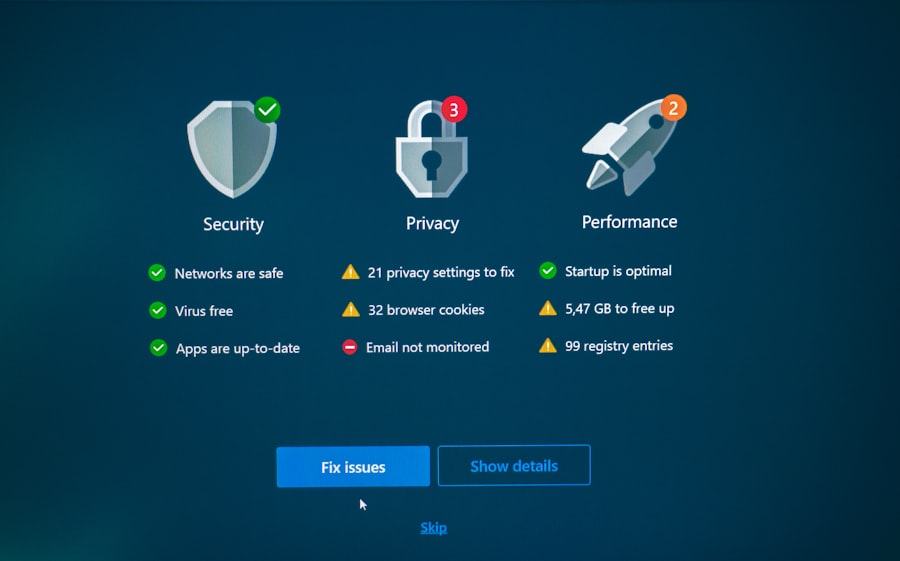
Malware can silently infiltrate your site, causing damage before you even realize it. Proactive measures are key to preventing these infections and quickly detecting them if they do occur.
Installing a Robust Security Plugin
A comprehensive security plugin is your all-in-one security suite. It acts as a firewall, scanner, and monitor, providing a significant boost to your site’s defenses.
- Firewall (WAF): Choose a plugin with a Web Application Firewall (WAF). A WAF filters malicious traffic before it even reaches your WordPress site, blocking common attacks like SQL injection and cross-site scripting (XSS).
- Malware Scanner: The plugin should include a scanner that regularly checks your WordPress core files, themes, and plugins for malicious code, backdoors, and known vulnerabilities.
- File Integrity Monitoring: This feature monitors any changes to your core WordPress files. If an unauthorized change occurs, it alerts you, helping to detect tampering.
- Activity Logging: A good security plugin logs all significant events on your site—logins, failed login attempts, file changes, etc.—providing an audit trail for investigation.
- Reputation Checks: Some plugins can check if your site’s IP address has been blacklisted by search engines or security databases.
Regular Backups
Backups are your ultimate safety net. If your site is compromised, hacked, or encounters a critical error, a recent backup allows you to restore it to a clean state.
- Frequency: Automate daily or even hourly backups, especially for active sites.
- Storage Location: Store backups in multiple, off-site locations (e.g., cloud storage like Dropbox, Google Drive, Amazon S3, or a separate server). Never store backups only on the same server as your website.
- Testing: Periodically test your backups by restoring them to a staging environment to ensure they are complete and functional.
- Plugins: Use reputable backup plugins like UpdraftPlus, BackWPup, or VaultPress (Jetpack Backup). Many web hosts also offer their own backup solutions.
Hardening Your .htaccess File
The .htaccess file is a powerful configuration file for Apache web servers (which most WordPress sites use). You can leverage it to implement several security measures.
- Disable Directory Browsing: Prevent attackers from seeing the contents of your directories, which can reveal vulnerabilities. Add
Options -Indexesto your.htaccessfile. - Disable PHP Execution in Uploads: Prevent malicious PHP scripts from running if they’re uploaded to your
wp-content/uploads/directory. Create a new.htaccessfile in that directory with:
“`
deny from all
“`
- Restrict Access to
wp-config.php: This file contains crucial database credentials. Restrict access to it:
“`
Order allow,deny
Deny from all
“`
Note: Some security plugins or server configurations might already handle these or conflict with them. Always back up your .htaccess file before making changes.
Using SSL/TLS (HTTPS)
While primarily for data encryption during transit, HTTPS is also a security best practice. It ensures that data exchanged between your users and your site is encrypted, preventing eavesdropping and tampering.
- Encrypts Data: Protects sensitive information like login credentials, credit card details, and contact forms from being intercepted.
- Trust and SEO: Browsers flag HTTP sites as “not secure,” deterring visitors. HTTPS also provides a minor SEO ranking boost.
- Free Certificates: Services like Let’s Encrypt offer free SSL certificates, and most hosts provide easy integration.
To enhance your website’s security, it’s essential to stay informed about the latest best practices. A great resource for this is an article that discusses various strategies for securing your online presence. You can find valuable insights on how to protect your WordPress site from malware and login attacks by visiting this informative article. By implementing these strategies, you can significantly reduce the risk of cyber threats and ensure a safer experience for your visitors.
Post-Attack Procedures: Damage Control and Recovery
| Security Measure | Description |
|---|---|
| Use Strong Passwords | Encourage users to use complex passwords with a combination of letters, numbers, and special characters. |
| Enable Two-Factor Authentication | Implement an extra layer of security by requiring users to provide a second form of verification. |
| Keep WordPress Updated | Regularly update WordPress core, themes, and plugins to patch security vulnerabilities. |
| Install Security Plugins | Use reputable security plugins to monitor and protect against malware and login attacks. |
| Limit Login Attempts | Set a maximum number of login attempts to prevent brute force attacks. |
| Use HTTPS | Encrypt data transmission between the user’s browser and the website with an SSL certificate. |
Despite your best efforts, sometimes an attacker might still breach your defenses. Knowing what to do in such a scenario is just as important as prevention. Swift action minimizes damage and helps you recover quickly.
Immediate Action Upon Discovery
Panic is not a strategy. As soon as you suspect a breach, take these immediate steps:
- Take Your Site Offline (Or Maintenance Mode): If the compromise is severe (e.g., defacement, spam injection), put your site into maintenance mode or temporarily take it offline. This prevents further damage, protects your users, and stops the attacker from continuing their activities.
- Change All Passwords: Change passwords for your WordPress admin, database, hosting control panel, FTP/SFTP, and any associated email accounts. Use strong, unique passwords.
- Notify Your Host: Inform your web host immediately. They might be able to provide server-level insights or help quarantine the compromise.
- Isolate the Damage: If possible, try to identify the compromised files or directories.
Cleaning Your Site
This is critical and often requires expertise. Don’t simply delete files; you need to understand the extent of the infection.
- Restore from a Clean Backup: The fastest and most reliable method. If you have a recent, clean backup (before the compromise), restore your entire site from it. Ensure the backup itself isn’t compromised.
- Malware Scan and Removal:
- Security Plugins: Use your installed security plugin (e.g., Wordfence, Sucuri, MalCare) to run a full scan and attempt to clean infected files.
- Manual Cleaning (Advanced): For experienced users, this involves meticulously reviewing core WordPress files, theme files, and plugin files for unusual code. Compare your active files against fresh copies from the WordPress repository or theme/plugin developers.
- Professional Services: If you’re unsure or struggling, engage a professional WordPress security service (like Sucuri SiteCheck, MalCare, or Wordfence’s premium cleanup) to clean your site. They have specialized tools and expertise to identify and remove even hidden backdoors.
Post-Cleanup Measures
After cleaning, you’re not entirely out of the woods. You need to take steps to bolster your defenses and prevent recurrence.
- Analyze the Attack Vector: Try to determine how the attacker gained entry. Was it an outdated plugin, a weak password, or a zero-day exploit? Knowing this helps you patch the specific vulnerability.
- Strengthen Security: Re-evaluate and implement even stronger security measures based on your findings (e.g., enable 2FA for all users, enforce stronger password policies, remove unused themes/plugins).
- Monitor Your Site: Keep a close eye on your site’s activity logs, security plugin alerts, and website health. Check for suspicious traffic patterns or unusual file changes.
- Google Search Console Check: Verify your site’s status in Google Search Console. If it was flagged for malware, request a review after cleaning.
- Communicate with Users: If data was stolen or your site was down, transparently communicate with your users about the incident, what you’ve done to fix it, and what steps they might need to take (e.g., changing their passwords if they were site members).
Securing your WordPress site is an ongoing commitment, not a one-time task. The digital threat landscape is constantly evolving, and so too must your defenses. By diligently following these guidelines, you transform yourself from a potential victim into a vigilant guardian, ensuring your WordPress site remains a safe, reliable, and thriving online presence. Stay informed, stay proactive, and keep your fortress impenetrable.
FAQs
1. What is malware and why is it a threat to WordPress websites?
Malware is malicious software designed to disrupt, damage, or gain unauthorized access to a computer system. It poses a threat to WordPress websites by potentially compromising sensitive data, damaging the website’s functionality, and impacting its reputation.
2. What are common methods used to protect WordPress websites from malware and login attacks?
Common methods to protect WordPress websites from malware and login attacks include using strong passwords, regularly updating WordPress core, themes, and plugins, implementing security plugins, enabling two-factor authentication, and regularly backing up website data.
3. How can website owners monitor and detect malware on their WordPress websites?
Website owners can monitor and detect malware on their WordPress websites by using security plugins that offer malware scanning and monitoring features, regularly checking website files for any suspicious changes, and setting up alerts for any unauthorized login attempts.
4. What are the best practices for securing WordPress login credentials?
Best practices for securing WordPress login credentials include using strong and unique passwords, avoiding default usernames such as “admin,” enabling two-factor authentication, limiting login attempts, and using a secure connection (HTTPS) for logging in.
5. What should website owners do if their WordPress website is infected with malware?
If a WordPress website is infected with malware, website owners should immediately take the website offline to prevent further damage, restore the website from a clean backup, scan and clean infected files, update all software and plugins, and strengthen website security measures to prevent future infections.








Add comment