

You’ve built it, and they’ve come. Your WordPress site, once a quiet corner of the internet, is now buzzing with activity. But with that success comes a new challenge: keeping your site responsive and reliable under the intense pressure of high traffic. It’s not enough to just have visitors; you need to provide them with a seamless experience, ensuring every click, every load, is as swift and smooth as the last. Optimizing WordPress for high traffic isn’t just about brute force; it’s about smart, strategic scaling. This guide is your roadmap to ensuring your site doesn’t just survive but thrives when the crowds descend.
Before you start making changes, you need to understand why your site is struggling. High traffic translates to increased demand on your server’s resources: CPU, RAM, and I/O. Identifying the specific choke points is crucial for effective optimization. Simply throwing more resources at the problem without understanding the root cause can be an expensive and inefficient solution. You’re looking for the weakest links in your chain.
Analyzing Your Current Performance
You can’t fix what you don’t measure. Start with a thorough performance audit. This involves using a combination of tools to pinpoint exactly where your site is faltering.
Using Website Speed Test Tools
Tools like Google PageSpeed Insights, GTmetrix, and Pingdom are your first line of defense. They provide detailed reports on various aspects of your site’s loading speed, including:
- Server Response Time: How quickly your server responds to a request. High times here often indicate server-side issues or inefficient code.
- Time to First Byte (TTFB): The time it takes for the first byte of data to arrive from your server. This is particularly critical for perceived speed.
- Page Size: The total size of all assets (images, scripts, CSS) on a page. Larger pages take longer to download.
- Number of Requests: The total number of individual files your browser needs to download to render a page. More requests mean more overhead.
Pay close attention to the recommendations these tools provide. They often offer actionable advice, such as optimizing images, deferring JavaScript, or reducing the number of HTTP requests.
Monitoring Server Resource Usage
Your hosting provider’s control panel (cPanel, Plesk, etc.) usually offers basic resource monitoring. Look for metrics like:
- CPU Usage: How much processing power your site is consuming. Spikes during peak traffic are a clear indicator of strain.
- RAM Usage: The amount of memory your site is using. Running out of RAM can lead to slow performance and even crashes.
- Disk I/O: How much your site is reading from and writing to the server’s hard drive. High I/O can be a bottleneck, especially with database-heavy sites.
If your current hosting provides limited insights, consider investing in a dedicated server or a Virtual Private Server (VPS) that offers more granular control and monitoring capabilities.
Identifying Resource-Hungry Plugins and Themes
WordPress plugins and themes, while powerful, can be significant resource hogs. A poorly coded plugin or an unoptimized theme can bring your entire site to its knees, especially under heavy load.
Plugin Auditing and Testing
- Deactivate and Re-activate: The most basic but effective method is to deactivate all plugins, then re-activate them one by one, testing your site’s performance after each activation. This will help you isolate the culprit.
- Plugin Performance Profilers: For deeper analysis, consider using plugins like Query Monitor or Debug Bar. These plugins can show you which plugins are consuming the most resources, how long database queries are taking, and where bottlenecks are occurring.
- Read Reviews and Check Updates: Before installing any plugin, read recent reviews and check for development activity. Plugins that haven’t been updated in a long time are more likely to be unoptimized or have security vulnerabilities that could impact performance.
Theme Optimization
Your theme dictates the visual presentation and much of the underlying functionality of your site. An inefficient theme can significantly impact load times.
- Lightweight Themes: Opt for themes known for their speed and efficiency. Frameworks like Genesis or Astra are popular choices for performance-conscious users.
- Avoid Bloated Themes: Many “all-in-one” themes come packed with features you might not need, leading to unnecessary code and increased load times. Stick to themes that offer only the functionality you require.
- Customization vs. Features: If you’re heavily customizing a theme, ensure your customizations are efficient. Sometimes, a custom solution built with performance in mind can be better than shoehorning in features from a bloated theme.
If you’re looking to effectively manage increased traffic on your WordPress website, you might find it helpful to explore related strategies in the article titled “Essential Layouts for Optimizing WordPress Performance.” This resource provides valuable insights into various layouts that can enhance your site’s speed and user experience, which are crucial when scaling for high traffic. You can read more about it here: Essential Layouts for Optimizing WordPress Performance.
Caching Strategies: Storing and Serving Content Faster
Caching is arguably the most impactful optimization technique for high-traffic websites. It involves storing copies of your site’s generated pages and other assets so that they can be served much faster on subsequent requests, reducing the load on your server. Imagine making a photocopy of a frequently requested document instead of retyping it every time – that’s essentially what caching does for your website.
Browser Caching
Browser caching instructs visitors’ web browsers to store static files (like CSS, JavaScript, and images) on their local computers. The next time they visit your site, their browser can load these files directly from their hard drive instead of downloading them again from your server.
Implementing Browser Caching via .htaccess or Server Configuration
You can implement browser caching by adding specific directives to your .htaccess file (for Apache servers) or through your server’s configuration files. These directives tell the browser how long it should store certain file types.
For example, you might add something like this to your .htaccess file:
“`apache
ExpiresActive On
ExpiresByType image/jpg “access plus 1 year”
ExpiresByType image/jpeg “access plus 1 year”
ExpiresByType image/gif “access plus 1 year”
ExpiresByType image/png “access plus 1 year”
ExpiresByType text/css “access plus 1 month”
ExpiresByType application/javascript “access plus 1 month”
ExpiresByType application/x-javascript “access plus 1 month”
ExpiresByType image/x-icon “access plus 1 year”
“`
This tells browsers to cache images for a year and CSS/JavaScript for a month. Adjust these values based on how often you update your site’s assets.
Page Caching
Page caching creates static HTML versions of your dynamic WordPress pages. When a visitor requests a page, WordPress normally queries the database, processes PHP, and then generates the HTML. With page caching, your server can serve the pre-generated HTML file directly, bypassing most of this process.
Essential Page Caching Plugins for WordPress
Several excellent caching plugins can automate this process:
- WP Super Cache: A popular and user-friendly option that offers different caching methods, including simple static file generation.
- W3 Total Cache: A more comprehensive plugin that provides a wide range of caching options, including page caching, object caching, database caching, and browser caching. It has a steeper learning curve but offers deeper control.
- WP Rocket: A premium plugin known for its ease of use and powerful features. It combines page caching, browser caching, lazy loading, and CDN integration into one package.
Choose a plugin that suits your technical expertise and desired level of control. Configure it carefully, paying attention to cache expiration settings to ensure visitors see the latest content.
Object Caching
Object caching stores the results of complex database queries in memory. This is particularly beneficial for sites with many database queries, frequently accessed data, or dynamic content that’s often revisited. Instead of re-querying the database every time, WordPress can retrieve the data from the cache.
Leveraging Redis or Memcached
The most common object caching systems are Redis and Memcached. These are external key-value stores that your WordPress site can connect to.
- Redis: Generally considered more feature-rich and robust. It offers persistent storage options and a wider range of data structures.
- Memcached: Lighter and simpler, often preferred for its ease of setup.
You’ll likely need your hosting provider to enable Redis or Memcached on your server. Then, you can use plugins like “Servebolt WP Performance” or enable object caching within plugins like W3 Total Cache to connect your WordPress site to these systems.
Content Delivery Network (CDN): Distributing Your Assets Globally

A Content Delivery Network (CDN) is a distributed network of servers located in various geographical regions around the world. It stores copies of your static website content (images, CSS, JavaScript, etc.) on these servers. When a visitor requests your site, the CDN serves the content from the server closest to their physical location. This drastically reduces latency and speeds up page load times, especially for users far from your origin server.
How a CDN Benefits High-Traffic Sites
- Reduced Latency: By serving content from geographically closer servers, CDNs significantly cut down on the distance data has to travel. This is a huge win for users around the globe.
- Dramatically Improved Load Times: Faster content delivery means a better user experience and lower bounce rates.
- Reduced Server Load: Offloading static asset delivery to the CDN frees up your origin server’s resources to handle dynamic content and database queries. This is critical for handling high traffic spikes.
- Increased Reliability and Availability: If your origin server experiences downtime, the CDN can often continue serving cached content, keeping your site accessible to visitors.
- Security Benefits: Many CDNs offer built-in DDoS protection and other security features.
Choosing and Configuring a CDN
There are numerous CDN providers available, each with its own pricing and feature sets. Some popular options include:
- Cloudflare: A widely used and feature-rich CDN that also offers DNS management, SSL certificates, and robust security features. Their free tier is excellent for getting started.
- Akamai: A premium, enterprise-grade CDN known for its extensive global network and advanced features.
- Amazon CloudFront: Amazon Web Services’ CDN offering, well-integrated with other AWS services.
- KeyCDN: A fast and affordable CDN with a focus on ease of use.
- StackPath (formerly MaxCDN): Another popular choice with good performance and features.
Integrating Your CDN with WordPress
Most CDN providers offer easy integration with WordPress. This typically involves:
- Plugin Integration: Many CDNs will have a dedicated WordPress plugin that handles the URL rewriting and configuration for you.
- Manual Configuration: If a plugin isn’t available or you prefer more control, you’ll usually need to set up CNAME records in your DNS settings to point your static asset subdomains (e.g.,
static.yourdomain.com) to your CDN. Then, you’ll configure your WordPress site to use these new URLs for your assets.
Carefully follow your chosen CDN provider’s documentation for the best results.
Database Optimization: Keeping Your Data Lean and Speedy
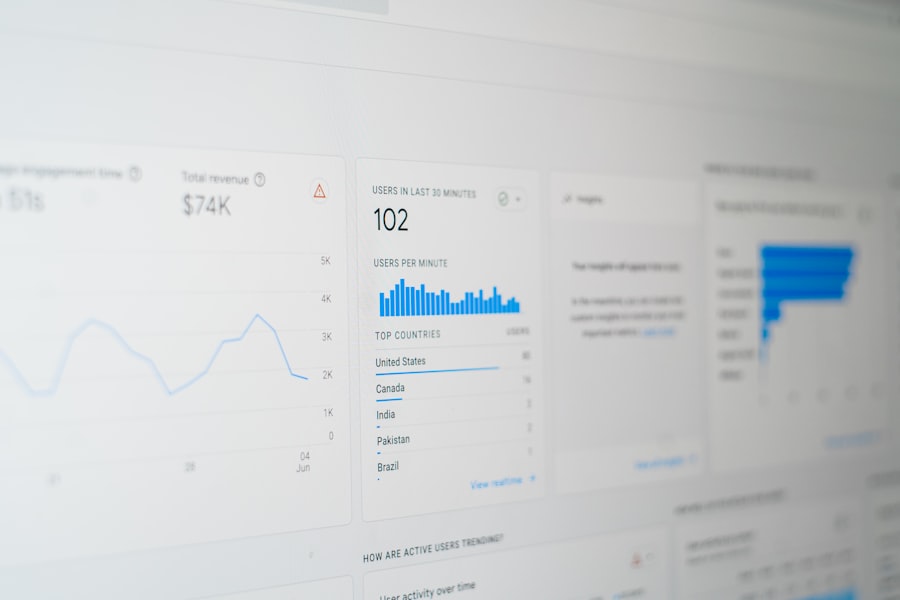
Your WordPress database is the heart of your website, storing all your content, user information, settings, and more. As your site grows and traffic increases, an unoptimized database can become a significant bottleneck, slowing down everything from page loads to administrative tasks. Regular maintenance and optimization are crucial.
Cleaning Up Your WordPress Database
Over time, your database can accumulate a lot of unnecessary data, slowing it down. This “junk” can include:
- Post Revisions: WordPress automatically saves revisions of your posts and pages. While useful, old revisions can accumulate rapidly.
- Spam Comments: Unapproved spam comments, even if filtered, can remain in your database.
- Transients: Temporary data stored in the database, which can sometimes be left behind after their intended use.
- Orphaned Post Meta: Metadata associated with posts that no longer exist.
- Drafts and Scheduled Posts: Unused drafts and old scheduled posts can also add up.
Using Database Optimization Plugins
You can automate the process of cleaning and optimizing your database using specialized plugins:
- WP-Optimize: A comprehensive plugin that allows you to clean post revisions, spam comments, transients, and optimize database tables. It also offers features for image compression.
- Advanced Database Cleaner: another powerful plugin that provides more granular control over what gets cleaned and optimized.
- WP-Sweep: A simpler, more focused plugin for cleaning up orphaned metadata and other less common database debris.
Caution: Always back up your database before performing any cleanup operations. While these plugins are generally safe, errors can occur.
Optimizing Database Queries
Inefficiently written database queries are a common cause of performance issues. This is often related to poorly coded plugins or themes that make unnecessary or redundant database calls.
Identifying Slow Queries
As mentioned earlier, plugins like Query Monitor can help you identify slow database queries. Look for queries that take a long time to execute or that are executed repeatedly.
Working with Developers
If you’re not a developer, you may need to work with a WordPress developer to identify and optimize inefficient queries. They can help refactor code in plugins or themes to make them more database-friendly.
Database Table Preprocessing
Some advanced optimization techniques involve optimizing the structure of your database tables themselves. This is a more technical task and usually requires specialized tools or the expertise of a database administrator.
When considering how to effectively scale WordPress websites for high traffic, it’s also beneficial to explore additional revenue streams that can support your hosting needs. A great resource on this topic is an article about generating passive income through reseller hosting, which can provide a sustainable financial foundation for your growing website. You can read more about it in this insightful piece on passive income strategies. This approach not only helps in managing increased traffic but also enhances your overall online business strategy.
Server and Hosting Configuration: The Foundation of Performance
| Scaling Method | Description |
|---|---|
| Use a Content Delivery Network (CDN) | Deliver content to users from the nearest server, reducing load on the main server. |
| Caching | Store frequently accessed data to reduce server load and improve website speed. |
| Optimize Images | Compress and resize images to reduce page load times. |
| Database Optimization | Clean up and optimize the WordPress database to improve website performance. |
| Use a Scalable Hosting Solution | Choose a hosting provider that can handle high traffic and scale resources as needed. |
Your hosting environment is the bedrock upon which your WordPress site is built. For high-traffic sites, the standard shared hosting plan is rarely sufficient. You need a robust, well-configured server that can handle the demands placed upon it.
Choosing the Right Hosting Provider
The type of hosting you choose has a profound impact on your site’s ability to scale.
Managed WordPress Hosting
For many users, managed WordPress hosting is the ideal solution. These providers specialize in WordPress and offer:
- Optimized Server Environments: Servers are pre-configured for WordPress, with caching, security, and performance settings already dialed in.
- Expert Support: Technical support teams are knowledgeable about WordPress and can help with performance issues.
- Scalability: Most managed hosts offer easy upgrade paths to handle increasing traffic.
- Built-in Caching and CDN: Many include their own caching solutions and CDN integration.
Popular managed WordPress hosting providers include Kinsta, WP Engine, and SiteGround (though SiteGround also offers excellent shared and VPS options).
Virtual Private Servers (VPS) and Dedicated Servers
If you require more control and dedicated resources, a VPS or dedicated server is the next step.
- VPS: Offers a dedicated slice of a server’s resources, providing more power and isolation than shared hosting. You’ll have root access and more control over server configurations.
- Dedicated Server: You get an entire physical server to yourself, offering maximum performance, control, and customization. This is typically for very high-traffic or performance-critical websites.
When considering VPS or dedicated hosting, ensure you have the technical expertise to manage the server or budget for a managed solution.
Server-Side Optimizations
Beyond the hosting provider, several server-side configurations can significantly boost performance.
PHP Version and Configuration
- Latest PHP Version: Always run the latest stable version of PHP. Newer versions offer significant performance improvements and security enhancements. Your hosting provider can usually help you switch PHP versions.
- OPcache: Ensure PHP OPcache is enabled. OPcache speeds up PHP execution by caching precompiled script bytecode in shared memory, avoiding the need to load and parse PHP scripts on every request.
Web Server Choice (Apache vs. Nginx)
- Nginx: Generally considered faster and more efficient than Apache for serving static content and handling a high volume of concurrent connections. Many modern managed WordPress hosts use Nginx in conjunction with Apache or as a standalone web server.
Database Server (MySQL/MariaDB Tuning)
- Tune
my.cnf(or equivalent): For VPS and dedicated servers, tuning the MySQL or MariaDB configuration file (oftenmy.cnf) can yield significant performance gains. This involves adjusting parameters likeinnodb_buffer_pool_size,query_cache_size(though query cache is deprecated in newer MySQL versions), and connection limits.
These server-side optimizations often require system administrator-level access and expertise. If you’re on managed hosting, your provider will handle many of these for you.
When considering how to scale WordPress websites for high traffic, it’s essential to also think about the hosting solutions that can support your growing needs. One effective option is dedicated hosting, which offers enhanced performance and reliability. To learn more about why dedicated hosting is the perfect solution for your website, you can read this insightful article here. This resource provides valuable information on how dedicated servers can significantly improve your site’s ability to handle increased visitor loads.
Image Optimization and Media Handling: Reducing File Sizes
Images are often the largest contributors to a webpage’s file size. Over-optimized or unoptimized images can severely impact load times, especially on content-rich pages. Efficiently handling your media is a critical step in optimizing for high traffic.
Compressing and Resizing Images
The goal is to serve images at the smallest possible file size without sacrificing visual quality.
Lossy vs. Lossless Compression
- Lossless Compression: Reduces file size without any loss of image data. The quality remains identical to the original. Good for text-heavy graphics or when absolute fidelity is critical.
- Lossy Compression: Reduces file size by discarding some image data. You can often achieve significant file size reductions with minimal perceptible loss of quality. This is usually the preferred method for photographs.
Image Optimization Plugins
Automate image compression and resizing directly within WordPress using plugins:
- ShortPixel: A popular plugin that offers both lossless and lossy compression, along with image resizing and WebP conversion. It has a generous free tier.
- Smush: Another excellent and widely used plugin that provides lossless and lossy compression, lazy loading, and bulk optimization.
- Imagify: Developed by the creators of WP Rocket, Imagify offers excellent compression and WebP conversion.
These plugins can be configured to automatically optimize images as you upload them, or you can use their bulk optimization feature to process your existing media library.
Serving Images in Next-Gen Formats (WebP)
WebP is a modern image format developed by Google that provides superior lossless and lossy compression for images on the web. It often results in significantly smaller file sizes compared to JPEG and PNG, with no loss of visual quality.
Enabling WebP Conversion
Many image optimization plugins, like ShortPixel and Imagify, can automatically convert your images to WebP format. When a visitor’s browser supports WebP, your site will serve the WebP version. If the browser doesn’t support WebP, it will fall back to a compatible format like JPEG or PNG.
Lazy Loading Media
Lazy loading is a technique where elements (like images, videos, or iframes) are only loaded when they are about to enter the viewport (i.e., when the user scrolls them into view). This drastically reduces the initial page load time, as the browser doesn’t need to download all media assets immediately.
Implementing Lazy Loading
- Built-in WordPress Lazy Loading: WordPress has native lazy loading for images since version 5.5. Simply add
loading="lazy"to your - Plugin Support: Most popular image optimization plugins (Smush, ShortPixel, Imagify, WP Rocket) include excellent lazy loading functionality for images, iframes, and even background images.
By implementing these strategies, you’ll drastically reduce the impact of your media library on your site’s performance, making it much more responsive for your high-traffic audience.
Ongoing Monitoring and Maintenance: Staying Ahead of the Curve
Optimizing for high traffic isn’t a one-time task; it’s an ongoing process. The digital landscape is constantly evolving, and your website’s needs will change as your traffic grows and WordPress itself is updated. Continuous monitoring and proactive maintenance are essential to ensure your site remains fast and reliable.
Regular Performance Audits
Don’t let your performance slip. Schedule regular performance audits of your website.
Setting Performance Benchmarks
Establish key performance indicators (KPIs) that are important to you, such as:
- Average server response time
- Load time for key pages
- Core Web Vitals scores (LCP, FID, CLS)
Regularly test your site against these benchmarks to identify any regressions.
Security Updates and Best Practices
A compromised website can lead to significant performance degradation and security risks. Keep your WordPress core, themes, and plugins updated.
Plugin and Theme Updates
Set up a system for regularly checking for and applying updates. Consider using a staging environment to test major updates before deploying them to your live site.
Strong Security Measures
Implement strong passwords, use two-factor authentication, consider a reputable security plugin (like Sucuri Security or Wordfence), and regularly back up your site.
Scalability Planning
As your traffic continues to grow, you’ll need to plan for future scaling.
Anticipating Traffic Spikes
If you anticipate specific events that will drive a surge in traffic (e.g., a major product launch, a viral marketing campaign), test your site’s capacity beforehand, and consider temporary scaling solutions.
Reviewing Hosting Needs Periodically
Don’t wait until your site crashes to consider upgrading your hosting. Periodically review your hosting plan and resource usage to ensure it still aligns with your traffic levels and performance requirements.
Content Strategy and Performance
Sometimes, the biggest performance drains can be related to the way you deliver content.
Optimizing Content for Speed
- Limit Embeds: Excessive embeds from external services can slow down your site.
- Streamline JavaScript: Review the JavaScript you’re using. Are there more efficient alternatives? Can some scripts be deferred or loaded asynchronously?
- Consider AMP (Accelerated Mobile Pages): For content-heavy sites, especially those with a significant mobile audience, exploring AMP can provide a dramatic improvement in mobile loading speeds.
Your website is a living entity. By adopting a proactive approach to monitoring and maintenance, you ensure that your WordPress site remains a high-performing, reliable asset, even in the face of massive visitor numbers. You’ve put in the work to attract them; now, ensure their experience is as exceptional as the content you provide.
FAQs
What are some common challenges when scaling WordPress websites for high traffic?
Some common challenges when scaling WordPress websites for high traffic include server performance issues, database optimization, caching strategies, and managing content delivery networks.
What are some strategies for improving server performance when scaling a WordPress website?
Strategies for improving server performance when scaling a WordPress website include using a reliable hosting provider, optimizing server configurations, implementing server-side caching, and utilizing content delivery networks (CDNs).
How can database optimization help in scaling a WordPress website for high traffic?
Database optimization can help in scaling a WordPress website for high traffic by reducing the load on the server, improving query performance, and minimizing database bloat. This can be achieved through techniques such as indexing, query optimization, and database caching.
What role do caching strategies play in scaling WordPress websites for high traffic?
Caching strategies play a crucial role in scaling WordPress websites for high traffic by reducing server load, improving page load times, and minimizing the impact of traffic spikes. This can be achieved through techniques such as browser caching, server-side caching, and using caching plugins.
How can content delivery networks (CDNs) help in scaling WordPress websites for high traffic?
Content delivery networks (CDNs) can help in scaling WordPress websites for high traffic by distributing website content across multiple servers located in different geographic locations. This reduces the load on the origin server, improves page load times, and enhances the overall user experience.









Add comment