

You’ve heard the buzzword. Server virtualization. It’s tossed around in IT meetings, splashed across tech articles, and might even be a term you’ve Googled in a moment of mild panic or curiosity. But what exactly is it? And more importantly, why should you, a beginner in the world of IT infrastructure, care? Forget the intimidating jargon and the fear of complex diagrams. This guide is your friendly handshake with server virtualization, breaking down the fundamental concepts so you can finally demystify it.
At its core, server virtualization is about creating multiple, independent “virtual” servers on a single physical server. Imagine you have one powerful computer – that’s your physical server. Instead of running just one operating system and one set of applications on it, virtualization allows you to carve up its resources (like processing power, memory, and storage) into smaller, isolated environments. Each of these environments acts as its own distinct server, complete with its own operating system and applications.
The Physical Server: The Foundation
- The Hardware: Your physical server is the tangible machine. It’s the metal box humming in a data center or maybe even under your desk. It houses the crucial components: the CPU (the brain), RAM (temporary memory), hard drives or SSDs (long-term storage), and network interfaces (how it talks to other computers).
- The Operating System (OS): Traditionally, a physical server runs one primary operating system – say, Windows Server or Linux. This OS manages the hardware and allows you to install applications.
Introducing the Hypervisor: The Magic Maker
This is where the magic happens, and it’s powered by a piece of software called a hypervisor. Think of the hypervisor as the conductor of your orchestra, orchestrating the symphony of virtual servers. It sits directly on the physical hardware or on top of a host operating system and is responsible for:
- Resource Management: It divvies up the physical server’s resources (CPU, RAM, storage, network) among the virtual servers. It ensures each virtual server gets what it needs without interfering with others.
- Isolation: This is key. The hypervisor creates strong boundaries between virtual servers. If one virtual server crashes or gets infected with malware, it won’t affect the others running on the same physical machine.
- Abstraction: It presents a virtualized view of the hardware to each virtual server. This means that each virtual server “thinks” it has its own dedicated hardware, even though it’s sharing.
There are two main types of hypervisors, and understanding them will give you a clearer picture:
Type 1 Hypervisors: The Bare-Metal Maestros
- Direct Hardware Access: These hypervisors are installed directly onto the physical server’s hardware, bypassing a traditional operating system. Examples include VMware ESXi, Microsoft Hyper-V (when installed as a standalone product), and XenServer.
- Performance and Efficiency: Because they have direct access to the hardware, Type 1 hypervisors generally offer better performance and are more efficient in resource utilization. They are the preferred choice for enterprise-level data centers.
- Think of it as: Building a house with a solid foundation and then adding rooms on top. The hypervisor is the foundation.
Type 2 Hypervisors: The Hosted Operatives
- Runs on a Host OS: These hypervisors are installed as an application on top of an existing host operating system (like Windows, macOS, or Linux). Examples include VMware Workstation, Oracle VirtualBox, and Parallels Desktop.
- Ease of Use and Experimentation: Type 2 hypervisors are fantastic for individuals and small businesses who want to experiment with different operating systems and applications on their personal computers or less critical servers.
- Think of it as: Setting up a sandbox within your existing playroom. The playroom is your host OS, and the sandbox is the virtual machine the hypervisor creates.
Virtual Machines (VMs): The Digital Inhabitants
The isolated environments created by the hypervisor are called Virtual Machines (VMs). Each VM is essentially a self-contained computer.
- Operating System for the VM: You install an operating system (guest OS) inside each VM, just like you would on a physical computer. This could be Windows, Linux, macOS, or even older versions of operating systems.
- Applications within VMs: You then install your applications on the guest OS within the VM. These applications have no idea they are running in a virtual environment; they simply interact with the virtual hardware presented by the hypervisor.
- Analogy: If the physical server is an apartment building, the hypervisor is the building manager, and each VM is an individual apartment with its own utilities and occupants (applications).
For those looking to deepen their understanding of server virtualization, a related article that provides valuable insights into data protection in hosting environments is “Is Your Shared Hosting Plan Protecting Your Data? The 2025 Security Checklist.” This article discusses essential security measures that should be considered when using shared hosting, which can complement your knowledge of server virtualization by highlighting the importance of safeguarding virtualized environments. You can read the article here: Is Your Shared Hosting Plan Protecting Your Data? The 2025 Security Checklist.
Why Should You Bother With Virtualization? The Benefits You Can’t Ignore
Now that you understand what it is, let’s dive into why it’s such a game-changer. The advantages of server virtualization are numerous and impact everything from cost savings to agility and disaster recovery.
Cost Savings: Doing More with Less
This is often the most immediate and compelling reason businesses adopt virtualization. By consolidating multiple physical servers onto fewer, more powerful ones, you can drastically reduce your hardware footprint.
- Reduced Hardware Investments: Instead of buying and maintaining a server for every single application or service, you can provision virtual servers on existing hardware. This means fewer servers to purchase, less rack space to rent or buy, and less power and cooling required.
- Lower Power and Cooling Bills: Each physical server consumes electricity and generates heat. Consolidating servers means fewer machines running, leading to significant savings on your energy bills. Imagine reducing your electricity consumption by 50% or more!
- Simplified Maintenance: Fewer physical servers mean less hardware to manage, less patching of physical components, and fewer service contracts to deal with. This frees up your IT staff to focus on more strategic tasks.
- Reduced Data Center Footprint: For organizations with large data centers, virtualization can mean reclaiming valuable space that can be repurposed or eliminated entirely, leading to further cost reductions.
Improved Resource Utilization: No More Underutilized Powerhouses
Have you ever noticed that many physical servers are often running at only a fraction of their capacity? Virtualization brilliantly addresses this inefficiency.
- Dynamic Resource Allocation: The hypervisor can allocate resources to VMs as needed. If one VM is experiencing a surge in activity and needs more CPU or RAM, the hypervisor can dynamically shift resources from less busy VMs, ensuring optimal performance for all.
- Eliminating “Server Sprawl”: In non-virtualized environments, it’s common to have many underutilized servers, each dedicated to a specific task. This “server sprawl” is wasteful and difficult to manage. Virtualization allows you to consolidate these workloads onto fewer physical machines, maximizing their utilization.
- On-Demand Scalability: Need to quickly spin up a new server for a project or to handle increased demand? With virtualization, it’s as simple as creating a new VM, a process that can take minutes compared to days or weeks when ordering and setting up new physical hardware.
Enhanced Agility and Flexibility: Rapid Deployment and Adaptability
In today’s fast-paced business environment, the ability to adapt quickly is paramount. Virtualization provides the agility your IT infrastructure needs.
- Rapid Deployment of New Servers: Provisioning a new physical server can involve lengthy procurement cycles, hardware installation, and OS configuration. With virtualization, you can create and deploy a new VM in a matter of minutes. This allows for faster innovation and quicker response to business needs.
- Easier Testing and Development: Developers and testers can easily spin up isolated VM environments to test new software, configurations, or patches without impacting production systems. This significantly speeds up the development lifecycle.
- Application Sandboxing: You can create separate VMs for different applications or even different versions of the same application. This prevents conflicts and ensures that applications don’t interfere with each other, making updates and decommissions much simpler.
Improved Disaster Recovery and Business Continuity: Resilience in the Face of Adversity
Virtualization fundamentally changes how you approach disaster recovery. It allows you to create robust and efficient backup and recovery solutions.
- VM Snapshots: The hypervisor allows you to take a “snapshot” of a VM at a specific point in time. This captures the entire state of the VM, including its memory, disk state, and configuration. If something goes wrong, you can quickly revert the VM to a previous snapshot, effectively undoing any unintended changes or corruption.
- VM Migration (Live Migration): With technologies like VMware vMotion or Hyper-V Live Migration, you can move a running VM from one physical server to another with zero downtime. This is invaluable for planned hardware maintenance or load balancing without interrupting services.
- Simplified Backups: Backing up VMs is much more efficient than backing up individual physical servers. You can back up the entire VM image, making restoration faster and more reliable.
- Disaster Recovery Sites: You can replicate VMs to a secondary location (a disaster recovery site) and quickly bring them online if your primary site experiences an outage. This minimizes downtime and data loss.
Common Virtualization Scenarios: Where You’ll See It in Action

Virtualization isn’t just an abstract concept; it’s implemented in a wide variety of practical scenarios across different industries. Understanding these common use cases will help you recognize its value in real-world IT environments.
Data Center Consolidation: The Cornerstone of Virtualization
This is the classic and most widespread application of server virtualization. Instead of having dozens or hundreds of physical servers, organizations consolidate them onto a much smaller pool of powerful physical servers managed by hypervisors.
- Reducing Hardware Costs: As mentioned earlier, this is a primary driver for data center consolidation. Fewer servers mean less capital expenditure on hardware.
- Optimizing Power and Cooling: A significant reduction in the number of physical machines directly translates to lower operational costs in terms of electricity consumption and cooling infrastructure.
- Streamlining Management: Managing a smaller number of powerful physical servers with a centralized virtualization platform is far more efficient than managing a vast array of individual machines.
- Enabling Cloud Migration: Data center consolidation is often a foundational step towards moving workloads to private, public, or hybrid cloud environments.
Development and Testing Environments: The Sandbox for Innovation
For software developers and IT professionals, having readily available, isolated environments to experiment with is crucial.
- Rapid Provisioning of Testbeds: Developers can quickly spin up VMs with different operating systems, configurations, and software versions to test their applications thoroughly. This dramatically accelerates development cycles.
- Reproducible Test Environments: By using VM templates or snapshots, you can ensure that all developers are working with identical environments, eliminating “it works on my machine” excuses.
- Safe Experimentation: If a test leads to a system crash or a problematic configuration, it only affects the VM, not the entire production environment. Reverting to a snapshot or deleting the VM is quick and easy.
- Training and Onboarding: New employees can be quickly set up with pre-configured VMs to begin learning and working without needing dedicated physical machines.
Extending the Life of Older Applications: Bridging the Gap
Sometimes, you have legacy applications that are critical to your business but are designed for older operating systems or hardware that are no longer supported. Virtualization offers a solution.
- Running Legacy OS on Modern Hardware: You can install an older server operating system (e.g., Windows Server 2003) within a VM on a modern physical server. This allows the application to run without requiring you to maintain outdated hardware.
- Isolation from Modern Systems: This isolation prevents potential compatibility issues or security vulnerabilities that might arise from running legacy software directly on a modern OS.
- Simplified Backup and Migration: Even though the application is old, you can still benefit from VM-based backup and disaster recovery solutions, making it easier to protect and manage.
Creating Virtual Desktop Infrastructure (VDI): Empowering Remote Workforces
VDI allows you to host desktop operating systems (like Windows 10 or 11) within VMs on a central server. Users then access these virtual desktops remotely via a network.
- Centralized Management: All desktops are managed centrally on the server, simplifying software updates, security patching, and configuration.
- Enhanced Security: Data resides on the server, not on the user’s endpoint device, reducing the risk of data loss or theft if a device is lost or stolen.
- Device Flexibility: Users can access their virtual desktops from a variety of devices, including thin clients, laptops, tablets, and even smartphones, fostering remote work andBYOD (Bring Your Own Device) policies.
- Simplified Deployment: Deploying a new desktop for a user is as simple as creating a new VM.
Understanding the Key Components: The Building Blocks of Virtualization
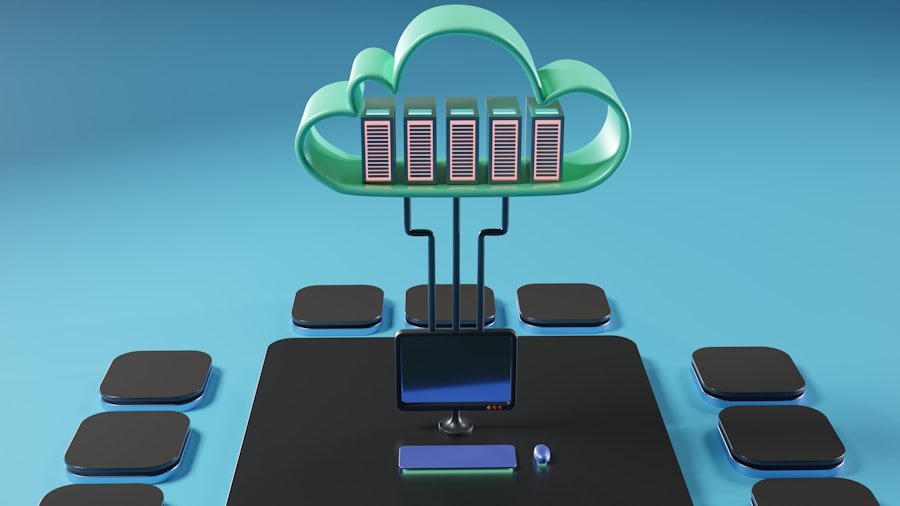
To truly grasp server virtualization, you need to understand the foundational components that make it all work. We’ve touched upon them, but let’s solidify their roles.
Storage Virtualization: The Unified Pool of Data
Just as server virtualization abstracts physical servers, storage virtualization abstracts physical storage devices.
- Abstracting Physical Storage: Instead of managing individual hard drives or storage arrays, storage virtualization pools them together into a single, logical storage resource.
- Simplified Management: Imagine having one large pool of storage that you can allocate to your VMs as needed, rather than configuring and managing separate storage volumes for each physical server.
- Improved Efficiency and Utilization: Resources can be dynamically allocated from the unified pool, ensuring that storage is used efficiently and preventing situations where one server has ample storage while another runs out.
- Types of Storage Virtualization:
- In-band: The virtualization layer sits between the servers and the storage devices (e.g., SAN switches with virtualization capabilities).
- Out-of-band: A separate controller or software manages the storage virtualization, with servers accessing storage directly.
- Server-based: Software running on the servers aggregates local storage into a shared pool.
Network Virtualization: Creating Virtual Networks
Network virtualization allows you to create and manage logical networks that are independent of the underlying physical network hardware.
- Software-Defined Networking (SDN): This is a core concept behind network virtualization, where network control is decoupled from the physical hardware.
- Virtual Switches and Routers: Just as you have physical switches and routers, you can create virtual switches and routers within your virtualization platform.
- Network Segmentation: You can create isolated virtual networks for different applications or departments, enhancing security and preventing traffic congestion.
- Simplified Network Configuration: Network configurations can be managed through software, making it much faster and easier to deploy, modify, or troubleshoot network setups.
- Benefits for VMs: Each VM can have its own virtual network interface card (vNIC) and be connected to virtual networks, just like a physical machine would be connected to physical networks.
Desktop Virtualization (VDI): Extending the Concept to User Desktops
As briefly mentioned in the scenarios, desktop virtualization is a significant application of virtualization technology, bringing the benefits from the server room to the end-user’s experience.
- Centralized Operating Systems: User operating systems (e.g., Windows 10, Windows 11) are hosted on servers as VMs.
- Remote Access: Users connect to their virtual desktops from endpoint devices, accessing their familiar desktop environment.
- Hardware Independence: Users aren’t tied to a specific piece of hardware; they can access their desktop from any compatible device.
- Streamlined IT Management: Managing user desktops becomes much more efficient for IT teams, with centralized patching, software deployment, and security.
For those looking to deepen their understanding of server virtualization, a related article that offers valuable insights is available at this link. It discusses how US data centers are projected to dominate the web hosting market by 2025, highlighting the importance of virtualization in enhancing efficiency and scalability in data management. You can read more about this trend in the article on US data centers.
Common Virtualization Platforms: The Tools of the Trade
| Concept | Explanation |
|---|---|
| Server Virtualization | It is the process of creating multiple virtual instances of a physical server to maximize its resources and improve efficiency. |
| Hypervisor | It is a software that enables the creation and management of virtual machines on a physical server. |
| Virtual Machine (VM) | It is a software-based emulation of a physical computer that runs on a physical server and behaves like a separate physical machine. |
| Benefits | Cost savings, improved resource utilization, easier management, and increased flexibility and scalability. |
You’ll encounter several major players in the server virtualization market. While their underlying principles are the same, they have their own unique features and strengths.
VMware: The Market Leader
VMware is often considered the pioneer and dominant force in enterprise server virtualization.
- VMware vSphere: This is VMware’s flagship virtualization platform, which includes the ESXi hypervisor and vCenter Server for centralized management.
- Scalability and Advanced Features: vSphere is known for its robustness, scalability, and a comprehensive suite of advanced features like vMotion, High Availability (HA), and Distributed Resource Scheduler (DRS).
- Extensive Ecosystem: VMware has a vast ecosystem of partners and third-party solutions, making it a well-supported platform.
Microsoft Hyper-V: A Powerful Integrated Solution
Microsoft’s offering is a strong contender, particularly for organizations already invested in the Microsoft ecosystem.
- Included with Windows Server: Hyper-V is a role that can be installed on Windows Server operating systems, making it readily available for businesses using Microsoft servers.
- Standalone Hyper-V Server: Microsoft also offers a free, standalone Hyper-V Server for bare-metal installations, similar to VMware ESXi.
- Integration with Azure: Hyper-V has strong integration with Microsoft Azure, making hybrid cloud deployments smoother.
Citrix Hypervisor (formerly XenServer): Open Source Roots
Citrix Hypervisor is another enterprise-grade virtualization platform with a history rooted in open-source technology.
- Performance and Stability: It’s known for its performance and stability, particularly in demanding environments.
- Broad Hardware Support: Citrix Hypervisor supports a wide range of hardware.
- Focus on Virtualization and Cloud: Citrix has a long history of expertise in virtualization solutions.
Red Hat Virtualization: Linux-Centric Approach
Red Hat Virtualization leverages KVM (Kernel-based Virtual Machine) and is designed for environments that are heavily invested in Red Hat Enterprise Linux.
- KVM-Based: KVM is a virtualization technology built directly into the Linux kernel, offering strong performance and efficiency.
- Open Source Foundation: Benefits from the robust development and community support of open-source software.
- Integration with Red Hat Ecosystem: Seamless integration with other Red Hat products like OpenShift and Ansible for automation.
Oracle VM VirtualBox: The Friendly Freebie
VirtualBox is a popular choice for individuals and smaller businesses due to its ease of use and cost-effectiveness.
- Free and Open Source: VirtualBox is free to download and use for personal and commercial purposes.
- Cross-Platform: It runs on Windows, macOS, Linux, and Solaris.
- User-Friendly Interface: Its intuitive graphical interface makes it easy to create and manage VMs.
- Ideal for Learning and Development: Excellent for beginners who want to experiment with different operating systems and applications.
Getting Started with Virtualization: Your First Steps
You don’t need a massive budget or a team of experts to start experimenting with server virtualization. Here’s how you can begin your journey.
Start Small and Simple: Your First Virtual Machine
- Download VirtualBox: It’s free, cross-platform, and incredibly user-friendly.
- Download an OS ISO: Get an ISO image for a Linux distribution (like Ubuntu or Fedora) or an older version of Windows (if you have a license) that you want to install.
- Follow the Wizard: VirtualBox has a wizard that guides you through creating a new VM. You’ll allocate RAM, storage, and other resources.
- Install the OS: Boot your VM from the ISO, and install the operating system just as you would on a physical computer.
- Install Guest Additions: Most virtualization platforms offer “Guest Additions” or “Integration Services” that improve performance and enable features like shared clipboards and drag-and-drop.
Explore Key Concepts: Hands-On Learning
- Take a Snapshot: Before making significant changes to your VM, take a snapshot. Then, deliberately break something (e.g., delete a critical file) and see how easy it is to revert to the snapshot.
- Network Configurations: Experiment with different network modes in your virtualization software (NAT, Bridged, Host-Only) to understand how your VM communicates with your host and the outside world.
- Cloning: Learn to clone your VMs. This creates an exact copy, useful for creating multiple similar environments.
- Templates: If your virtualization platform supports it, explore creating VM templates. These are pre-configured VMs that can be rapidly deployed.
Consider Your Goals: What Do You Want to Achieve?
- Learning and Exploration: If your goal is purely educational, VirtualBox on your personal computer is a great starting point.
- Small Business Needs: If you have a small business and want to consolidate a few servers, a Type 1 hypervisor like VMware ESXi (with its free version) or Microsoft Hyper-V on a dedicated server could be a viable option.
- Developer Workstations: For development teams, individual VMs on laptops or shared test servers are common.
The Future of Virtualization: It’s Already Here
Server virtualization isn’t a fad; it’s a fundamental shift in how IT infrastructure is built and managed. Its evolution continues with trends like:
Containerization: A Lightweight Alternative
While VMs provide full OS isolation, containers (like Docker and Kubernetes) offer a more lightweight way to package and run applications. They share the host OS kernel, making them faster to spin up and more resource-efficient for certain use cases. Virtualization and containerization often work hand-in-hand.
Hybrid and Multi-Cloud Environments: The Ubiquitous Infrastructure
Virtualization is the bedrock of modern cloud computing. As businesses adopt hybrid and multi-cloud strategies, virtualization platforms are essential for managing resources across different environments.
Automation and Orchestration: Streamlining Operations
The power of virtualization is amplified by automation tools. Orchestration platforms can automate the deployment, scaling, and management of virtualized resources, making IT operations more efficient and less prone to human error.
Conclusion: Embracing the Virtual World
You’ve come a long way from hearing that buzzword. Server virtualization, once a complex topic, should now feel much more approachable. You understand that it’s about creating multiple digital servers on a single physical one, powered by a hypervisor. You know the compelling benefits: cost savings, improved resource utilization, enhanced agility, and robust disaster recovery. You’ve seen how it’s used in real-world scenarios and are familiar with the key components and leading platforms.
The world of IT is constantly evolving, and server virtualization is a cornerstone of that evolution. By demystifying it today, you’re equipping yourself with a fundamental understanding that will serve you well as you navigate the ever-expanding landscape of modern IT infrastructure. So, go forth and explore the virtual realm – it’s more accessible and powerful than you might have imagined!
FAQs
What is server virtualization?
Server virtualization is the process of dividing a physical server into multiple virtual servers, each capable of running its own operating system and applications. This allows for better utilization of hardware resources and improved flexibility and scalability.
What are the benefits of server virtualization?
Server virtualization offers several benefits, including cost savings through reduced hardware and energy costs, improved efficiency and flexibility, easier management and maintenance, and enhanced disaster recovery and business continuity capabilities.
What are the different types of server virtualization?
The main types of server virtualization include full virtualization, where each virtual machine runs its own operating system, and para-virtualization, where the guest operating system is modified to be aware of the virtualization layer. Other types include hardware-assisted virtualization and container-based virtualization.
What are some popular server virtualization platforms?
Some popular server virtualization platforms include VMware vSphere, Microsoft Hyper-V, and Citrix XenServer. These platforms provide the tools and infrastructure needed to create and manage virtual machines on physical servers.
What are some common use cases for server virtualization?
Server virtualization is commonly used for server consolidation, where multiple physical servers are consolidated onto a single physical server, as well as for development and testing environments, disaster recovery, and cloud computing.





Add comment