
Understanding the 503 Service Unavailable Error
You’ve just hit refresh on your website, eager to see your latest updates, only to be met with the dreaded “503 Service Unavailable” message. It’s a frustrating experience, especially when you know your site was working perfectly just moments ago. This error indicates that the server is currently unable to handle the request due to temporary overloading or maintenance of the server. Essentially, your website’s server is busy, unavailable, or simply not responding to the requests it’s receiving. Unlike a 404 Not Found error, which means the requested resource doesn’t exist, a 503 error implies that the server itself is operational but can’t fulfill the request right now.
Differentiating 503 from Other Server Errors
It’s crucial to understand that a 503 error is distinct from other common server-side issues you might encounter. For instance, a 500 Internal Server Error is a more generic catch-all, indicating a server problem but not specifying why. A 502 Bad Gateway error means one server received an invalid response from another server it was trying to access. A 504 Gateway Timeout error, while similar in showing server unavailability, specifically points to a timeout issue where one server didn’t receive a response from another within a specified time limit. The 503 error, on the other hand, specifically signals that the server is temporarily unable to handle the request. This temporary nature is a key characteristic, suggesting that the problem might resolve itself or is due to a transient issue that can often be fixed. You are looking for a temporary bottleneck or a maintenance operation, not necessarily a fundamental misconfiguration.
Common Causes of the 503 Error
Identifying the root cause of a 503 error can be challenging, but there are several common culprits you should investigate. One of the most frequent reasons is server overload. This can happen if your website experiences a sudden surge in traffic, exceeding the server’s capacity to process all incoming requests simultaneously. Imagine a popular store suddenly experiencing a Black Friday rush – the cashiers can only process so many customers at once.
Another significant cause is scheduled server maintenance. Your hosting provider might be performing updates, security patches, or hardware upgrades, which can temporarily take your server offline or make it unresponsive. While reputable hosts usually notify you in advance, unexpected urgent maintenance can occur.
Resource limitations also play a critical role. If your website consumes too much CPU, memory, or database connections, the server might refuse to serve new requests to prevent a complete crash. This is especially common on shared hosting plans where resources are shared among many users. A poorly optimized plugin, a memory-intensive script, or a high number of database queries can quickly deplete your allocated resources.
Finally, incorrect server configurations or issues with your Content Delivery Network (CDN) or firewall can also trigger a 503 error. A misconfigured server setting, an overly aggressive firewall blocking legitimate traffic, or a problem with your CDN’s edge servers could all contribute to your website becoming inaccessible. Understanding these potential causes will guide your troubleshooting efforts.
If you’re looking to enhance your understanding of website management and troubleshooting, you might find it helpful to read about the importance of domain strategies in the digital landscape. A related article titled “The Power of .pk and .com: A 2025 Domain Strategy for Pakistani Businesses” discusses how choosing the right domain can impact your website’s performance and accessibility. You can read it here: The Power of .pk and .com: A 2025 Domain Strategy for Pakistani Businesses. This insight could be beneficial when addressing issues like the Error 503 Service Unavailable on your hosted website.
Initial Diagnostic Steps and Immediate Actions

When confronted with a 503 error, your immediate priority is to gather information and take quick actions to either resolve the issue or at least narrow down the possibilities. Don’t panic; methodical steps are your best approach.
Checking Your Hosting Provider’s Status
Your first port of call should always be your hosting provider. Most reputable hosting companies have a dedicated status page or a section within their control panel where they post updates on known issues, scheduled maintenance, and system-wide outages. Check this page immediately. It can save you hours of troubleshooting if the problem is on their end. Look for announcements about server issues, network problems, or ongoing maintenance that might affect your specific server or data center. If you find an active incident, you’ll know to wait for their resolution rather than trying to fix something that isn’t broken on your side. If there’s no public announcement, it’s still worth checking if you have any direct communication from them regarding scheduled maintenance.
Refreshing Your Website and Browser Cache
Sometimes, the simplest solutions are the most effective. A 503 error can be transient, meaning it might resolve itself after a short period. Try refreshing your website in your browser. If that doesn’t work, clear your browser’s cache and cookies, then try again. Your browser might be serving you an outdated version of the page or holding onto old connection information that is no longer valid. You can also try accessing your website from a different browser or even an incognito/private browsing window to rule out browser-specific issues. While unlikely to be the primary cause of a persistent 503, it’s a quick and easy step to eliminate a common variable.
Reviewing Server Resource Usage
If your hosting provider’s status page shows no issues, the next logical step is to investigate your server’s resource consumption. Most hosting control panels (like cPanel, Plesk, or custom dashboards) provide tools to monitor CPU usage, memory usage, and the number of active processes or database connections. Look for spikes or sustained high usage that occurred around the time the 503 error started.
Examining CPU and Memory Usage
High CPU usage often indicates that your website’s scripts or applications are demanding a lot of processing power. This could be due to a sudden increase in traffic, inefficient code, a runaway script, or a resource-intensive plugin. Similarly, high memory usage means your applications are consuming a large amount of RAM. This can lead to your server swapping memory to disk, significantly slowing down performance and potentially triggering a 503 error as processes queue up. Look for any applications or processes that are consuming an unusually high percentage of these resources.
Monitoring Database Connections
Database connections are another common bottleneck. Each time your website loads a page, it might open multiple connections to its database to retrieve information. If your website is generating too many database queries or if queries are taking too long to execute, you can quickly hit your hosting plan’s limit on concurrent database connections. When this limit is reached, new requests to the database will fail, leading to your website becoming unresponsive and potentially showing a 503 error. Check your control panel for metrics on database connections and look for any anomalies.
Checking Website Error Logs
Your website’s error logs are invaluable troubleshooting tools. They record critical information about what’s happening behind the scenes, including errors that might not be visible on the front end. Accessing these logs typically requires logging into your hosting control panel or using an FTP client to navigate to the appropriate directories.
Locating and Interpreting Server Logs
Common log files include error_log (for PHP errors), access_log (for web server access records), and specific logs for web servers like Apache (error.log) or Nginx (error.log). You’re primarily looking for entries that correspond to the time the 503 error started appearing. Pay attention to PHP error messages, database connection failures, or any warnings related to resource limits. Interpreting these logs can sometimes be complex, but even identifying recurring patterns or specific error messages can provide significant clues. For example, a repeated “memory exhausted” error would strongly suggest a memory issue.
WordPress-Specific Debugging
If you’re using WordPress, you can enable its built-in debugging feature. Add the following lines to your wp-config.php file (located in your WordPress root directory) above the / That's all, stop editing! Happy publishing. / line:
“`php
define( ‘WP_DEBUG’, true );
define( ‘WP_DEBUG_LOG’, true );
define( ‘WP_DEBUG_DISPLAY’, false );
“`
This will log all WordPress errors, warnings, and notices to a debug.log file inside the wp-content directory, without displaying them publicly on your site (which you should avoid for security reasons). After enabling debug mode, revisit your website to trigger the error again, then check the debug.log file for any relevant entries. Remember to disable WP_DEBUG once you’re done troubleshooting to prevent performance issues and security risks.
Investigating Website Code and Plugins
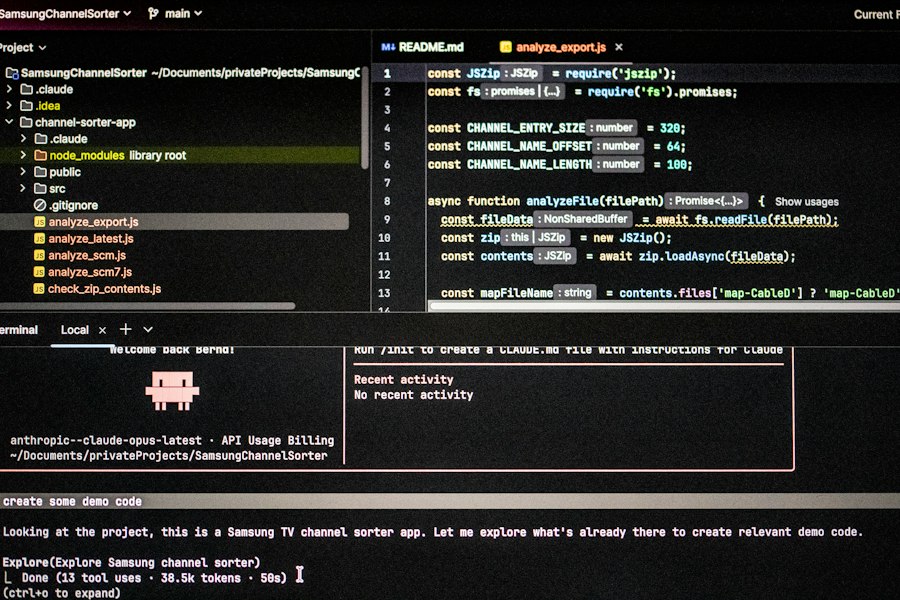
Once you’ve ruled out hosting-wide issues and checked basic resource usage, your attention should turn to your website’s own code, themes, and plugins. These are frequent sources of 503 errors, especially after recent updates or installations.
Disabling Recently Added or Updated Plugins/Themes
If your website was working fine and suddenly started showing a 503 error, especially after you installed a new plugin, updated an existing one, or changed your theme, these are prime suspects. A faulty plugin or theme can consume excessive resources, cause conflicts with other components, or even contain outright errors that trigger the 503.
Using FTP/File Manager for Plugin/Theme Deactivation
Since you can’t access your WordPress dashboard due to the 503 error, you’ll need to manually deactivate plugins and themes. Connect to your website via FTP or use your hosting provider’s file manager. Navigate to the wp-content directory. Inside, you’ll find plugins and themes folders. To deactivate a plugin, simply rename its folder (e.g., change plugins/faulty-plugin to plugins/faulty-plugin-old). This effectively deactivates the plugin as WordPress won’t be able to find it. Do this for the most recently installed or updated plugins first, one by one, checking your website after each rename.
The same process applies to themes. If you suspect your current theme, rename its folder. WordPress will then automatically revert to a default theme (like Twenty Twenty-Four) if available. If renaming the problematic theme folder resolves the 503 error, you’ve found your culprit. Remember to reactivate your plugins/themes one by one if renaming doesn’t resolve the issue, to identify which one is causing the problem.
Checking for Malicious Code or Malware
Malware infections can severely impact your website’s performance and resource usage, leading to a 503 error. Malicious scripts can hijack your server resources, send spam, or redirect traffic, all of which can overload your server.
Scanning Your Website for Threats
Use security plugins (if you can access your dashboard) or remote website scanners (like Sucuri SiteCheck, Wordfence, or your hosting provider’s built-in scanner) to check for malware. If you find any suspicious files or unusual code, you’ll need to clean your website thoroughly. This often involves deleting infected files, replacing core WordPress files with fresh copies, and changing all your passwords. Regular backups are crucial here, as restoring a clean backup can sometimes be the quickest solution.
Optimizing Database and Code
Inefficient database queries or poorly optimized code can slowly drain server resources, eventually leading to a 503 error, especially under moderate traffic.
Cleaning and Optimizing Your Database
Over time, your WordPress database can accumulate a lot of junk: orphaned data, excessive revisions, spam comments, and transient options. This bloated database can slow down queries, increasing resource consumption. Use a database optimization plugin (like WP-Optimize or Advanced Database Cleaner) or run SQL commands directly via phpMyAdmin to clean and optimize your database tables. This can significantly improve database query times.
Reviewing and Refactoring Custom Code
If you have custom code snippets, child themes, or bespoke plugins, review them for efficiency. Long-running scripts, inefficient loops, or excessive API calls can be major resource hogs. Use profiling tools if available, or carefully review your code logic. Ensure that database queries are optimized, and external API calls are handled asynchronously or with proper caching mechanisms. Even small inefficiencies can add up on a busy website.
Addressing Server-Side Configurations and External Services
Beyond your website’s internal code, various server configurations and external services can also contribute to a 503 error. This section covers steps to investigate and rectify those.
Verifying PHP Version and Limits
Your website’s PHP configuration directly impacts its ability to process requests. Outdated PHP versions can be inefficient, and insufficient PHP limits can cause processes to crash or queue up.
Adjusting PHP Memory Limit and Execution Time
Often, a 503 error is caused by PHP scripts exceeding their allocated memory limit or maximum execution time. You can usually increase these limits through your hosting control panel’s PHP settings, a php.ini file, or by adding directives to your .htaccess file or wp-config.php.
For wp-config.php:
“`php
define(‘WP_MEMORY_LIMIT’, ‘256M’); // Increase PHP memory limit
set_time_limit(300); // Increase max execution time to 300 seconds (5 minutes)
“`
For .htaccess (add these lines at the top):
“`apache
php_value memory_limit 256M
php_value max_execution_time 300
“`
Remember that your hosting provider might have a hard limit on these values. Increasing them too much without addressing the underlying inefficiency can also be problematic. These changes allow your scripts more room to breathe, potentially resolving a 503 if the previous limits were too restrictive for a demanding process.
Investigating CDN and Firewall Issues
If you’re using a Content Delivery Network (CDN) or a web application firewall (WAF), they sit between your visitors and your server. Issues with these services can block legitimate traffic and present a 503 error.
Temporarily Disabling CDN/WAF
The quickest way to check if your CDN or WAF is causing the problem is to temporarily disable it. If you’re using Cloudflare, you can toggle the “Pause Cloudflare on Site” option in your dashboard. For other CDNs, you might need to change your DNS settings back to your original server IP, effectively bypassing the CDN. Similarly, if you have a WAF plugin or service, try deactivating or pausing it. If the 503 error disappears after disabling, you’ve identified the source. You’ll then need to investigate the CDN/WAF’s settings, logs, or contact their support to resolve the underlying issue. It could be an overly aggressive caching setting, a misconfigured rule, or an outage on their end.
Checking for .htaccess File Misconfigurations
The .htaccess file is a powerful configuration file used by Apache web servers to control various aspects of your website, including redirects, rewrites, and access restrictions. A misconfigured or corrupted .htaccess file can easily lead to a 503 error.
Renaming and Recreating .htaccess
To check if your .htaccess file is the culprit, access your website’s root directory via FTP or your file manager. Locate the .htaccess file and rename it (e.g., htaccess_old). Then, try accessing your website. If the 503 error disappears, the .htaccess file was indeed the problem. You can then try to regenerate a fresh .htaccess file. For WordPress, simply log into your dashboard (if accessible), go to Settings > Permalinks, and click “Save Changes” without making any modifications. This will generate a new default .htaccess file. You can then carefully reintroduce any custom rules you had, testing after each addition, to pinpoint the problematic directive.
If you’re facing the frustrating Error 503 Service Unavailable on your hosted website, you might find it helpful to explore some common pitfalls that bloggers encounter. Understanding these mistakes can provide valuable insights into maintaining your site effectively. For more information on this topic, check out this article on common blogging mistakes and learn how to navigate them as a beginner.
Advanced Troubleshooting and Prevention
| Step | Action | Description | Expected Outcome | Tools/Commands |
|---|---|---|---|---|
| 1 | Check Server Status | Verify if the web server is running and responsive. | Server is up and accepting connections. | ping, systemctl status apache2/nginx |
| 2 | Review Server Logs | Inspect error logs for clues about the 503 error. | Identify specific errors or resource issues. | tail -f /var/log/apache2/error.log |
| 3 | Check Resource Usage | Ensure CPU, memory, and disk are not overloaded. | Resources within normal limits. | top, htop, free -m, df -h |
| 4 | Restart Web Server | Restart the web server to clear temporary issues. | Web server restarts without errors. | sudo systemctl restart apache2/nginx |
| 5 | Check Backend Services | Verify if backend services (databases, APIs) are operational. | Backend services respond correctly. | service status commands, curl |
| 6 | Inspect Load Balancer | Check if load balancer is routing traffic properly. | Traffic is balanced and no server is down. | Load balancer dashboard, logs |
| 7 | Check Maintenance Mode | Ensure the site is not in maintenance mode. | Maintenance mode disabled. | CMS settings, config files |
| 8 | Verify Firewall and Security Settings | Confirm firewall or security rules are not blocking requests. | Requests allowed through firewall. | iptables, ufw status |
| 9 | Contact Hosting Provider | Check if there are any outages or maintenance from the host. | Information on hosting status. | Hosting provider status page, support |
| 10 | Implement Monitoring | Set up monitoring to detect future 503 errors early. | Alerts on service availability issues. | Pingdom, New Relic, Datadog |
If the previous steps haven’t resolved your 503 error, it’s time to delve into more advanced troubleshooting and, importantly, establish practices to prevent future occurrences.
Scaling Your Hosting Resources
If your website consistently experiences 503 errors, especially during peak traffic, it’s a strong indicator that your current hosting plan might be insufficient. You are hitting resource limitations too frequently.
Upgrading Your Hosting Plan
Consider upgrading your hosting plan to one with more CPU, RAM, and bandwidth. Shared hosting plans are economical but have strict resource limits. If your website is growing, you might need to move to a VPS (Virtual Private Server), dedicated server, or managed WordPress hosting. These options provide more dedicated resources and better performance, making your website more resilient to traffic spikes and resource-intensive operations. Discuss your website’s needs and traffic patterns with your hosting provider to determine the best upgrade path.
Implementing Load Balancing and Caching
For very high-traffic websites, a single server might not be enough. Load balancing distributes incoming traffic across multiple servers, ensuring that no single server becomes overloaded. This significantly improves scalability and reliability. Coupled with robust caching mechanisms (server-side caching, object caching, page caching), you can drastically reduce the load on your server and database, serving content faster and more efficiently. A good caching strategy can handle a surprising amount of traffic without needing massive server resources.
Consulting Your Hosting Provider’s Support
When you’ve exhausted your own troubleshooting steps, your hosting provider’s support team is your most valuable resource. They have access to server-level diagnostics and logs that you don’t.
Providing Detailed Information for Support Tickets
When contacting support, provide as much detail as possible. Clearly state that you’re experiencing a 503 error, the exact time it started, any changes you made prior to the error (e.g., plugin updates, theme changes), and all the troubleshooting steps you’ve already taken (e.g., checked status page, reviewed logs, disabled plugins). Include relevant error messages from your website’s logs. The more information you provide, the faster and more accurately they can diagnose and resolve the issue. They can check server-specific metrics, network issues, or internal system problems that are beyond your control.
Proactive Measures for Future Prevention
Preventing 503 errors is as important as fixing them. Implementing proactive measures can save you from future headaches and maintain your website’s availability.
Regular Website Backups
This cannot be stressed enough: regular, reliable backups are your safety net. Automate daily or weekly backups of your entire website (files and database) and ensure you can easily restore them. If a rogue plugin update or a malicious attack brings down your site, a recent backup can get you back online quickly, minimizing downtime and data loss. Store backups in multiple locations (e.g., locally, cloud storage).
Implementing Monitoring and Alerts
Don’t wait for your users (or Google) to tell you your site is down. Use website monitoring services (like UptimeRobot, Pingdom, or your hosting provider’s monitoring tools) that proactively check your website’s availability and alert you immediately if it goes down. Many monitoring services can detect various HTTP error codes, including 503. Early detection means faster resolution.
Keeping Software Updated and Optimized
Regularly update WordPress core, themes, and plugins to their latest versions. Updates often include performance improvements, bug fixes, and security patches that can prevent issues. However, always test updates on a staging environment first, if possible, to catch any conflicts before they affect your live site. Continuously review and optimize your website’s code, database, and media files. Use image optimization plugins, clean up your database regularly, and ensure your custom code is efficient. These ongoing efforts will help maintain a healthy, high-performing website less prone to resource exhaustion and 503 errors.
FAQs
What does Error 503 Service Unavailable mean?
Error 503 Service Unavailable is an HTTP status code indicating that the server is temporarily unable to handle the request. This can occur due to server overload, maintenance, or issues with the server’s resources.
What are common causes of Error 503?
Common causes of Error 503 include server overload due to high traffic, scheduled maintenance, misconfigured server settings, or issues with backend services such as databases or APIs that the website relies on.
How can I check if my website is down for everyone or just me?
You can use online tools like “Down For Everyone Or Just Me” or “Is It Down Right Now?” to check if your website is down globally or if the issue is specific to your connection.
What steps can I take to troubleshoot Error 503?
To troubleshoot Error 503, you can start by refreshing the page, checking server logs for errors, ensuring that your server is not overloaded, and verifying that all services and dependencies are running correctly. Additionally, consider contacting your hosting provider for assistance.
When should I contact my hosting provider regarding Error 503?
You should contact your hosting provider if the error persists after troubleshooting, if you notice unusual server behavior, or if you suspect that the issue is related to server maintenance or configuration that you cannot resolve on your own.







Add comment