
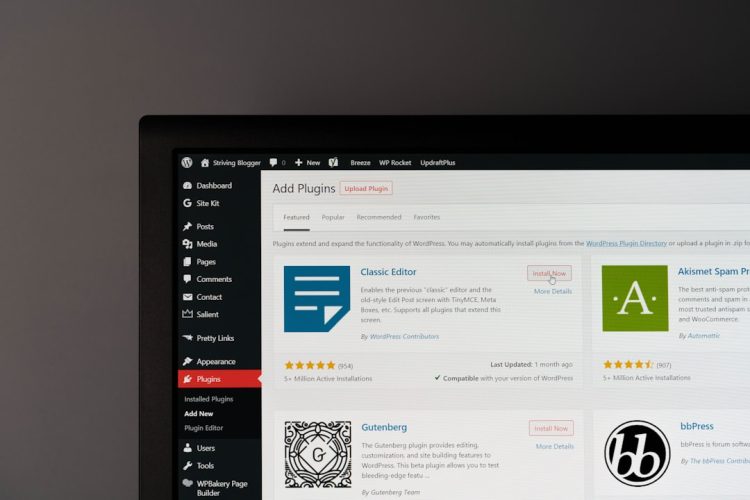
You’ve built your WordPress site, diligently added content, and watched your digital presence grow. But as your content library expands, managing it can quickly evolve from a simple task into a complex undertaking. If left unchecked, a disorganized content library can hinder your site’s performance, frustrate your team, and ultimately detract from your audience’s experience. This article will guide you through the essential best practices for effectively managing your WordPress content library, ensuring it remains a powerful asset rather than a perplexing problem.
Your WordPress media library is the backbone of your visual content. A poorly managed media library can drag down your site speed, confuse your content creators, and make finding the right asset a chore. You need to treat it like a well-organized archive, not a digital junk drawer.
Understanding Image Optimization: Size, Format, and Quality
The first rule of media library management is optimization. You might assume simply uploading an image is enough, but neglecting proper optimization can significantly impact your site’s loading speed.
Resizing Images Before Uploading
Uploading colossal images straight from your camera or a stock site is a common mistake. These images often have dimensions far exceeding what your website actually displays. While WordPress does create different image sizes upon upload, the original, oversized file still exists, consuming unnecessary server space and potentially slowing down your site during initial processing or if a theme or plugin accidentally references the original. Before you even think about hitting the “Upload” button, resize your images to appropriate dimensions for their intended use. For instance, a hero image might need to be 1920 pixels wide, while a thumbnail might only need 150 pixels.
Choosing the Right Image Format
Not all image formats are created equal. You have a few primary choices, each with its strengths and weaknesses:
- JPEG (Joint Photographic Experts Group): Ideal for photographs and images with complex color gradients. JPEGs use lossy compression, meaning some data is discarded to achieve smaller file sizes, but this is often imperceptible for web use.
- PNG (Portable Network Graphics): Best for images requiring transparency (like logos) or sharp lines (like screenshots and illustrations). PNGs use lossless compression, preserving all image data, which can result in larger file sizes than JPEGs for photographic content.
- WebP: A modern image format developed by Google that offers superior compression and quality characteristics compared to JPEG and PNG. You should consider converting your images to WebP for significantly faster load times, though you’ll need a plugin or a server-side solution to serve them effectively across all browsers.
Compressing Images Without Sacrificing Quality
Once you’ve chosen the right format and dimensions, the next step is compression. Image compression tools (both online and via plugins) can reduce file sizes even further without noticeable degradation in visual quality. Services like TinyPNG or plugins like Smush and Optimole can automate this process, ensuring all your images are served at their optimal size. This seemingly small detail can have a profound impact on your page load times, which directly affects your SEO and user experience.
Implementing a Consistent Naming Convention for Files
Imagine searching for an image of a “blue car” in a library where files are named “IMG_001.jpg,” “photo123.jpeg,” and “finaldesign.png.” Frustrating, right? A consistent naming convention is crucial for efficient content retrieval.
Descriptive File Names
Instead of generic names, use descriptive ones that accurately reflect the image’s content. Include relevant keywords that you might use to search for the image later. For example, instead of “image.jpg,” use “wordpress-dashboard-screenshot.png” or “blue-widget-product-shot.webp.” This not only helps you but also assists search engines in understanding your content, contributing to better image SEO.
Incorporating Keywords and Dates
Consider including keywords that relate to your content or product. If you’re selling shoes, “red-running-shoes-front-view.jpg” is far more useful than “shoes.jpg.” For time-sensitive content, adding a date (e.g., “annual-report-2023-graph.png”) can also be beneficial for historical archiving and version control. Consistency is key here; decide on a format (e.g., lowercase, hyphens instead of spaces) and stick to it.
Leveraging the Power of Alternative Text and Captions
Accessibility and SEO are inextricably linked to how you describe your images. Alternative text (alt text) is not just for users with visual impairments; it’s a critical piece of information for search engines.
Writing Descriptive Alt Text for SEO and Accessibility
Alt text provides a text alternative for images when they cannot be displayed, or for users relying on screen readers. It should accurately describe the image’s content and context within your post. Think of it as a brief, concise sentence that conveys the image’s meaning. For example, instead of alt="image", use alt="A clear screenshot of the WordPress dashboard editor illustrating where to add new posts." This benefits screen reader users by providing context and assists search engines in understanding the image’s relevance to your content, improving your chances of appearing in image search results.
Utilizing Captions for Additional Context
Captions appear directly below or alongside an image on your website and offer a valuable opportunity to provide additional context, attribution, or an engaging snippet about the visual. While alt text is primarily for accessibility and SEO, captions are for your human readers. Use them to clarify complex images, share interesting facts, or credit photographers. They can significantly enhance the user experience and deepen engagement with your content.
For those looking to enhance their WordPress content management strategies, exploring related topics can provide valuable insights. One such article that complements the discussion on best practices for managing large WordPress content libraries is about local SEO strategies. This article, which focuses on how Pakistani businesses can improve their visibility in near-me searches, offers practical tips that can be beneficial for content creators aiming to optimize their content for local audiences. You can read more about it here: Local SEO for Pakistani Businesses: Ranking High in Near Me Searches.
Establishing a Robust Content Organization System
As your site grows, your content becomes more diverse. Without a systematic approach to organization, your published posts, pages, and custom post types will become a jumbled mess, making it difficult for you and your visitors to navigate.
Understanding and Utilizing WordPress Categories and Tags
Categories and tags are fundamental tools for organizing your content in WordPress. They allow you to group related posts and help users find what they’re looking for.
Differentiating Between Categories and Tags
Categories are broad groupings that represent the main topics or sections of your website. Think of them as the table of contents for a book. Every post should belong to at least one category, and often only one primary category for clarity. Examples might include “Blog,” “News,” “Tutorials,” “Product Reviews,” or “Company Updates.” They are hierarchical, meaning you can create parent and child categories (e.g., “Technology” as a parent, and “Smartphones,” “Laptops,” “Software” as children).
Tags, on the other hand, are specific keywords that describe the details of a post. They are like the index of a book. A single post can have multiple tags, and they are non-hierarchical. For instance, a post about “How to Optimize WordPress Images” within the “Tutorials” category might have tags like “image optimization,” “WordPress performance,” “SEO,” “plugins,” and “WebP.” They offer a more granular way to cross-reference content.
Developing a Clear Category and Tag Structure
Before you start haphazardly creating categories and tags, take the time to plan a logical structure.
- For Categories:
- Keep them broad and mutually exclusive where possible.
- Limit the number of top-level categories to avoid overwhelming users.
- Use parent/child relationships thoughtfully to create a structured hierarchy.
- Avoid using categories for one-off topics; that’s what tags are for.
- For Tags:
- Be specific and relevant to the content of the post.
- Avoid creating redundant tags (e.g., “WordPress” and “WP”).
- Don’t use too many tags per post; a handful of highly relevant ones is better than dozens of loosely related ones.
- Consider creating a “tag cloud” widget (if it aligns with your UX strategy) to make frequently used tags discoverable.
Consistency is paramount. If you call one category “WordPress Tutorials,” don’t create another called “WP Guides.” Stick to a chosen convention.
Implementing a Consistent URL Structure (Permalinks)
Your permalinks (the permanent URLs to your posts and pages) are crucial for both user experience and SEO. A clean, descriptive URL is easy to understand, remember, and share.
Choosing SEO-Friendly Permalink Structures
WordPress offers several permalink options. You should unequivocally choose the “Post name” option (yourdomain.com/sample-post/) under Settings -> Permalinks. This creates URLs that are descriptive, human-readable, and include keywords relevant to your content. Avoid options like “Plain” (yourdomain.com/?p=123) or “Numeric” as they provide no context to users or search engines.
Avoiding Redundant or Overly Long URLs
While descriptive is good, overly long or redundant URLs are not. Keep them concise. If your post title is “10 Essential Tips for Effective WordPress Content Library Management in 2024,” your permalink could be /effective-wordpress-content-library-management-tips. Avoid including stop words (like “the,” “a,” “an”) unless absolutely necessary for clarity. Also, do not stuff keywords into your URL; focus on natural language. Once a post is published, try not to change its permalink, as this can break existing links and negatively impact SEO unless you implement proper 301 redirects.
Leveraging Custom Post Types for Specialized Content
For content that doesn’t quite fit into the standard “post” or “page” mould, WordPress offers Custom Post Types (CPTs). These are incredibly powerful for creating highly structured and specific content types.
Identifying When to Use Custom Post Types
You should consider CPTs when you have content with a distinct structure or a different display requirement than regular posts or pages, and where adding it as a category or tag simply isn’t sufficient.
Examples include:
- Portfolios: Each portfolio item might have fields for project date, client, technologies used, and a portfolio image gallery.
- Products: For an e-commerce site (even without WooCommerce initially), you might have fields for price, SKU, product description, specifications, and multiple product images.
- Events: Each event could have fields for date, time, location, speaker, and registration link.
- Testimonials: Fields for the reviewer’s name, company, and star rating.
- Recipes: Fields for ingredients, instructions, cooking time, and dietary information.
Structuring Custom Post Types with Custom Taxonomies and Fields
Once you decide to use a CPT, you’ll likely need to extend it further with:
- Custom Taxonomies: These are like categories and tags, but specifically for your CPT. For a “Products” CPT, you might have taxonomies like “Product Type” (e.g., “Electronics,” “Apparel”) and “Brand.” For a “Recipes” CPT, you might have “Cuisine” or “Dietary Restrictions.”
- Custom Fields: These allow you to add specific data to each instance of your CPT. For a “Recipe” CPT, a custom field could be “Prep Time (minutes),” “Cook Time (minutes),” or “Servings.” For a “Testimonial” CPT, it might be “Customer Rating.”
Plugins like Advanced Custom Fields (ACF), Custom Post Type UI, or Pods can help you create and manage CPTs, custom taxonomies, and custom fields without writing a single line of code. This structured approach makes your content database much more organized, easier to query, and simpler to display dynamically on your front end.
Streamlining Your Content Creation Workflow
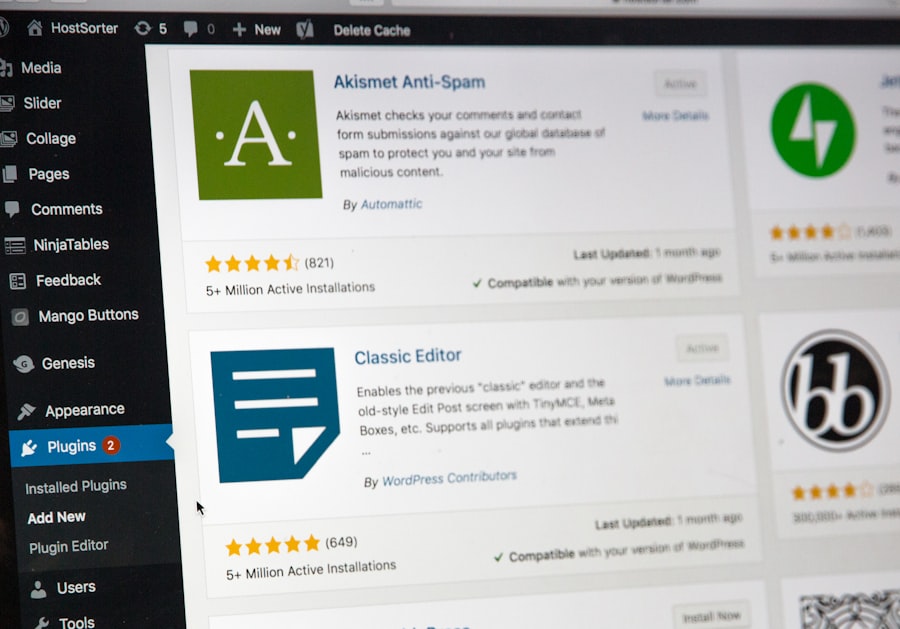
Effective content management isn’t just about what happens after content is published; it begins with the creation process itself. A well-defined workflow ensures efficiency, consistency, and higher quality output.
Implementing Content Calendars and Editorial Schedules
Haphazard content creation leads to gaps, redundancies, and missed opportunities. A content calendar is your strategic roadmap.
Planning Topics and Publication Dates
A content calendar gives you a bird’s-eye view of your upcoming content. It allows you to:
- Plan timely topics: Align content with holidays, industry events, product launches, or seasonal trends.
- Maintain diverse content: Ensure a mix of formats (blog posts, videos, infographics) and topics to keep your audience engaged.
- Avoid content gaps: Consistent publishing keeps your audience returning and satisfies search engine algorithms.
- Allocate resources effectively: Know in advance which writers, designers, or editors will be needed for specific pieces.
Tools like Google Calendar, Trello, Asana, or WordPress editorial calendar plugins (e.g., Editorial Calendar) can help you visualize and manage your schedule. Include details like topic, target audience, keywords, publication date, author, and status.
Assigning Roles and Responsibilities
A clear chain of command ensures accountability and smooth execution. For each piece of content, define who is responsible for:
- Research and ideation: Brainstorming and validating topic ideas.
- Writing/Drafting: Creating the initial content.
- Editing/Proofreading: Ensuring grammatical correctness, style consistency, and factual accuracy.
- SEO Optimization: Implementing keywords, meta descriptions, and alt text.
- Image Sourcing/Creation: Finding or creating appropriate visuals.
- Publishing: Final review and hitting the “publish” button.
- Promotion: Sharing the content on social media, email newsletters, etc.
When everyone knows their role, bottlenecks are minimized, and the content moves seamlessly through the pipeline.
Leveraging the Power of WordPress User Roles
WordPress’s built-in user roles are a powerful, yet often underutilized, feature for managing your content team and workflow securely.
Restricting Access with Appropriate User Roles
Don’t give everyone Administrator access. This is a significant security risk and can lead to accidental deletions or unauthorized changes. WordPress offers several standard roles:
- Administrator: Full control over everything on the site. Use sparingly.
- Editor: Can publish and manage posts and pages, including those of other users. Can manage categories, tags, and media.
- Author: Can publish and manage their own posts.
- Contributor: Can write and edit their own posts but cannot publish them. They must be submitted for review.
- Subscriber: Can only manage their profile.
By assigning the least permissive role necessary for each team member, you protect your site from errors and malicious activity, creating a more secure content management environment.
Creating Custom User Roles for Specific Needs
If the default roles don’t quite fit your team’s structure, you can create custom user roles with specific capabilities. For instance, you might want a “SEO Manager” role that can only edit meta descriptions and perform SEO audits, or a “Reviewer” role that can only approve content from contributors but not publish it themselves. Plugins like “User Role Editor” or “Members” make creating and managing custom roles straightforward, giving you granular control over who can do what on your WordPress site.
Implementing Content Review and Approval Processes
Even with the best writers, a second (or third) pair of eyes is invaluable. A formal review process ensures quality, consistency, and brand alignment.
Draft Status and Revision History
WordPress inherently supports content review through its “Draft” status. Encourage writers to save their work as drafts. The “Revision History” feature is also incredibly useful, allowing you to see every saved version of a post, compare changes, and revert to an earlier version if needed. This is your safety net against accidental deletions or unwanted edits.
Setting Up a Formal Approval Workflow
For larger teams or critical content, a more formal approval workflow is essential.
- Contributor -> Editor: A contributor writes a post, submits it for review, and an editor checks it for accuracy, style, and completeness.
- Editor -> Administrator: For highly sensitive content (e.g., press releases, policy updates), an Editor might send it to an Administrator for final sign-off before publication.
This workflow can be managed manually through communication (email, Slack), or via plugins designed to enhance WordPress’s editorial flow, adding features like content approval queues, checklists, and automated notifications. The goal is to catch errors, ensure brand voice consistency, and guarantee that everything published meets your quality standards.
Maintaining and Archiving Your Content Library
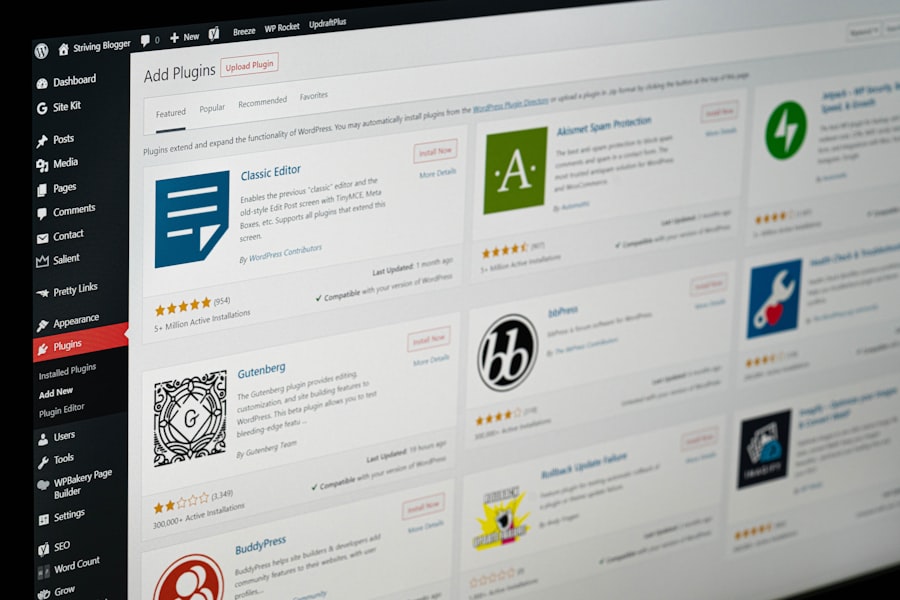
Just as a physical library requires ongoing care, your digital content library needs continuous maintenance and strategic archiving to remain effective.
Regularly Auditing and Updating Existing Content
Your content isn’t static; neither should be your approach to it. Neglecting old content is a missed opportunity and can even harm your site.
Identifying Outdated or Irrelevant Content
Periodically (e.g., quarterly or bi-annually), conduct a content audit. Look for:
- Outdated information: Prices, statistics, product features, or technical instructions that are no longer accurate.
- Broken links: Internal or external links that lead to 404 pages.
- Poorly performing content: Posts with low traffic, high bounce rates, or low engagement.
- Content that no longer aligns with your brand or goals: Old marketing campaigns, irrelevant news.
Tools like Google Analytics, Google Search Console, or WordPress SEO plugins can help you identify these issues.
republishing, Merging, or Deleting Content Strategically
Once you’ve identified outdated content, you have several options:
- Update and Republish: If the core content is still valuable, update it with fresh information, new data, and improved SEO. Change the publication date to signal freshness and consider promoting it again.
- Merge: If you have multiple thin posts on similar topics, consider merging them into one comprehensive, authoritative piece. This can improve SEO by creating a stronger, single resource. Remember to set up 301 redirects from the old URLs to the new merged one.
- Delete and Redirect: For truly irrelevant or low-quality content that offers no value, delete it. Crucially, implement a 301 redirect from the old URL to a highly relevant new page (e.g., your homepage, a category page, or an updated related post). Never simply delete content without a redirect, as this creates 404 errors, which are bad for user experience and SEO.
This process ensures your library remains lean, relevant, and filled with high-quality, up-to-date resources.
Implementing a Robust Backup Strategy
Disasters happen. Websites crash, updates go wrong, and sometimes, human error leads to disastrous content loss. A comprehensive backup strategy is non-negotiable.
Daily Backups of Your Entire WordPress Site
You need to back up your entire WordPress installation:
- Database: This contains all your posts, pages, comments, settings, and user information. This is often the most critical component.
- Files: This includes your WordPress core files, themes, plugins, and all your uploaded media.
Many hosting providers offer automatic daily backups, but you should verify their coverage and retention policy. Don’t rely solely on your host; have your own independent backup system.
Offsite Storage and Multiple Backup Points
Store your backups offsite, meaning not on the same server as your live website. Services like Dropbox, Google Drive, Amazon S3, or dedicated backup solutions are excellent choices. Consider having multiple backup points (e.g., one on your host, one on Dropbox, one on a local external drive) for maximum redundancy. Plugins like UpdraftPlus, BackWPup, or VaultPress can automate scheduled backups to various cloud storage providers, making this critical task easy to manage. Regular testing of your restore process is also vital to ensure your backups are actually functional when you need them.
Archiving and Decommissioning Old Content
While some old content can be updated, other content truly belongs in an archive or should be permanently removed.
Differentiating Between Archiving and Deleting
- Archiving: This means the content is still accessible (perhaps from a dedicated archive page, or via direct link), but it’s no longer actively promoted or featured. It still exists on your site database. This is useful for historical records, old announcements, or content that might still be useful to a niche audience but isn’t relevant to your current main strategy. Often, applying a “Noindex” tag to archived posts via your SEO plugin can tell search engines not to crawl and index them as actively, reducing crawl budget waste without fully deleting them.
- Deleting: This means the content is permanently removed from your WordPress database and files. This should only be done for truly low-quality, duplicative, or irrelevant content, always accompanied by a 301 redirect.
Strategies for Managing Archived Content
For genuinely archived content, you might:
- Create a dedicated archive section: A chronological or category-based archive template where users can browse older content.
- Add a disclaimer: Clearly state that the content is old (e.g., “Note: This post was published in 2018 and may contain outdated information.”).
- Utilize a “Noindex” tag: If you don’t want search engines wasting crawl budget on it or ranking it among your freshest content, add a
noindex, followdirective to the page.
Your goal is to ensure that your active content library is vibrant and useful, while still appropriately managing historical or less relevant information.
When managing large WordPress content libraries, it’s essential to consider various factors that can impact performance and user experience. One important aspect is the type of storage used for your website, as it can significantly affect loading times and overall efficiency. For instance, understanding the differences between NVMe and SSD storage can help you make informed decisions about your hosting solutions. You can learn more about this topic in the article on the speed difference for dynamic websites, which provides valuable insights into how storage options can influence your site’s performance. For further reading, check out this article.
Advanced Strategies for Large-Scale Content Management
| Best Practices for Managing Large WordPress Content Libraries |
|---|
| 1. Use Categories and Tags |
| 2. Implement a Content Organization Strategy |
| 3. Utilize Custom Post Types |
| 4. Optimize Database Performance |
| 5. Regularly Audit and Clean Up Content |
As your WordPress site scales, generic approaches may no longer suffice. You’ll need to employ more sophisticated tools and strategies to keep your content library organized and efficient.
Implementing Digital Asset Management (DAM) Solutions
For sites with thousands of images, videos, and other media files, the default WordPress media library can quickly become overwhelming. This is where a Digital Asset Management (DAM) system can revolutionize your workflow.
Centralizing and Organizing All Media Assets
A DAM system goes far beyond what the WordPress media library offers. It provides a centralized repository for all your digital assets, not just those used on your current WordPress site. This means logos, brand guidelines, video clips, raw image files, and approved versions of every visual asset are stored in one accessible location. This ensures brand consistency across all platforms and makes it easy for any team member to find the correct, approved asset.
Enhancing Searchability with Advanced Metadata and Tags
DAMs excel in allowing you to attach extensive metadata to each asset. Beyond simple alt text and titles, you can add:
- Keywords and multiple tags: Far more granular than WordPress tags, assisting with highly specific searches.
- Descriptive fields: Project name, copyright information, creator, usage rights, expiration dates, approval status.
- Custom fields: Tailored to your specific needs (e.g., product SKU for product images).
This rich metadata makes assets incredibly searchable. Imagine filtering for “all lifestyle images featuring women over 30 using product X from the Spring 2024 campaign, approved for social media.” A DAM can do that, dramatically reducing the time spent searching for files. Many DAMs also integrate with WordPress via plugins, allowing you to seamlessly pull assets from your DAM directly into your content.
Integrating Version Control for Content and Code
Especially in collaborative environments, managing revisions and changes to content and code becomes critical. Version control systems prevent conflicts and preserve historical records.
Tracking Changes to Posts, Pages, and Custom Post Types
While WordPress has built-in revision control (which you should absolutely use), it’s relatively basic. For a deeper level of version control, especially for highly collaborative content or content with legal implications, you might look at plugins that enhance this. More robust solutions can track changes at a more granular level, allow for branching and merging content (like code), and provide a dedicated audit trail of who changed what and when. This is particularly valuable for protecting against accidental edits and ensuring that content adheres to specific style guides or legal requirements.
Managing Theme and Plugin Code with Git
For developers managing themes, custom plugins, or significant site modifications, using a version control system like Git (and platforms like GitHub or GitLab) is non-negotiable. Git allows you to:
- Track every change: Know exactly what code was added, removed, or modified, by whom, and when.
- Collaborate effectively: Multiple developers can work on different features simultaneously without stepping on each other’s toes, merging their changes when ready.
- Revert to previous versions: Easily undo problematic changes or revert to a stable working version if something breaks.
- Implement staging environments: Developers can work on new features in a separate isolated environment, merge them into a staging site for testing, and then deploy to the live site once thoroughly vetted.
This sophisticated approach to code management ensures the stability, security, and ongoing development of your WordPress site, which indirectly supports your content library by maintaining the platform it lives on.
Utilizing Content Delivery Networks (CDNs) for Media
Your media files, especially images and videos, are often the heaviest elements on your website. CDNs are a game-changer for speed and global reach.
Speeding Up Media Delivery Globally
A CDN is a geographically distributed network of servers. When a user requests your website, the CDN serves your static assets (like images, videos, CSS, and JavaScript files) from the server closest to that user.
- Reduced Latency: Less distance for data to travel means faster load times for your users, regardless of their location.
- Reduced Server Load: Your main WordPress server isn’t bogged down serving every image, freeing it up to handle dynamic content more efficiently.
- DDoS Protection: Many CDNs offer basic security features, including protection against distributed denial-of-service (DDoS) attacks.
This significantly enhances user experience, especially for international audiences, and is a strong ranking factor for search engines.
Reducing Server Load and Improving Scalability
Imagine a sudden traffic surge – a popular post goes viral. Without a CDN, your single server might buckle under the pressure of trying to serve hundreds or thousands of concurrent requests for your media files. A CDN distributes that load across its network, ensuring your site remains fast and accessible even during peak demand. This scalability is crucial for growing websites that experience unpredictable traffic patterns, safeguarding your content’s availability. Popular CDN providers include Cloudflare, Kinsta CDN (powered by Cloudflare), KeyCDN, and Amazon CloudFront. Many WordPress hosts also offer integrated CDN services.
By embracing these advanced strategies, you move beyond basic content management to a sophisticated ecosystem that not only organizes your content but also optimizes its performance, security, and long-term viability, ensuring your WordPress content library remains a powerful, strategic asset.
FAQs
What are some best practices for organizing large WordPress content libraries?
Some best practices for organizing large WordPress content libraries include using categories and tags effectively, creating a clear folder structure for media files, and using custom post types for different types of content.
How can I improve the performance of a large WordPress content library?
To improve the performance of a large WordPress content library, you can use caching plugins, optimize images and media files, and consider using a content delivery network (CDN) to distribute content across multiple servers.
What are some strategies for maintaining a large WordPress content library?
Strategies for maintaining a large WordPress content library include regularly updating and deleting outdated content, implementing a backup and recovery plan, and monitoring for broken links and errors.
How can I ensure the security of a large WordPress content library?
To ensure the security of a large WordPress content library, you can use security plugins, keep WordPress and plugins updated, and implement strong user access controls and permissions.
What are some tools and plugins that can help with managing a large WordPress content library?
Some tools and plugins that can help with managing a large WordPress content library include media library organization plugins, SEO plugins for optimizing content, and backup and migration plugins for maintaining data integrity.









Add comment