

Understanding the Nature of Error 508
You’ve just hit refresh on your website, eager to see your latest updates, when suddenly, a stark, unwelcome message flashes across your screen: “Error 508 Resource Limit Reached.” Your heart sinks a little, a familiar pang of frustration as you realize your site is down, inaccessible to visitors. This isn’t just a generic error; it’s a specific cry for help from your web hosting environment, indicating that your website has consumed more resources than your hosting plan allows. It’s like trying to fit an elephant into a Mini Cooper – there simply isn’t enough space or capacity for the task at hand.
The 508 error, at its core, points to a fundamental imbalance between your website’s demands and the provisions of your hosting package. Modern web hosting, especially shared hosting, operates on a principle of resource allocation. Each user on a server is assigned a certain slice of the pie – CPU, RAM, I/O (Input/Output), and sometimes even the number of concurrent processes. When your website, for whatever reason, exceeds these predefined limits, the hosting server intervenes, shutting down processes to prevent your site from negatively impacting other users on the same server. This protective measure, while inconvenient for you, is essential for maintaining server stability and ensuring fair resource distribution among all hosted websites. Understanding this mechanism is the first step toward diagnosing and ultimately resolving the issue. It’s not a server malfunction, but rather an enforcement of the rules set by your hosting provider to maintain a healthy ecosystem for all their clients.
The Shared Hosting Environment and Resource Limits
You’re likely experiencing this error on a shared hosting plan. This is where multiple websites, potentially hundreds or even thousands, reside on a single physical server. To ensure that one website doesn’t hog all the resources and negatively affect others, hosting providers implement strict resource limits. Think of it like an apartment building where each tenant has a limited amount of electricity and water they can use. If one tenant decides to run every appliance simultaneously for hours on end, it could trip the circuit breaker for the entire building, or at least for their individual unit.
Your website, therefore, is subject to caps on CPU usage (how much processing power it can consume), RAM (how much memory it can utilize), I/O (the rate at which it can read from and write to disk), and often, the number of entry processes or concurrent connections. These limits are typically generous enough for average small to medium-sized websites, but they become a bottleneck when your site’s demands escalate. It’s a balancing act: hosting providers want to offer affordable services, which shared hosting facilitates, but they also need to guarantee a certain level of performance and stability for all their customers. The 508 error is essentially the system’s way of saying, “You’ve exceeded your allocated share, and I’m cutting you off to protect the integrity of the server for everyone else.”
Distinguishing 508 from Other Server Errors
While the 508 error specifically points to resource exhaustion, you might encounter other server-related errors that can sometimes be confused with it. It’s crucial for you to understand the distinction. A 500 Internal Server Error, for instance, is a very general catch-all error indicating something went wrong on the server, but it doesn’t specify what. It could be a misconfigured .htaccess file, a PHP error, or a faulty plugin. A 503 Service Unavailable error typically means the server is temporarily unable to handle the request, often due to maintenance or being overloaded, but not necessarily due to your website exceeding its specific resource limits.
The 508 error, on the other hand, is quite precise. It tells you unequivocally that your website has reached or surpassed its CPU, RAM, or entry process limits. This specificity is a double-edged sword: it clearly identifies the problem area (resource consumption), but it doesn’t immediately tell you why your site is consuming so many resources. You’ll need to dig deeper to uncover the root cause, but at least you know where to start your investigation. Recognizing this difference helps you narrow down your troubleshooting efforts significantly.
Understanding the causes of Error 508 Resource Limit Reached in web hosting is crucial for maintaining a smooth online experience. For those looking to enhance their website’s performance and reliability, it may also be beneficial to explore how content creation can impact your site’s success. A related article that discusses the importance of blogging for e-commerce websites can be found here: Why Your E-Commerce Website Needs a Blog. This resource provides insights into how regular content updates can improve traffic and engagement, potentially alleviating some resource strain on your hosting environment.
Common Culprits Behind Excessive Resource Consumption
Now that you understand what the 508 error signifies, your next step is to identify why your website is suddenly so resource-hungry. There isn’t a single universal cause; instead, a combination of factors, or even a single severe issue, can push your site past its limits. Think of your website as an engine, and various components can cause it to overwork and consume too much fuel. Pinpointing the exact culprit often requires a bit of detective work, examining your website’s activity, recent changes, and overall configuration.
Inefficient Code and Database Queries
You might be surprised to learn that the very building blocks of your website – its code and database interactions – can be a significant source of resource drain. If your website is running on a content management system (CMS) like WordPress, Joomla, or Drupal, the quality of its themes, plugins, and custom code plays a critical role. Poorly written code, especially within plugins or themes, can lead to endless loops, unnecessary computations, or inefficient database queries that quickly exhaust your CPU and RAM.
Consider a WordPress plugin designed to add a simple feature. If this plugin, for every page load, executes dozens of complex database queries that aren’t properly indexed or optimized, it forces your server to work overtime. Each query consumes CPU cycles and RAM. Multiply that by several such plugins, and then by the number of visitors to your site, and you can see how quickly resources deplete. Similarly, custom code that isn’t optimized for performance, perhaps due to a lack of caching mechanisms or excessive synchronous operations, can also be a major culprit. Regularly reviewing and optimizing your code, plugins, and database queries is crucial for maintaining a lean, efficient website. Tools exist to profile PHP code and SQL queries, helping you pinpoint the exact functions or queries that are hogging resources.
High Traffic Spikes and Bot Activity
One of the most straightforward reasons for hitting resource limits is a sudden surge in website traffic. If your website suddenly goes viral, gets featured on a popular news site, or experiences a successful marketing campaign, the influx of visitors can overwhelm your current hosting plan. Each visitor generates requests, consumes server resources, and initiates various processes. While this is a “good problem” to have (your content is popular!), it unequivocally translates into higher resource demands.
Less benign, however, is bot activity. Not all traffic is human. Malicious bots, such as those attempting to scrape your content, perform brute-force attacks on your login page, or conduct DDoS (Distributed Denial of Service) attacks, can generate an enormous volume of requests in a short period. These bots don’t just consume bandwidth; they force your server to process countless illegitimate requests, eating up CPU and RAM. Even benign bots, like search engine crawlers, if not properly managed (e.g., through robots.txt or crawl delay settings), can sometimes be overly aggressive and contribute to resource exhaustion, especially during periods of high legitimate traffic. Identifying and blocking malicious bot traffic is essential for protecting your resources.
Outdated Software and Vulnerabilities
Running outdated versions of your CMS, themes, plugins, or even the underlying PHP version can significantly contribute to resource problems. Older software often contains unoptimized code, known performance bottlenecks, and, critically, security vulnerabilities. Attackers actively exploit these vulnerabilities. If your website is compromised, attackers might install malicious scripts or backdoors that consume excessive server resources for their nefarious purposes – sending spam, hosting phishing pages, or participating in botnets.
Beyond security risks, older software simply isn’t as efficient. Developers constantly work on optimizing code, improving performance, and reducing resource footprints with each new release. Upgrading your CMS and its components often brings significant performance enhancements. Similarly, upgrading to the latest stable PHP version (e.g., PHP 8.1 or 8.2 instead of PHP 7.4) can provide substantial performance gains with minimal code changes, as newer PHP versions are significantly more efficient at processing code. Regular updates are not just about security; they are a critical aspect of resource management and overall website health.
Excessive Plugin and Theme Usage
While plugins and themes enhance your website’s functionality and aesthetics, their indiscriminate use can lead to serious resource issues. Each plugin you install adds code, potentially new database tables, and often introduces its own set of processes and scripts that run in the background or during page loads. More plugins generally mean more overhead. This is especially true for plugins that perform complex tasks like security scanning, advanced analytics, e-commerce functionalities, or page builders.
Even seemingly simple plugins can be resource hogs if poorly coded. The cumulative effect of numerous plugins, some of which might even conflict with each other, can severely slow down your website and push you over your resource limits. Similarly, complex and feature-rich themes, especially those marketed as “multipurpose” or “all-in-one,” often come packed with excessive code and functionalities that you might not even use. This “bloatware” adds unnecessary weight to your site, increasing load times and resource consumption. A lean approach to plugins and themes, where you only install what is absolutely necessary and prioritize well-coded, lightweight options, is paramount.
Diagnosing the Root Cause of Error 508
When you encounter a 508 error, the immediate task is to identify what precisely is causing your website to exceed its resource limits. This isn’t always straightforward, as the error message itself is quite generic regarding the specific reason. You’ll need to put on your detective hat and start gathering clues from various sources. Your hosting provider’s tools and your website’s own internal diagnostics will be your best friends here.
Checking Hosting Control Panel Metrics
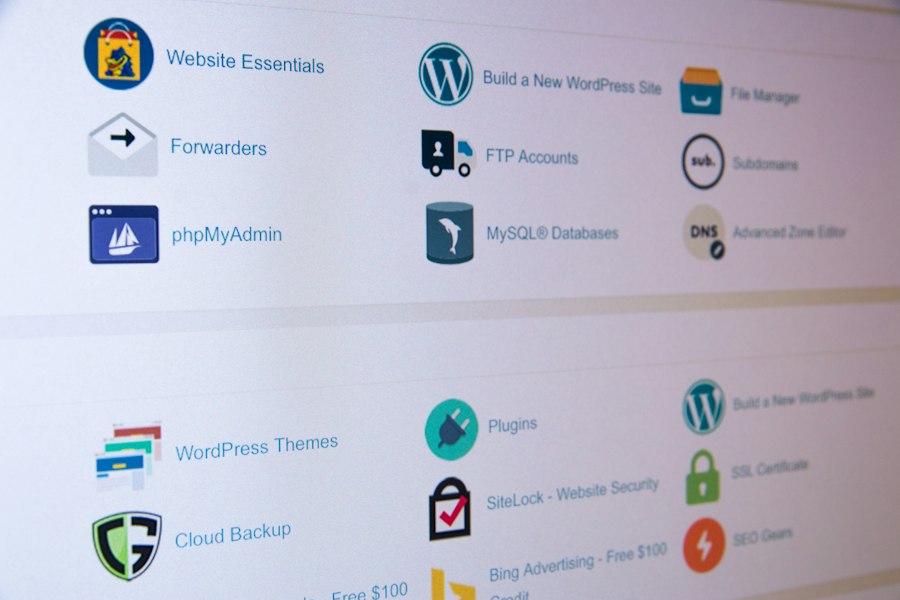
Your hosting control panel (cPanel, Plesk, or a custom one) is your primary resource for understanding your website’s resource consumption. You’ll typically find sections dedicated to “Resource Usage” or similar terminology. These metrics usually provide graphs and statistics for CPU usage, RAM usage, I/O usage, and entry processes over various timeframes (hourly, daily, weekly).
You need to look for spikes that coincide with the time the 508 error occurred. Did your CPU usage suddenly jump to 100%? Did your memory consumption skyrocket? Was there an unusual number of entry processes running? These graphs can confirm which resource limit was hit. Some advanced hosting panels even offer details about the specific processes or scripts that were consuming the most resources when the limit was reached. This information is invaluable for narrowing down your search. If your control panel doesn’t offer such detailed insights, contacting your hosting support team is your next step, as they have access to more granular server logs.
Reviewing Website Error Logs and Access Logs
Beyond your hosting panel’s resource graphs, your website’s own logs provide a wealth of diagnostic information.
PHP Error Logs
Most CMS platforms and web servers maintain PHP error logs. These logs record any errors or warnings generated by your website’s PHP scripts. You’re looking for recurring errors, particularly those related to specific plugins, themes, or custom code. A plugin that’s constantly throwing “out of memory” errors or “maximum execution time exceeded” warnings is a strong indicator of a resource hog. These logs often contain file paths and line numbers, which can help a developer pinpoint the problematic code. Your hosting provider can usually help you locate these logs, or they might be accessible via your file manager in a folder like wp-content/debug.log (for WordPress) or in your server’s logs directory.
Web Server Access Logs
Access logs, typically Apache or Nginx logs, record every request made to your website. These are crucial for identifying traffic patterns. Look for unusual spikes in requests, especially from specific IP addresses or user agents (browser identifiers). A sudden influx of requests from a single IP or a range of IPs, or requests targeting unusual URLs on your site, could indicate a bot attack or a content scraper. Tools like AWStats or Webalizer, often available in your cPanel, can help visualize this data, but for deep analysis, you might need to download the raw logs and use command-line tools or log analysis software. Unusually high numbers of requests to specific dynamic pages (like search results or complex e-commerce pages) can also point to inefficient queries being hammered.
Utilizing CMS-Specific Diagnostics
If your website runs on a CMS like WordPress, there are specific tools and techniques you can employ.
WordPress Health Check & Troubleshooting Plugin
For WordPress users, the “Health Check & Troubleshooting” plugin is an official and incredibly useful tool. It provides a “Troubleshooting Mode” which allows you to temporarily disable all plugins and switch to a default theme only for your administrative session. This means your site appears normal to visitors, but you can see if the error disappears when all third-party components are temporarily inactive. If the 508 error resolves in troubleshooting mode, you can then reactivate plugins one by one, or the theme, to identify the specific culprit. This systematic approach is often the most effective way to isolate problematic plugins or themes.
Database Optimization Tools
Many CMS platforms, especially WordPress, benefit from regular database optimization. Plugins like WP-Optimize or WP-Sweep can help clean up your database by removing old revisions, spam comments, transient options, and orphaned data. A bloated or unoptimized database can lead to slow and resource-intensive queries, directly contributing to the 508 error. While these tools won’t always cause the 508 directly, an unoptimized database will exacerbate any other resource issues you’re facing.
Strategies for Resolving Error 508
Once you’ve identified the likely cause (or causes) of your 508 error, it’s time to implement solutions. These strategies range from immediate fixes to long-term preventative measures, ensuring your website operates smoothly within its allocated resources.
Optimizing Website Performance
Improving your website’s performance is often the most effective long-term solution. A lean, efficient website naturally consumes fewer resources.
Implementing Caching Mechanisms
Caching is perhaps the most powerful tool in your optimization arsenal. Caching stores static versions of your web pages and other assets (images, CSS, JavaScript) so that your server doesn’t have to dynamically generate them for every visitor. When a cached version is served, it significantly reduces CPU and database load. For WordPress, plugins like WP Rocket, LiteSpeed Cache, or W3 Total Cache are excellent choices. Server-side caching, often offered by hosting providers (e.g., LiteSpeed Cache on LiteSpeed servers), is even more efficient. Ensure you configure your caching solution correctly to cache as much as possible without breaking dynamic elements.
Optimizing Images and Media
Large, unoptimized images are a common culprit for slow load times and increased resource usage (especially I/O if they are frequently served). Before uploading images, compress them using tools like TinyPNG or ShortPixel. Use modern formats like WebP. Ensure images are properly sized for their display area – don’t upload a 4000px wide image if it’s only displayed at 800px. Plugins for image optimization can automate this process for existing media.
Minifying CSS, JavaScript, and HTML
Minification removes unnecessary characters (whitespace, comments) from your CSS, JavaScript, and HTML files, making them smaller and faster to load. This reduces the amount of data transferred and slightly reduces server processing. Many caching plugins offer minification features. Combining multiple CSS and JavaScript files into fewer files (concatenation) can also reduce the number of HTTP requests, further improving performance.
Managing Plugins and Themes Effectively
Your choice and management of plugins and themes have a direct impact on resource consumption.
Deactivating and Removing Unused Components
Perform a thorough audit of your installed plugins and themes. If you’re not actively using a plugin or theme, deactivate and then delete it. Even inactive plugins can sometimes consume resources or pose security risks. The fewer active components, the lighter your website will be. Be ruthless in this clean-up process.
Replacing Resource-Intensive Plugins
If your diagnostics point to specific plugins as resource hogs (e.g., security plugins that scan frequently, complex page builders, or analytics tools), explore lighter alternatives. Sometimes, a complex plugin can be replaced by two simpler, more efficient ones, or a server-side solution might be preferable. For instance, if a plugin is performing extensive backups, consider using your hosting provider’s backup service or a more resource-friendly external solution.
Choosing Lightweight Themes
When selecting a theme, prioritize speed and efficiency. “Bloated” themes with excessive features you don’t use will always consume more resources. Opt for well-coded, lightweight themes (like GeneratePress, Astra, or Neve for WordPress) and then add functionality with specific, well-optimized plugins only as needed.
Addressing Security and Traffic Anomalies
Unwanted traffic and security breaches are major contributors to resource exhaustion.
Implementing a Web Application Firewall (WAF)
A WAF, like Cloudflare or Sucuri, acts as a protective layer between your visitors and your server. It filters out malicious traffic, blocks common attack vectors, and can even mitigate DDoS attacks, significantly reducing the load on your server from unwanted requests. Many WAFs also offer caching and content delivery network (CDN) services, which further offload resources.
Blocking Malicious Bots and IP Addresses
If your access logs reveal specific IP addresses or user agents engaging in malicious activity, you can block them. This can be done via your .htaccess file, your hosting control panel’s IP blocker, or a security plugin. Be cautious when blocking IPs to avoid accidentally blocking legitimate users or search engine crawlers.
Updating All Software Regularly
Make it a habit to keep your CMS, themes, plugins, and PHP version updated to their latest stable releases. Updates often include performance enhancements, bug fixes, and critical security patches that prevent vulnerabilities from being exploited, thus protecting your resources from malicious use.
Upgrading Your Hosting Plan
If you’ve optimized everything you can and your website is genuinely experiencing legitimate high traffic or has grown beyond the capabilities of your current hosting, it might be time to upgrade.
Moving to a Higher Shared Hosting Tier
Most hosting providers offer different tiers of shared hosting with increasing resource allocations. If your current limits are consistently being hit after optimization, moving up one tier might provide the headroom you need without a significant cost increase.
Considering a VPS or Dedicated Server
For websites with sustained high traffic, complex applications, or specific resource needs, a Virtual Private Server (VPS) or a dedicated server offers significantly more resources and greater control. A VPS provides you with a slice of a server with guaranteed resources, isolated from other users. A dedicated server gives you exclusive access to an entire physical machine. While more expensive, these options eliminate the resource limits of shared hosting and provide the flexibility to configure the server environment to your exact specifications. This is often the ultimate solution when your website has outgrown its shared hosting environment entirely.
Understanding the causes of Error 508 Resource Limit Reached in web hosting can be crucial for maintaining a smooth online presence. This error often arises when a website exceeds its allocated resources, leading to performance issues. For those looking to optimize their web hosting experience, exploring essential business tools can be beneficial. You can find valuable insights in this article about the tech stack for solo entrepreneurs, which can help streamline your operations and prevent resource-related errors. Check it out here for more information.
Proactive Measures and Continuous Monitoring
| Cause | Description | Common Metrics Affected | Impact on Website |
|---|---|---|---|
| CPU Usage Limit Exceeded | The website’s processes consume more CPU resources than allocated by the hosting plan. | CPU time (seconds), CPU load (%) | Slow response times, temporary site unavailability |
| Memory Usage Limit Exceeded | The website uses more RAM than allowed, causing resource contention. | Memory usage (MB), RAM allocation | Site crashes, errors during page load |
| Entry Processes Limit Reached | Too many simultaneous processes or connections are running, exceeding limits. | Number of concurrent processes | Connection refusals, error 508 displayed |
| Bandwidth Overuse | Excessive data transfer beyond the hosting plan’s bandwidth cap. | Data transferred (GB), bandwidth usage (%) | Temporary suspension or throttling of site access |
| High Number of HTTP Requests | Excessive requests from users or bots causing server overload. | Requests per second, total requests | Server overload, error 508 triggered |
| Unoptimized Scripts or Plugins | Poorly coded or heavy scripts consuming excessive resources. | Script execution time, memory consumption | Slow site performance, resource limit errors |
Preventing future 508 errors is far better than reacting to them. By implementing proactive measures and continuously monitoring your website, you can maintain a healthy, efficient online presence and avoid unexpected downtime. Think of it as preventative maintenance for your digital asset.
Regular Performance Audits
Don’t wait for an error to strike before you assess your website’s performance. Make it a routine to conduct performance audits. Tools like Google PageSpeed Insights, GTmetrix, and Pingdom Tools can provide valuable insights into your website’s speed, identify bottlenecks, and suggest improvements. These tools analyze aspects like server response time, image optimization, script loading, and overall page weight. Regularly reviewing these reports allows you to catch minor issues before they escalate into major resource problems. Consider establishing a schedule, perhaps monthly or quarterly, to run these audits and address any emerging performance concerns. This proactive approach helps you stay ahead of potential resource overages.
Implementing a Content Delivery Network (CDN)
A CDN is an invaluable asset for websites experiencing significant traffic, especially if your audience is geographically dispersed. A CDN caches your website’s static content (images, CSS, JavaScript, videos) on servers located around the world. When a visitor requests your site, the content is served from the closest CDN server, rather than your origin server. This dramatically reduces the load on your main hosting server, as it no longer has to handle every request for static assets. By offloading a substantial portion of your traffic to the CDN, you free up your server’s CPU, RAM, and I/O for dynamic content, making it much less likely to hit resource limits, even during traffic spikes. Services like Cloudflare, Sucuri, and KeyCDN are popular choices.
Keeping Your Hosting Provider Informed
Your hosting provider is a partner in your website’s success. Don’t hesitate to communicate with them, especially if you anticipate changes in your traffic patterns or are experiencing recurring 508 errors. If you’re planning a major marketing campaign, expecting a viral surge, or launching a new resource-intensive feature, inform your host in advance. They might be able to temporarily adjust limits, offer advice on optimization, or suggest an appropriate upgrade path. Furthermore, if you’re consistently hitting limits after optimization, discuss your usage patterns with them. They can often provide more detailed server-side logs and insights that you might not have access to, helping you pinpoint the exact source of resource consumption and recommend the best course of action, whether that’s further optimization or a plan upgrade. Building a good relationship with your host and being transparent about your needs can significantly contribute to keeping your site stable.
FAQs
What is Error 508 Resource Limit Reached?
Error 508 Resource Limit Reached is a server error that occurs when a web hosting account exceeds the resource limits set by the hosting provider. This can include limits on CPU usage, memory, or the number of processes that can run simultaneously.
What causes Error 508 Resource Limit Reached?
This error is typically caused by high traffic to a website, poorly optimized scripts, or resource-intensive applications that consume more resources than allocated. It can also occur due to misconfigured settings or excessive background processes.
How can I fix Error 508 Resource Limit Reached?
To fix this error, you can optimize your website by reducing the load on the server, such as optimizing images, using caching, or limiting the number of plugins. Additionally, you may consider upgrading your hosting plan to accommodate higher resource needs.
Can Error 508 affect my website’s SEO?
Yes, Error 508 can negatively impact your website’s SEO. If search engines encounter this error while crawling your site, it may lead to lower rankings or even removal from search engine indexes due to poor user experience.
How can I monitor resource usage to prevent Error 508?
You can monitor resource usage through your hosting control panel, which often provides metrics on CPU, memory, and bandwidth usage. Additionally, using performance monitoring tools can help identify resource-heavy processes and optimize them accordingly.









Add comment