
You’re a busy bee in the digital world, aren’t you? Juggling multiple websites, each with its own quirks and demands, can feel like herding cats. But what if there was a magic wand, a single point of control, to streamline your WordPress empire? Enter WordPress Toolkit – your ultimate ally in conquering the chaos. This comprehensive guide will walk you through the ins and outs of using WordPress Toolkit to manage all your websites efficiently, securely, and with remarkable ease.
Let’s face it, managing a single WordPress site is enough of a task. Now multiply that by two, five, or even fifty. The sheer volume of updates, security checks, backups, and staging environments can quickly become overwhelming. You’re constantly logging in and out of different dashboards, remembering various credentials, and praying you haven’t missed a critical update. This is where WordPress Toolkit steps in, transforming your multi-site madness into a well-oiled machine. It’s not just a convenience; it’s a necessity for anyone serious about web management.
Centralized Command and Control
Imagine having a single dashboard where you can see the status of all your WordPress installations. No more opening countless browser tabs or remembering which client owns which site. WordPress Toolkit provides this centralized hub, giving you an immediate overview of themes, plugins, versions, and security statuses across your entire portfolio. This bird’s-eye view is invaluable for strategic planning and reactive problem-solving.
Time-Saving Automation
Time is money, and WordPress Toolkit is a master at saving both. Automating routine tasks like updates, security scans, and even staging deployments frees you up to focus on growth, content creation, or client communication. You’re no longer bogged down in the mundane, allowing you to elevate your role from a mere site administrator to a strategic digital architect. Think of the hours you’ll reclaim each week – hours you can invest in expanding your business or simply enjoying a well-deserved break.
Enhanced Security Measures
Security breaches are a nightmare, and the more sites you manage, the greater your attack surface. WordPress Toolkit integrates robust security features that help you proactively protect your websites. From hardening security settings to regular vulnerability scans, you’re equipped with the tools to defend against malicious actors. You’ll sleep better knowing your sites are fortified against common threats.
Managing multiple websites can be a daunting task, but tools like WordPress Toolkit simplify the process significantly. For those interested in ensuring their websites are not only well-managed but also secure, it’s essential to consider the broader implications of web hosting security. A related article that delves into this topic is “Is Your Shared Hosting Plan Protecting Your Data? The 2025 Security Checklist,” which provides valuable insights on how to safeguard your online presence. You can read it here: Is Your Shared Hosting Plan Protecting Your Data? The 2025 Security Checklist.
Getting Started with WordPress Toolkit
So, you’re convinced. WordPress Toolkit sounds like the answer to your prayers. But how do you get started? The good news is, if your hosting provider offers it, integrating WordPress Toolkit is usually a straightforward process. Often, it’s already installed and accessible directly from your hosting control panel, such as cPanel or Plesk.
Locating WordPress Toolkit in Your Hosting Panel
The first step is to log into your hosting control panel. Look for an icon or section labeled “WordPress Toolkit,” “Applications,” or “Websites.” The exact location might vary slightly depending on your hosting provider and the version of your control panel. Once you find it, a single click will transport you to your new command center.
Importing Existing WordPress Installations
If you already have WordPress sites hosted on the same server, WordPress Toolkit will typically auto-discover them. However, if it doesn’t, or if you’ve recently migrated sites, you’ll need to import them manually. This usually involves a simple “Scan” or “Add Existing WordPress Installation” button. Follow the prompts, provide the necessary credentials (if requested), and WordPress Toolkit will begin to analyze and integrate your sites. This process is crucial for establishing the centralized management you desire.
Understanding the Dashboard Layout
Once your sites are imported, take a moment to familiarize yourself with the WordPress Toolkit dashboard. You’ll likely see a list of your WordPress installations, each with a summary of its status: version, security status, number of themes and plugins, and perhaps a quick link to log in. Above this list, you’ll often find global actions that apply to all or selected sites, such as mass updates or security hardening. Understanding this layout is key to navigating the toolkit effectively and utilizing its full potential.
Streamlining Site Management and Updates
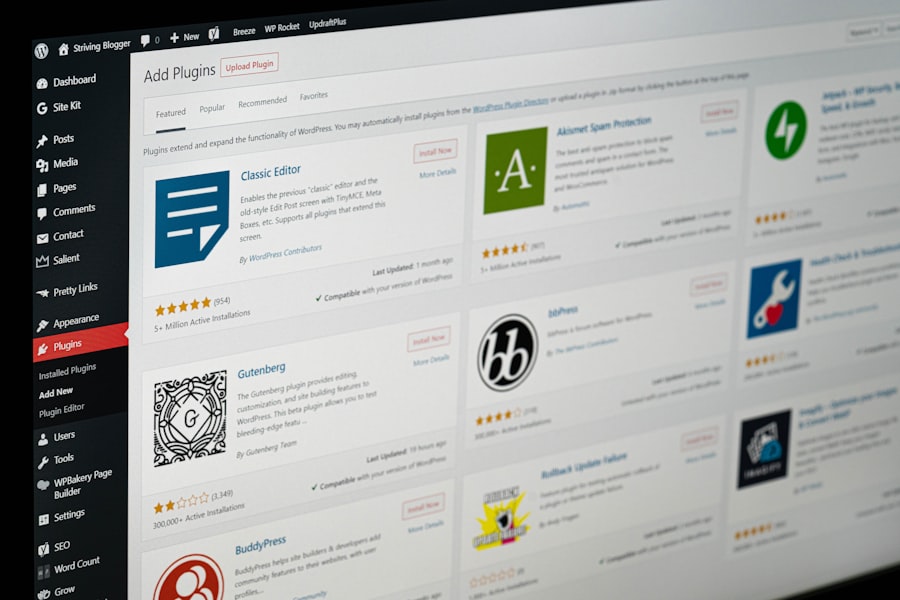
Now that you’re set up, let’s dive into the core functionalities that make WordPress Toolkit indispensable for multi-site management. The ability to streamline updates, manage plugins and themes, and perform essential maintenance tasks from a single interface is a game-changer.
One-Click Updates for Core, Themes, and Plugins
This is arguably one of WordPress Toolkit’s most powerful features. Instead of logging into each site individually to check for and apply updates, you can do it all from one screen. You’ll see which sites have pending updates for WordPress core, themes, and plugins. With a few clicks, you can select multiple sites and initiate a mass update.
Selective Updating vs. Bulk Updating
While bulk updating is incredibly efficient, sometimes you need more granular control. WordPress Toolkit allows you to choose whether to update everything at once or to select specific components for specific sites. For instance, you might update a critical security patch across all sites immediately, but hold off on a major theme update for a client’s site until you’ve tested it thoroughly in a staging environment. This flexibility ensures both efficiency and safety.
Smart Updates: Reducing Risk with AI
Some premium versions of WordPress Toolkit offer “Smart Updates.” This innovative feature uses AI to analyze your website before and after an update. It takes screenshots, performs basic functionality checks, and then compares the two states. If it detects any visual or functional regressions, it can automatically roll back the update, preventing potential site breakage. This dramatically reduces the risk associated with updates, especially for critical client websites.
Centralized Plugin and Theme Management
Managing plugins and themes across multiple sites can be a tangled mess. Which version of WooCommerce is on that e-commerce site? Does this client’s site have that security plugin installed? WordPress Toolkit brings order to this chaos.
Installing and Activating Across Multiple Sites
Imagine needing to install a new security plugin or a popular caching plugin across five different client sites. Instead of doing it five times, WordPress Toolkit allows you to select those sites and install/activate the chosen plugin or theme simultaneously. This saves an enormous amount of time and ensures consistency across your managed portfolio.
Deactivating and Deleting in Bulk
Similarly, if you discover a problematic plugin or an unused theme that’s clogging up your installations, you can deactivate or delete it from multiple sites at once. This helps keep your sites lean, secure, and performant by removing unnecessary code. Regularly auditing and pruning plugins and themes is a good practice, and WordPress Toolkit makes it incredibly easy.
Cloning and Syncing Functionality
This advanced feature is a lifesaver for developers and agencies. You can clone an entire WordPress installation, creating a duplicate site for development or staging purposes. Even better, some versions allow you to “sync” content, plugins, or themes between a production site and a staging site, simplifying your deployment workflow and ensuring consistency. This means you can develop new features or test updates in a safe environment before pushing them live with confidence.
Robust Security and Maintenance Features
Security should never be an afterthought, especially when managing multiple websites. WordPress Toolkit provides a suite of tools to help you maintain a high level of security and keep your sites running smoothly.
One-Click Security Hardening
WordPress is popular, which also makes it a target. WordPress Toolkit offers a “Security Hardening” feature that allows you to apply common security best practices with a single click. This might include:
Changing the Default Database Prefix
A common security recommendation is to change the default wp_ database table prefix to something more unique. This makes it harder for automated SQL injection attacks to target your database. WordPress Toolkit can often automate this for existing installations.
Disabling File Editing via Dashboard
By default, WordPress allows administrators to edit theme and plugin files directly from the dashboard. While convenient, this is a security risk as a compromised admin account could introduce malicious code. Disabling this feature forces changes to be made via SFTP or cPanel, adding an extra layer of protection.
Protecting the wp-config.php File
The wp-config.php file contains critical database credentials and other sensitive information. WordPress Toolkit can apply file permissions to restrict access to this file, making it more difficult for attackers to compromise.
Disabling XML-RPC
XML-RPC is a WordPress API that has historically been exploited for brute-force attacks. While it’s still used by some older applications, for most sites, it can be safely disabled. WordPress Toolkit often provides a one-click option to do so, enhancing your site’s security posture.
Regular Security Scans and Reports
Prevention is better than cure. WordPress Toolkit often includes automated security scanning features. These scans can identify vulnerabilities, outdated software, weak passwords, and misconfigurations that could expose your sites to risk.
Vulnerability Detection
The scanner checks for known vulnerabilities in your WordPress core, themes, and plugins. If an issue is found, it will often suggest a solution, such as updating the affected component.
Malicious Code Detection
Some advanced versions of WordPress Toolkit can also scan for malicious code injections or suspicious file changes, alerting you to potential compromises before they cause significant damage.
Security Reports
Receive regular reports on the security status of your entire portfolio. These reports provide a clear overview of any issues found, actions taken, and recommendations for further improvement. This is invaluable for maintaining client trust and demonstrating your proactive approach to security.
Comprehensive Backup and Restore Options
Backups are your lifeline. A robust backup strategy is non-negotiable for any website, let alone multiple ones. WordPress Toolkit simplifies this critical process.
Automated Scheduled Backups
Set up automated backup schedules for all your sites, or individual ones. You can choose the frequency (daily, weekly, monthly), the retention period, and even the destination (local server, cloud storage like Google Drive or Dropbox if integrated). This “set it and forget it” approach ensures you always have a recent copy of your site.
Manual On-Demand Backups
Sometimes you need a backup right now – before a major update, a significant content change, or a new plugin installation. WordPress Toolkit allows you to initiate manual backups with a single click, providing peace of mind before critical operations.
Easy Restoration from Backups
A backup is only as good as its restore process. WordPress Toolkit makes restoring a site from a backup incredibly straightforward. If something goes wrong, you can quickly revert to a previous, working state, minimizing downtime and data loss. This ease of restoration is crucial for disaster recovery.
Managing multiple websites can be a daunting task, but tools like WordPress Toolkit simplify the process significantly. For those looking to understand the foundational aspects of website management, a related article on web hosting can provide valuable insights. By exploring the intricacies of hosting services, you can better appreciate how WordPress Toolkit enhances your website management experience. To learn more about this essential topic, check out this informative piece on web hosting.
Advanced Features for Power Users
| Feature | Description |
|---|---|
| Single Dashboard | Allows you to manage multiple WordPress websites from one centralized dashboard. |
| Automatic Updates | Enables automatic updates for WordPress core, plugins, and themes across all websites. |
| Security Scanning | Provides security scanning and monitoring for all websites to identify and fix vulnerabilities. |
| Backup and Restore | Offers backup and restore functionality for all websites to prevent data loss. |
| Staging Environment | Facilitates the creation of staging environments for testing changes before deploying them to live websites. |
While the core features are fantastic, WordPress Toolkit also offers advanced functionalities that cater to developers, agencies, and those seeking even greater control and efficiency.
Staging and Cloning Environments
For developers and agencies, a staging environment is non-negotiable. It allows you to test updates, new features, or design changes without affecting the live website.
Creating a Staging Site with One Click
WordPress Toolkit makes creating a staging site incredibly easy. With a single click, you can clone your live site to a separate, private URL. This staging site is a perfect replica where you can experiment freely without fear of breaking your production environment.
Pushing Changes from Staging to Live
Once you’ve tested your changes thoroughly on the staging site, you can “push” them to the live site. WordPress Toolkit often provides options to sync specific components – just the database, just the files, or both – giving you fine-grained control over the deployment process. This seamless workflow is a massive time-saver and significantly reduces the risk of errors.
Syncing Data Between Sites
Beyond staging, you might need to sync specific data, themes, or plugins between entirely different websites. For example, if you’re managing a network of similar business websites, you could push a new theme update or a set of core plugins from a “master” site to all others. This ensures consistency and simplifies maintenance across your portfolio.
Debugging and Performance Tools
Keeping your WordPress sites healthy and performing optimally is vital. WordPress Toolkit provides tools to help you identify and resolve issues.
Enabling Debug Mode
If you’re encountering errors, enabling WordPress debug mode can provide valuable insights into what’s going wrong. WordPress Toolkit allows you to toggle debug mode on and off directly from the dashboard, saving you from manually editing the wp-config.php file.
Performance Optimization Suggestions
Some versions of WordPress Toolkit offer basic performance analysis and suggestions. This might include recommendations for caching, image optimization, or identifying slow plugins. While not a replacement for dedicated performance tools, it provides a good starting point for improving your site’s speed.
Database Optimization
Over time, your WordPress database can become cluttered with revisions, transient data, and other unnecessary entries. WordPress Toolkit often includes a feature to optimize your database, helping to keep it lean and fast. This can contribute to overall site performance.
Managing WordPress Installations and Settings
Beyond the individual site controls, WordPress Toolkit allows for broader management of your WordPress ecosystem.
Managing WordPress Admin Passwords
If you’re managing multiple sites, remembering all those admin passwords can be a headache. WordPress Toolkit allows you to reset administrator passwords for any of your managed sites directly from its interface, without needing to log into the individual WordPress dashboards. This is incredibly useful in emergencies or when onboarding new team members.
Changing WordPress Site URL
Sometimes you need to change a site’s URL (e.g., moving from a development subdomain to a live domain). This can be a tricky process if done manually, often requiring database edits. WordPress Toolkit simplifies this, allowing you to update the site URL with a few clicks, automatically handling the necessary database adjustments.
Disabling and Enabling Maintenance Mode
When performing significant updates or maintenance, it’s good practice to put your site into maintenance mode to prevent visitors from seeing a broken site. WordPress Toolkit offers a one-click solution to toggle maintenance mode on and off across your sites, often with customizable maintenance page options.
Managing multiple websites can be a daunting task, but tools like WordPress Toolkit simplify the process significantly. For those looking to understand the broader context of website management, you might find the article on business hosting particularly insightful, as it explores essential aspects that can enhance your online presence. By leveraging such resources, you can ensure that your websites are not only well-managed but also optimized for success.
Best Practices for Using WordPress Toolkit
To truly maximize the benefits of WordPress Toolkit, it’s not enough to just use its features; you need to integrate it into a sound management strategy.
Regularly Audit Your Sites
Even with automation, periodic manual audits are essential. Use WordPress Toolkit’s overview to identify any outdated sites, unused plugins, or potential security vulnerabilities that might have slipped through the cracks. A monthly or quarterly audit can save you from bigger headaches down the line.
Utilize Staging Environments for All Major Changes
Never push a major update, new feature, or theme change directly to a live site. Always use a staging environment first. WordPress Toolkit makes this so easy that there’s no excuse not to. Test everything thoroughly on staging before deploying to production.
Implement a Consistent Backup Strategy
While WordPress Toolkit automates backups, it’s your responsibility to ensure the strategy is robust. Do you have off-site backups? Are they being tested periodically? What’s your restore plan in case of a catastrophic failure? Think through these scenarios.
Leverage Smart Updates (if available)
If your WordPress Toolkit version includes Smart Updates, use them! The AI analysis significantly reduces the risk of updates breaking your sites, especially for client projects where downtime is costly.
Stay Informed About WordPress and Plugin Updates
While WordPress Toolkit handles the technical updates, it’s still your job to understand why certain updates are released. Read changelogs, follow WordPress news, and stay informed about security vulnerabilities. This knowledge empowers you to make informed decisions about when and how to apply updates.
Train Your Team
If you work with a team, ensure everyone understands how to use WordPress Toolkit effectively and adheres to your established workflows. Consistency is key to efficient multi-site management.
Conclusion
Managing multiple WordPress websites no longer has to be a daunting, time-consuming task. With WordPress Toolkit, you gain a powerful, centralized control panel that streamlines every aspect of site management, from updates and security to backups and staging. You’ll reclaim countless hours, reduce stress, and significantly enhance the security and performance of your entire WordPress portfolio. Embrace WordPress Toolkit, and transform your multi-site madness into a marvel of efficiency and control. Your future self, and your clients, will thank you.
FAQs
1. What is WordPress Toolkit?
WordPress Toolkit is a feature in the Plesk control panel that helps users manage multiple WordPress websites from a single interface. It provides tools for installation, maintenance, security, and updates.
2. How does WordPress Toolkit help manage multiple websites?
WordPress Toolkit allows users to easily install and manage multiple WordPress instances, update plugins and themes, and perform security scans and backups for all websites from a centralized dashboard.
3. What are the key features of WordPress Toolkit for managing multiple websites?
Key features of WordPress Toolkit include automated WordPress installation, staging and cloning environments, security scanning and malware removal, automatic updates, and centralized management of plugins and themes.
4. Can WordPress Toolkit help with website performance optimization?
Yes, WordPress Toolkit includes tools for website performance optimization such as caching, image compression, and code minification to improve website speed and user experience.
5. Is WordPress Toolkit suitable for agencies or developers managing multiple client websites?
Yes, WordPress Toolkit is ideal for agencies and developers managing multiple client websites as it streamlines the management process, improves security, and allows for efficient updates and maintenance across all websites.






Add comment