

As the architect of your digital domain, you understand that a sluggish website is a turn-off. In today’s fast-paced digital landscape, a few seconds of loading time can be the difference between a new customer and a bounce. You’ve invested time, effort, and possibly capital into your WordPress site, and you want it to perform at its peak. This guide isn’t just about tweaking a few settings; it’s about systematically dissecting your site’s performance, identifying bottlenecks, and implementing a holistic strategy for speed. Think of this as your personal blueprint to transform your WordPress website from a turtle to a gazelle.
Before you can embark on a journey of improvement, you need to know where you stand. Guessing won’t cut it. You need hard data, tangible metrics that tell you the story of your site’s current speed. This initial audit is like taking a diagnostic test before starting a fitness routine – it pinpoints weaknesses and establishes a starting point from which to measure your progress.
1.1. Choosing Your Testing Tools Wisely
Not all performance testing tools are created equal, and each offers a unique perspective. You’ll want to leverage a combination to get a comprehensive view.
- Google PageSpeed Insights: This is your go-to for assessing both mobile and desktop performance based on Google’s Core Web Vitals. It’s crucial because Google heavily prioritizes these metrics in its search ranking algorithms. You’ll get scores for Largest Contentful Paint (LCP), First Input Delay (FID), and Cumulative Layout Shift (CLS), along with actionable recommendations. Pay close attention to the opportunities and diagnostics sections.
- GTmetrix: Offering a deeper dive, GTmetrix provides a waterfall chart that visualizes every request your site makes, allowing you to pinpoint specifically which files and scripts are slowing things down. You can test from various locations globally and see how different network conditions impact your site. Look for long bars in the waterfall – these are your culprits.
- WebPageTest.org: For the truly granular analysis, WebPageTest is unparalleled. You can simulate various devices, connection speeds, and even run multiple tests to average out the results. It’s invaluable for understanding how your site performs under real-world, albeit varied, conditions. This tool is excellent for identifying render-blocking resources and inefficient caching.
- Pingdom Tools: Provides a quick and easy way to check your site’s load time, page size, and the number of requests. It also offers a performance grade and recommendations for improvement, similar to GTmetrix but often with a slightly different emphasis on certain metrics.
1.2. Deciphering the Metrics: What to Look For
Once you’ve run your tests, you’ll be inundated with data. Don’t get overwhelmed; focus on these key indicators.
- Total Load Time: This is the most straightforward metric – how long it takes for your entire page to load. Aim for under 2-3 seconds for optimal user experience and SEO. Anything above 5 seconds is a red flag.
- Page Size: The total size of all your page’s assets (images, scripts, stylesheets, etc.). The smaller, the better. Large page sizes directly correlate with longer load times, especially on slower connections.
- Number of Requests: Every file your browser has to download to render your page counts as a request. Too many requests can choke your server and increase load time. Each request adds a bit of overhead, even if the file itself is small.
- Largest Contentful Paint (LCP): This Core Web Vital measures the time it takes for the largest content element (like a hero image or a main headline) to become visible within the viewport. A good LCP is below 2.5 seconds.
- First Input Delay (FID): This measures the delay from when a user first interacts with your page (e.g., clicks a button, taps a link) to when the browser is actually able to respond to that interaction. An ideal FID is under 100 milliseconds.
- Cumulative Layout Shift (CLS): This metric quantifies the unexpected layout shifts that occur on your page. Think of an ad suddenly appearing and pushing down your content. A low CLS score (below 0.1) is crucial for a stable and pleasant user experience.
- Time to First Byte (TTFB): This indicates how long it takes for your server to respond to the browser’s request. A high TTFB often points to server-side issues, slow database queries, or inefficient WordPress configurations.
For website owners looking to enhance their site’s performance, the “WordPress Performance Auditing Guide” is an invaluable resource. To further complement your understanding of website optimization, you may find the article on how to improve loading speed and user experience particularly helpful. This article provides practical tips and strategies that align well with the auditing techniques discussed in the guide. You can read it here: How to Optimize Your Website’s Loading Speed and Improve User Experience.
2. Optimizing Your WordPress Environment: The Back-End Tune-Up
Your WordPress installation itself can be a major source of performance bottlenecks. Treating your WordPress core, themes, and plugins as a cohesive ecosystem, rather than individual components, is key. This section focuses on the server-side and foundational aspects that directly impact your TTFB and overall site responsiveness.
2.1. Choosing the Right Hosting Provider
This is arguably the most critical decision you’ll make for your site’s speed. Your hosting provider dictates the very infrastructure your website runs on.
- Shared Hosting vs. Managed WordPress Hosting vs. VPS/Dedicated:
- Shared Hosting: Cheapest, but your site shares resources with hundreds or thousands of others. Performance is often inconsistent and slow due to resource contention. Avoid for serious commercial or high-traffic sites.
- Managed WordPress Hosting: Specifically optimized for WordPress, offering better performance, security, and specialized support. Providers like Kinsta, WP Engine, and SiteGround are leaders here. They often include caching, CDN integration, and daily backups.
- VPS (Virtual Private Server) / Dedicated Hosting: Offers the most control and resources. You get your own allocated resources, or even an entire server. Best for high-traffic sites or those with unique technical requirements, but requires more technical expertise to manage.
- Server Location: Choose a data center geographically close to your target audience. Less distance means faster data transmission.
- Server Resources: Ensure your plan offers sufficient CPU, RAM, and disk I/O. If your site frequently maxes out these resources, it will become sluggish.
- HTTP/2 (and HTTP/3): Ensure your host supports modern protocols. HTTP/2 significantly improves how browsers and servers communicate, allowing for concurrent requests rather than sequential ones. HTTP/3 is even faster and provides better security.
2.2. Perfecting Your WordPress Configuration
Beyond hosting, your WordPress setup needs to be lean and efficient.
- Database Optimization: Over time, your WordPress database accumulates junk: post revisions, spam comments, trashed items, and transient data.
- Delete Unnecessary Revisions: Each time you save a post or page, WordPress creates a revision. While useful, these can quickly bloat your database. Consider limiting revisions (e.g., to 5 per post) or disabling them entirely if you use version control for content.
- Clear Spam Comments and Transients: Regularly empty your spam and trash folders for comments. Many plugins also create transient data that can become stale and needs to be cleared.
- Use Database Optimization Plugins: Plugins like WP-Optimize or Advanced Database Cleaner can help you automate this process by cleaning up unnecessary data and optimizing database tables.
- PHP Version: Always run the latest stable version of PHP (currently PHP 8.x). Each new version brings significant performance improvements and security enhancements. Older PHP versions are slower and more vulnerable. Many hosts allow you to change this in your control panel.
- Disable Pingbacks and Trackbacks: These legacy features add unnecessary requests and can be a source of spam, contributing nothing to modern site interaction. You can disable them in your WordPress Discussion Settings.
- Limit External Scripts: Every external script (analytics, social media widgets, ad networks) adds overhead and introduces potential points of failure or slowdowns. Be judicious about what you include. If you don’t absolutely need it, remove it.
3. Streamlining Your Front-End: Where Users Interact
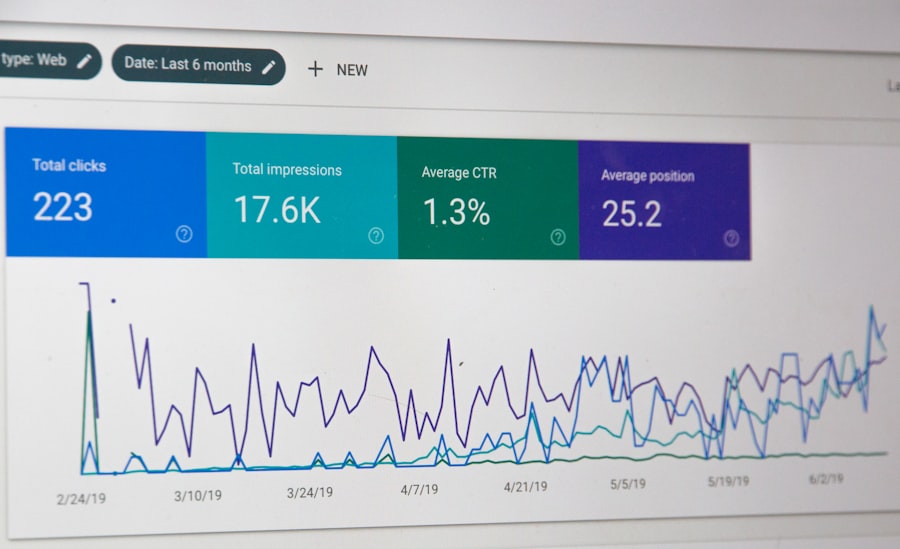
This is where the rubber meets the road – the visible part of your website that your visitors interact with. Optimizations here directly influence your LCP, CLS, and overall perceived performance. It’s about delivering a fast, smooth, and consistent experience.
3.1. Mastering Image Optimization
Images often constitute the largest portion of a page’s size. Unoptimized images are a death knell for speed.
- Compression without Quality Loss:
- Lossless Compression: Reduces file size by removing unessential metadata without sacrificing image quality.
- Lossy Compression: Reduces file size by intelligently discarding some image data. This can result in a slight drop in quality, but often unnoticeable to the human eye, especially for web use. Tools like TinyPNG/Tinify or plugins like Smush and Imagify can automate this.
- Correct Image Dimensions: Don’t upload a 4000px wide image only for it to be displayed at 800px. Resize images to their display dimensions before uploading them. WordPress does generate different sizes, but supplying the correct original reduces server load.
- Choose the Right File Format:
- JPEG: Best for photographs and images with many colors.
- PNG: Best for images with transparency or sharp lines (logos, icons). PNGs are generally larger than JPEGs for photos.
- WebP: A modern image format developed by Google that provides superior lossless and lossy compression for images. It can be 25-34% smaller than comparable JPEG or PNG files. Use plugins to convert and serve WebP where supported by the browser.
- Lazy Loading Images: Defer loading of images that are “below the fold” (not immediately visible on the screen) until the user scrolls down. This significantly improves initial page load times. WordPress has native lazy loading for images and iframes since version 5.5, but plugins can offer more control and expand it to backgrounds and other elements.
3.2. Script and Stylesheet Efficiency
Poorly managed JavaScript and CSS can block rendering and add unnecessary weight to your pages.
- Minification: Remove unnecessary characters (whitespace, comments) from CSS and JavaScript files without changing their functionality. This reduces file size.
- Concatenation: Combine multiple small CSS files into one, and multiple JavaScript files into another. This reduces the number of HTTP requests. Be cautious, as HTTP/2 diminishes the need for this as much, and it can sometimes lead to issues if not implemented correctly.
- Defer Parsing of JavaScript: Prevent JavaScript from blocking HTML rendering. Use
deferorasyncattributes for scripts. This allows the browser to parse HTML and build the DOM while scripts are being downloaded in the background. Plugins can help you apply these attributes. - Remove Render-Blocking CSS/JS: Identify and inline critical CSS (the absolute minimum CSS needed for the initial viewport) and defer the rest. This ensures visual content appears faster.
- Unused CSS/JS Removal: Many themes and plugins load CSS and JavaScript that isn’t actually needed on a particular page. Use tools like PurifyCSS or plugins that offer asset management to selectively unload unneeded assets.
4. Caching: Your Website’s Fast Lane to Delivery
Caching is your secret weapon for speed. It stores copies of your website’s static content (HTML, CSS, JavaScript, images) so that the server doesn’t have to generate it from scratch for every single user request. This dramatically reduces server load and speeds up delivery.
4.1. Implementing Browser Caching
This tells the user’s browser to store local copies of your site’s static assets for a set period.
- Leverage Browser Caching (Lighthouse/PageSpeed Insights recommendation): Set
Expiresheaders for static files (images, CSS, JS). This informs the browser how long it should cache these resources locally. When a user revisits your site, their browser can load assets from their local cache instead of re-downloading them, leading to much faster revisit times. - Plugins for Browser Caching: Most comprehensive caching plugins handle this configuration for you automatically. If not, you can manually configure it via your
.htaccessfile (for Apache servers).
4.2. Mastering Page Caching
This is the most impactful type of caching for WordPress. It stores the fully rendered HTML output of your pages.
- Caching Plugins: The Essentials:
- WP Rocket: A premium plugin known for its ease of use and comprehensive features, including page caching, browser caching, minification, database optimization, CDN integration, and more.
- LiteSpeed Cache: Free and extremely powerful if your host uses LiteSpeed web servers. It offers server-level caching that is incredibly fast.
- W3 Total Cache / WP Super Cache: Free, highly configurable plugins. They can be more complex to set up but offer extensive options for various caching types.
- Object Caching (Memcached/Redis): For highly dynamic sites with frequent database queries (e.g., e-commerce stores, membership sites), object caching stores database query results in memory. This bypasses repeated database calls, significantly speeding up complex page generation. This usually requires server-side setup and configuration with your host.
4.3. Utilizing a Content Delivery Network (CDN)
A CDN takes your static assets (images, CSS, JS, videos) and distributes them to a global network of servers (Points of Presence, or PoPs).
- How it Works: When a user requests content from your site, the CDN serves the assets from the PoP geographically closest to them.
- Benefits: Reduces latency, decreases the load on your origin server, and provides faster delivery of static content to users worldwide.
- Popular CDN Providers: Cloudflare (offers a robust free tier with CDN and security features), KeyCDN, MaxCDN (StackPath), Amazon CloudFront. Many caching plugins integrate directly with popular CDN services, simplifying setup.
For website owners looking to enhance their site’s performance, understanding the importance of security is equally crucial. A related article that delves into essential security features is available at Top 5 Security Features Your Web Host Should Offer in 2023. This resource provides valuable insights into how robust security measures can complement performance auditing, ensuring that your website not only runs efficiently but also remains protected against potential threats.
5. Continuous Monitoring and Iteration: The Perpetual Pursuit of Speed
| Performance Metric | Description |
|---|---|
| Page Load Time | The time it takes for a web page to load completely. |
| Page Size | The total size of a web page including all its resources (images, scripts, stylesheets, etc.). |
| Number of Requests | The total number of HTTP requests made to load a web page. |
| Mobile-Friendly Test | An assessment of how well a web page performs on mobile devices. |
| Google PageSpeed Insights Score | A score given by Google to rate the performance of a web page. |
Optimizing your website’s speed isn’t a one-and-done task. The digital landscape is constantly evolving, with new WordPress versions, plugin updates, theme changes, and evolving user expectations. You need to treat performance as an ongoing process of monitoring, testing, and refinement.
5.1. Regular Performance Audits
Schedule recurring performance checks.
- Monthly/Quarterly Checks: Re-run your performance tests (PageSpeed Insights, GTmetrix, etc.) on a regular basis. This helps you catch regressions early.
- After Major Updates: Always re-test after significant WordPress core updates, theme changes, or adding/removing major plugins. These are common culprits for introducing performance issues.
- Monitor Core Web Vitals: Keep an eye on your Core Web Vitals data in Google Search Console. This shows you real-user experience data from your visitors. Deteriorating scores here indicate a true performance problem affecting your audience.
5.2. Staying Up-to-Date
Outdated software is often inefficient and a security risk.
- WordPress Core: Always keep your WordPress installation updated to the latest stable version. Each update includes bug fixes and performance enhancements.
- Themes and Plugins: Update your themes and plugins regularly. Developers often release performance improvements and bug fixes. Before updating, always back up your site and test major updates on a staging environment if possible. Watch out for abandoned or poorly coded plugins that haven’t been updated in years – they are prime candidates for removal.
- PHP: Ensure your server is running the latest stable version of PHP. This provides significant performance gains at the server level.
5.3. Managing Plugins and Themes Strategically
Plugins and themes are the heart of WordPress functionality, but they are also common sources of bloat.
- Minimize Plugin Count: While there’s no magic number, generally, fewer plugins mean better performance. Each plugin adds code, potentially new database queries, and external requests.
- Choose Lightweight Themes: Opt for themes built with performance in mind (e.g., GeneratePress, Astra, Kadence, Neve). Avoid overly bloated or feature-rich themes loaded with unnecessary functionalities unless you absolutely need them.
- Remove Unused Plugins/Themes: Deactivate and delete any plugins or themes you’re not actively using. Even inactive plugins can sometimes add overhead.
- Evaluate Plugin Impact: Use plugins like Query Monitor to identify which plugins are contributing most to your page load time and database queries. This helps you make informed decisions about alternatives or optimizations.
By systematically applying these strategies, you’re not just making your website faster; you’re future-proofing your digital presence, enhancing user experience, improving your SEO, and ultimately, ensuring your WordPress site remains a powerful engine for your online success. This guide provides the tools and knowledge; now it’s up to you to wield them and transform your site into a true speed demon.
FAQs
What is WordPress performance auditing?
WordPress performance auditing is the process of evaluating and analyzing the speed and efficiency of a WordPress website. It involves assessing various factors such as page load times, server response times, and overall website performance to identify areas for improvement.
Why is WordPress performance auditing important for website owners?
WordPress performance auditing is important for website owners because it helps identify issues that may be impacting the user experience and overall website performance. By conducting a performance audit, website owners can pinpoint areas for improvement and optimize their website for better speed and efficiency.
What are some common performance issues that can be identified through a WordPress performance audit?
Common performance issues that can be identified through a WordPress performance audit include slow page load times, high server response times, excessive use of plugins, large image file sizes, and inefficient code. These issues can negatively impact the user experience and overall website performance.
How can website owners conduct a WordPress performance audit?
Website owners can conduct a WordPress performance audit by using various tools and techniques such as website speed testing tools, server response time monitoring, plugin analysis, image optimization, and code review. Additionally, website owners can consider hiring a professional to conduct a comprehensive performance audit.
What are some best practices for improving WordPress website performance based on the findings of a performance audit?
Based on the findings of a performance audit, website owners can improve WordPress website performance by implementing best practices such as optimizing images, minimizing the use of plugins, leveraging browser caching, using a content delivery network (CDN), and optimizing code and scripts. These practices can help improve website speed and overall performance.









Add comment