
The White Screen of Death (WSOD) refers to a critical error condition where a device displays only a blank white screen. This phenomenon affects various electronic devices including computers, smartphones, and tablets. The WSOD indicates a significant malfunction that prevents the device from properly displaying content or loading its operating system.
When a WSOD occurs, the device typically becomes unresponsive and provides no error messages or diagnostic information. This lack of feedback makes troubleshooting particularly difficult. The issue may manifest during system startup or while running applications, effectively rendering the device unusable.
The WSOD is not an independent problem but rather a symptom of underlying hardware or software failures. These may include operating system corruption, incompatible software, hardware malfunctions, or memory issues. Identifying the specific cause is essential for implementing an appropriate solution and restoring normal device functionality.
Key Takeaways
- The White Screen of Death (WSOD) is a common error indicating critical system or software failures.
- Hardware issues, outdated software, and driver conflicts are frequent causes of WSOD.
- Troubleshooting steps include checking hardware components, updating software, and resolving graphic card or memory problems.
- Plugin and theme conflicts often trigger WSOD, especially in content management systems.
- Preventative measures and regular maintenance can help avoid future occurrences of the White Screen of Death.
Common Causes of the White Screen of Death
Several factors can lead to the dreaded White Screen of Death. One of the most common culprits is hardware failure, which can manifest in various ways. For instance, a malfunctioning graphics card may struggle to render images properly, resulting in a blank screen.
Understanding these potential hardware failures can help you narrow down the source of the problem. Software-related issues are another frequent cause of the WSOD.
Corrupted files, incompatible applications, or problematic updates can all contribute to this frustrating experience. For example, if you’ve recently installed new software or updated your operating system, it’s possible that these changes have introduced conflicts that prevent your device from functioning correctly. By being aware of these common causes, you can take proactive measures to prevent the WSOD from occurring in the first place.
Checking for Hardware Issues
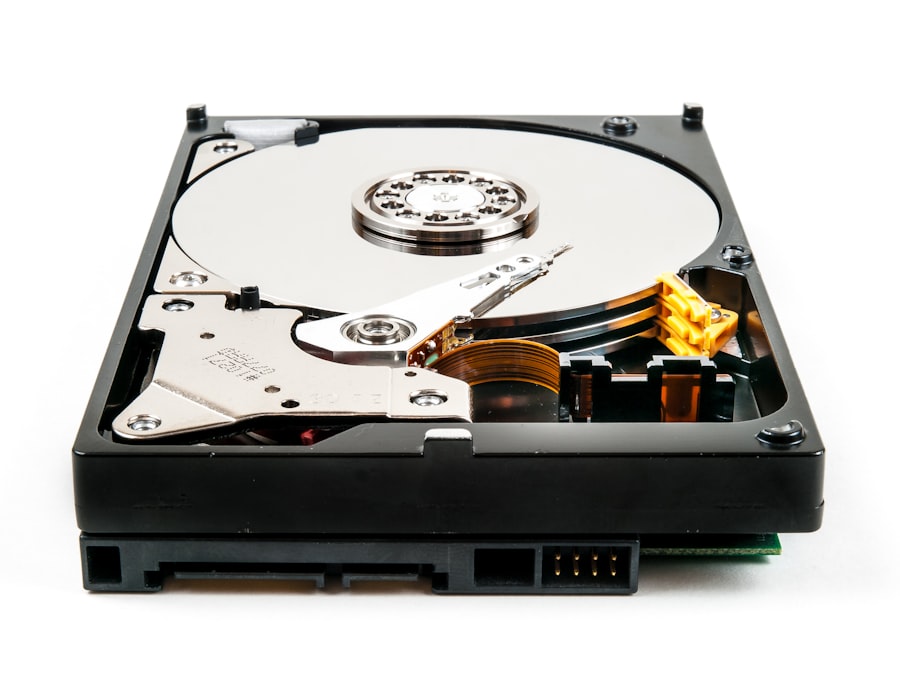
When faced with the White Screen of Death, your first step should be to check for hardware issues. Begin by inspecting your device’s physical components. If you’re using a desktop computer, ensure that all cables are securely connected and that there are no visible signs of damage to the hardware.
For laptops, check for any loose connections or damaged ports that could be causing problems. If you’re comfortable doing so, you might also consider opening up your device to examine internal components like the graphics card and RAM. In addition to visual inspections, running diagnostic tests can help identify hardware-related problems.
Many computers come equipped with built-in diagnostic tools that can assess the health of your hardware components. If your device doesn’t have such tools, consider using third-party software designed for hardware diagnostics. These tests can provide valuable insights into whether your hardware is functioning correctly or if it requires repair or replacement.
Updating and Checking Software
Once you’ve ruled out hardware issues, it’s time to turn your attention to software updates and checks. Outdated software can lead to compatibility problems that may trigger the White Screen of Death. Ensure that your operating system is up to date by checking for any available updates.
Most operating systems have built-in update features that allow you to download and install the latest patches and improvements easily. In addition to updating your operating system, review the software applications installed on your device. Sometimes, third-party applications may conflict with system processes, leading to instability and crashes.
Uninstalling recently added software or applications that you suspect may be causing issues can help restore functionality. By keeping your software current and removing potential troublemakers, you can significantly reduce the risk of encountering the WSOD.
Troubleshooting Graphic Card Problems
| Issue | Possible Cause | Fix | Estimated Time to Fix | Difficulty Level |
|---|---|---|---|---|
| White Screen on Website Load | PHP Error or Syntax Issue | Enable WP_DEBUG or check error logs, fix code errors | 15-30 minutes | Beginner to Intermediate |
| White Screen After Plugin Activation | Plugin Conflict or Incompatibility | Deactivate plugins via FTP or hosting panel, reactivate one by one | 10-20 minutes | Beginner |
| White Screen After Theme Change | Theme Coding Error or Incompatibility | Switch to default theme via database or FTP | 10-15 minutes | Beginner |
| White Screen on Admin Dashboard | Memory Limit Exhausted | Increase PHP memory limit in wp-config.php or php.ini | 5-10 minutes | Beginner |
| White Screen with No Error Message | Corrupted Core Files | Re-upload core WordPress files via FTP | 20-30 minutes | Intermediate |
| White Screen on Mobile Only | Responsive Design or Caching Issue | Clear cache, disable caching plugins, check responsive code | 15-25 minutes | Beginner to Intermediate |
The graphics card plays a crucial role in rendering images and video on your screen. If you’re experiencing the White Screen of Death, it’s essential to investigate whether your graphics card is functioning correctly. Start by checking for any visible signs of damage or overheating.
Dust buildup in your computer’s case can lead to overheating, which may cause the graphics card to fail temporarily or permanently. If you suspect that your graphics card is at fault, consider updating its drivers. Outdated or corrupted drivers can lead to performance issues and crashes.
Visit the manufacturer’s website to download and install the latest drivers for your specific graphics card model. If updating the drivers doesn’t resolve the issue, you may need to test the graphics card in another system or replace it altogether to determine if it’s indeed the source of the problem.
Resolving Driver Issues
Driver issues are a common source of frustration for many users and can often lead to the White Screen of Death. Drivers act as intermediaries between your operating system and hardware components, ensuring they communicate effectively. If a driver becomes corrupted or outdated, it can disrupt this communication and result in errors like the WSOD.
To resolve driver issues, start by accessing Device Manager on your computer.
Look for any devices marked with a yellow exclamation point, indicating a problem with their drivers.
Right-click on these devices and select “Update Driver” to search for updated versions automatically. If this doesn’t work, consider uninstalling the problematic driver and then reinstalling it from scratch using the manufacturer’s website.
Dealing with Memory Problems
Memory problems can also contribute to the White Screen of Death, particularly if your device’s RAM is failing or improperly seated. To address potential memory issues, begin by checking if your RAM modules are securely installed in their slots. If you’re comfortable doing so, you can remove and reseat them to ensure a proper connection.
Running memory diagnostic tools can help identify any underlying problems with your RAM. Most operating systems come with built-in memory testing utilities that can scan for errors and report any issues found. If these tests reveal problems with your memory modules, you may need to replace them to restore your device’s functionality.
Addressing Operating System Errors
Operating system errors are another common cause of the White Screen of Death. These errors can arise from various sources, including corrupted system files or failed updates. To address these issues, consider running built-in repair tools provided by your operating system.
For example, Windows users can utilize the System File Checker (SFC) tool to scan for and repair corrupted files. If running repair tools doesn’t resolve the issue, you may need to consider reinstalling your operating system entirely. While this is a more drastic measure, it can effectively eliminate persistent errors that lead to the WSOD.
Before proceeding with a reinstallation, ensure that you’ve backed up all important data to avoid losing valuable files during the process.
Fixing Plugin and Theme Conflicts
For users experiencing the White Screen of Death on websites or content management systems like WordPress, plugin and theme conflicts are often at fault. When multiple plugins or themes attempt to interact with each other or with core system files in incompatible ways, it can lead to crashes and display issues. To troubleshoot these conflicts, start by disabling all plugins and switching to a default theme temporarily.
If this resolves the WSOD issue, gradually re-enable each plugin one by one until you identify which one is causing the conflict. Once you’ve pinpointed the problematic plugin or theme, consider updating it or finding an alternative solution that works harmoniously with your setup.
Recovering from a White Screen of Death
Recovering from a White Screen of Death can be a daunting task, but it’s essential to remain calm and methodical in your approach. Start by performing a hard reset on your device—this often involves holding down the power button until it shuts off completely before turning it back on again. Sometimes, this simple action can clear temporary glitches that lead to a WSOD.
If a hard reset doesn’t work, booting into safe mode may be necessary. Safe mode loads only essential system files and drivers, allowing you to troubleshoot without interference from third-party applications or services. From safe mode, you can perform further diagnostics or roll back recent changes that may have triggered the WSOD.
Preventing Future White Screen of Death Issues
Preventing future occurrences of the White Screen of Death requires proactive measures and regular maintenance of your device. Start by keeping both hardware and software up to date—this includes installing updates for your operating system as well as drivers for all hardware components. Regularly check for firmware updates for devices like graphics cards and motherboards as well.
Additionally, consider implementing routine backups of your important data so that if you do encounter a WSOD again in the future, you won’t risk losing valuable files during recovery efforts. Finally, maintaining good practices such as avoiding unnecessary installations and regularly cleaning out dust from your device will go a long way in ensuring its longevity and stability. By understanding what causes the White Screen of Death and taking steps to address potential issues proactively, you can minimize disruptions and keep your device running smoothly for years to come.
If you’re experiencing the frustrating “White Screen of Death” on your website, you might also want to consider optimizing your site’s loading speed to enhance user experience. A related article that provides valuable insights on this topic is How to Optimize Your Website’s Loading Speed and Improve User Experience. By addressing loading speed issues, you can potentially prevent problems like the White Screen of Death from occurring in the first place.
FAQs
What is the “White Screen of Death”?
The “White Screen of Death” (WSOD) is a common error in web development and content management systems where a website displays a completely white screen with no error messages or content. It usually indicates a critical issue such as a PHP error, memory limit exhaustion, or a plugin/theme conflict.
What causes the White Screen of Death?
Common causes include PHP errors, exhausted memory limits, incompatible or faulty plugins/themes, corrupted files, or server configuration issues. It can also result from recent updates or changes to the website’s code.
How can I troubleshoot the White Screen of Death?
Basic troubleshooting steps include enabling debugging mode to reveal error messages, increasing PHP memory limits, disabling all plugins and themes to identify conflicts, checking server error logs, and restoring backups if necessary.
Is the White Screen of Death specific to any platform?
No, the WSOD can occur on various platforms, including WordPress, Joomla, Drupal, or custom-built websites, as it generally relates to server-side errors or code issues.
Can I fix the White Screen of Death without technical knowledge?
Some fixes, like disabling plugins or increasing memory limits via hosting control panels, can be done by beginners. However, more complex issues may require technical expertise or assistance from a developer or hosting provider.
Does clearing the browser cache help resolve the White Screen of Death?
Clearing the browser cache usually does not fix WSOD since the issue is server-side. However, it can help ensure you are viewing the most recent version of the site after fixes are applied.
Should I contact my hosting provider if I encounter the White Screen of Death?
Yes, if basic troubleshooting does not resolve the issue, contacting your hosting provider can be helpful. They can check server logs, resource usage, and assist with server-related problems.
How can I prevent the White Screen of Death in the future?
Preventive measures include regularly updating plugins, themes, and core software, maintaining backups, monitoring server resources, and testing changes in a staging environment before applying them to the live site.









Add comment