
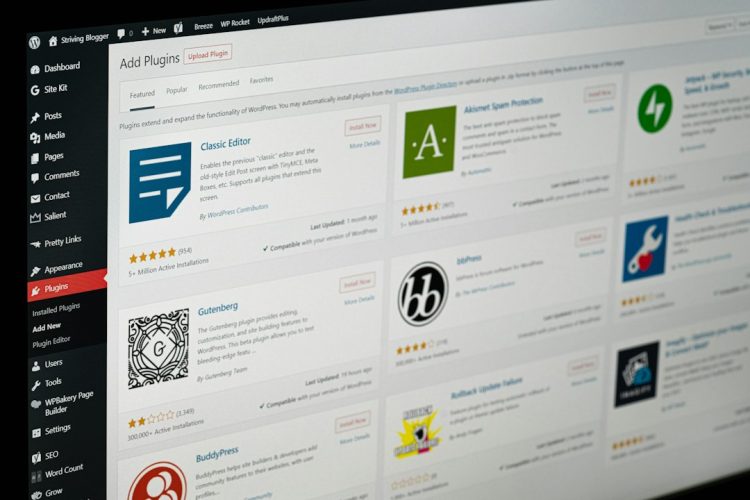
You’ve built your dream website on WordPress, meticulously crafted its design, and filled it with engaging content. It’s a powerful platform, but like any sophisticated tool, it thrives on consistent care. Neglect your WordPress installation, and you risk a cascade of issues: slow loading times that drive visitors away, security vulnerabilities that invite hackers, broken functionalities that frustrate users, and even complete site crashes that can halt your online presence. Think of your WordPress site not as a static entity, but as a living, breathing organism in the digital realm. It requires nourishment, protection, and occasional check-ups to remain vibrant and perform at its peak. This guide will walk you through the essential regular maintenance tasks you need to undertake to keep your WordPress website healthy, secure, fast, and ultimately, successful.
Understanding the Importance of Proactive WordPress Care
Many website owners only react to problems when they arise: a sudden drop in traffic, an error message, or worse, a notification from their hosting provider about malware. This reactive approach is akin to waiting for your car to break down on the side of the highway before considering an oil change. Proactive maintenance, on the other hand, prevents these issues from escalating, saving you time, money, and stress in the long run. By establishing a routine of regular checks and updates, you’re not just fixing problems; you’re preventing them, ensuring a smooth and consistent user experience for your audience.
The Cost of Neglect
Ignoring WordPress maintenance might seem like a time-saver initially, but the potential costs far outweigh the effort of routine care. A compromised site can lead to lost revenue for businesses, reputational damage for individuals and brands, and the arduous task of recovery. Imagine your e-commerce site going down during a flash sale, or your blog being flagged as malicious by search engines. These scenarios are not only frustrating but can have significant financial and brand implications. Furthermore, a slow-loading website directly impacts your search engine rankings and user engagement. Visitors are notoriously impatient; if your site takes more than a few seconds to load, they’re likely to bounce, never to return.
Benefits of a Well-Maintained Site
A healthy WordPress site is a secure WordPress site. Regular updates patch security vulnerabilities, making it harder for malicious actors to exploit weaknesses. A healthy site is also a fast site. Optimized databases, clean code, and up-to-date themes and plugins contribute to blazing-fast loading speeds, which improve user satisfaction and SEO. Furthermore, consistent maintenance ensures all functionalities work as intended, providing a seamless experience for your visitors. This translates into better conversion rates, higher engagement, and ultimately, a more successful online presence. Think of it as investing in the longevity and prosperity of your digital asset.
To ensure your WordPress site remains in optimal condition, regular maintenance is essential. For those looking to expand their online presence, understanding the foundational steps of blogging can be incredibly beneficial. A related article that provides insights on starting a blog in 2023 can be found here: How to Start a Blog in 2023. This resource complements your maintenance efforts by guiding you through the initial stages of blogging, helping you create a strong and sustainable online platform.
Essential Daily and Weekly Maintenance Tasks
While some tasks can be performed monthly or even quarterly, certain aspects of WordPress maintenance demand more frequent attention. Daily and weekly checks form the bedrock of a robust maintenance strategy, helping you catch potential issues before they escalate into major problems. These routine tasks are relatively quick but cumulatively make a significant difference in your site’s health and performance.
Daily Backup Regimen
This is arguably the most critical daily task. Imagine losing all your content, settings, and hard work due to a server crash, a malicious attack, or even a simple mistake. A robust backup strategy is your ultimate safety net. You should have a system in place that automatically backs up your entire WordPress installation – both your database (which contains all your posts, pages, comments, and settings) and your files (themes, plugins, uploads). Many hosting providers offer automated backups, but relying solely on them can be risky. It’s always best practice to have at least one independent backup solution.
Monitoring Site Uptime
Is your website accessible to visitors right now? Uptime monitoring services continuously ping your website to ensure it’s live and responsive. If your site goes down, you’ll receive an immediate notification, allowing you to address the issue promptly. Even a few minutes of downtime can translate to lost visitors and potential revenue. Many free and paid services offer this crucial functionality, providing peace of mind and proactive problem detection.
Checking for Broken Links
Broken links (links that lead to non-existent pages) create a poor user experience and can negatively impact your SEO. Periodically checking for and fixing broken links demonstrates attention to detail and helps search engines crawl your site more efficiently. Several plugins can automate this process, scanning your site and reporting any broken links they find. It’s good practice to run such a scan at least once a week, especially if you frequently update your content.
Reviewing Comments and Spam
If your site allows comments, daily moderation is crucial. Unmoderated comments can quickly fill with spam, inappropriate content, or malicious links, harming your site’s reputation and SEO. Use a robust anti-spam plugin like Akismet to filter out most spam, but always manually review the remaining comments. Engage with genuine comments to foster community and delete anything that is unhelpful or malicious.
Monthly and Quarterly Maintenance Deep Dives
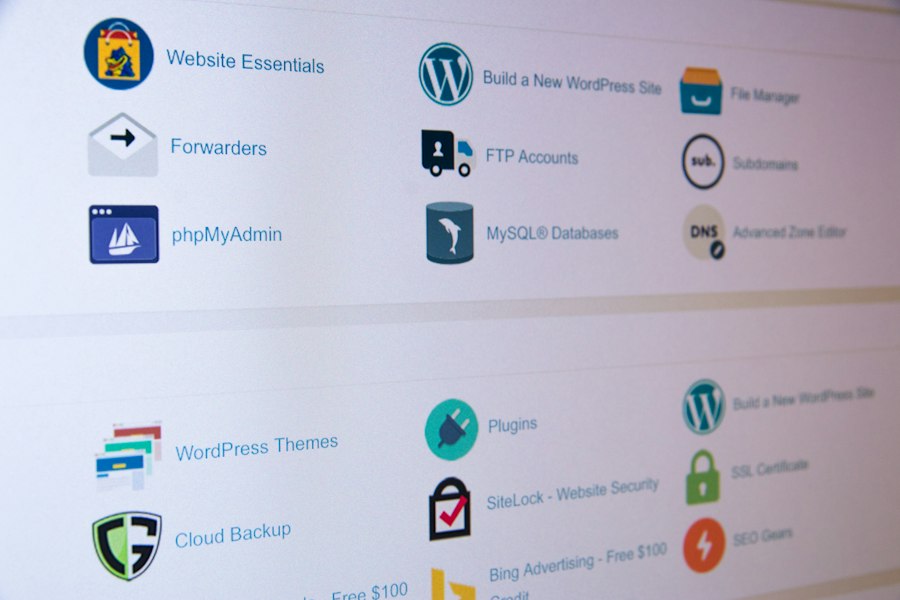
While daily and weekly tasks focus on immediate issues and preventative measures, monthly and quarterly maintenance involves deeper inspections and optimizations. These tasks are less frequent but are vital for long-term site health, security, and performance. Think of them as more comprehensive check-ups that address underlying issues and ensure your WordPress environment remains lean and efficient.
Updating Core, Themes, and Plugins
This is a cornerstone of WordPress maintenance. Developers constantly release updates for the WordPress core, themes, and plugins. These updates often include critical security patches, bug fixes, performance improvements, and new features. Neglecting updates leaves your site vulnerable to exploits and can lead to compatibility issues. Before initiating any major updates, always perform a full backup of your website. After updating, thoroughly check your site for any visual glitches or broken functionalities. It’s often advisable to update in a staging environment first if possible, especially for critical live sites.
Optimizing Your WordPress Database
Over time, your WordPress database can accumulate a lot of clutter: revision history, unapproved comments, trashed posts, transient options, and more. A bloated database can significantly slow down your website. Regularly optimizing your database removes this unnecessary data, making it more efficient and faster to query. Several plugins can automate this process, allowing you to clean up and optimize your database tables with just a few clicks. Aim to do this at least once a month.
Cleaning Up Media Library
Your media library can become a repository of unused images, duplicate files, and unnecessarily large media. This not only consumes valuable server space but can also impact backup sizes and site performance. Regularly review your media library. Delete any images or files that are no longer in use. Consider using image optimization plugins to automatically compress new uploads, reducing their file size without significant loss of quality.
Reviewing User Roles and Permissions
If you have multiple users on your WordPress site, it’s crucial to periodically review their roles and permissions. Ensure that each user has the minimum necessary access level required for their tasks. Removing unnecessary administrator privileges or outdated user accounts significantly reduces your site’s attack surface. This is particularly important if you’ve had collaborators or freelancers who no longer work with you.
Checking for 404 Errors
Beyond broken outbound links, it’s also important to check for internal 404 errors (pages that users try to access but don’t exist on your site). These can occur if you’ve deleted pages, changed permalinks without redirects, or if external sites are linking to non-existent pages on your domain. Identify these errors using Google Search Console or dedicated plugins and implement 301 redirects to guide users and search engines to the correct pages. This improves user experience and preserves SEO value.
Testing Website Speed
Regularly testing your website’s loading speed is crucial. Tools like Google PageSpeed Insights, GTmetrix, and Pingdom Tools provide valuable insights into your site’s performance and offer actionable recommendations for improvement. Look for consistent slow-downs, which might indicate issues with your hosting, unoptimized images, or inefficient code. Make it a point to run these tests at least quarterly, or after any significant changes to your site.
Advanced Optimization and Security Measures
Beyond the regular maintenance routine, there are several advanced steps you can take to further secure and optimize your WordPress website. These measures often require a bit more technical understanding but offer significant benefits in terms of resilience, performance, and protection against evolving threats.
Implementing a Web Application Firewall (WAF)
A WAF acts as a shield between your website and the internet, filtering out malicious traffic before it ever reaches your WordPress installation. Services like Cloudflare, Sucuri, and Wordfence offer WAF capabilities that protect against common attacks such as brute-force attempts, SQL injection, and cross-site scripting (XSS). While some security plugins offer basic firewall functionality, a dedicated WAF provides a more robust and proactive layer of defense.
Leveraging a Content Delivery Network (CDN)
For websites with a global audience, a CDN is a game-changer for speed. A CDN stores cached versions of your website’s static content (images, CSS, JavaScript) on servers distributed around the world. When a visitor accesses your site, the content is delivered from the server geographically closest to them, significantly reducing loading times. This not only improves user experience but also helps with SEO.
Hardening WordPress Security
Beyond plugins, there are several manual steps you can take to harden your WordPress security:
- Change Default Login URL: The default
wp-adminandwp-login.phpURLs are common targets for hackers. Change these to something custom to obscure your login page. - Disable File Editing: Prevent theme and plugin files from being edited directly from the WordPress dashboard by adding
define('DISALLOW_FILE_EDIT', true);to yourwp-config.phpfile. - Limit Login Attempts: Use a plugin to limit the number of failed login attempts, blocking brute-force attacks.
- Strong Passwords and Two-Factor Authentication (2FA): Enforce strong, unique passwords for all users and implement 2FA for an extra layer of security.
- Disable XML-RPC: If you don’t use external tools that rely on XML-RPC, disable it as it can be a vector for attacks.
Enabling Caching for Faster Performance
Caching stores static versions of your website pages, reducing the need for WordPress to generate each page dynamically for every visitor. This significantly speeds up loading times and reduces server load. Implement a robust caching plugin like WP Super Cache, W3 Total Cache, or LiteSpeed Cache (if your host supports it). Configure it carefully to maximize benefits without causing unexpected issues.
Regular Security Scans and Malware Checks
Even with preventive measures, it’s wise to perform regular security scans. Plugins like Wordfence or Sucuri Scanner can scan your WordPress files for known malware, suspicious code, and security vulnerabilities. These scans should be run at least monthly, or more frequently if your site experiences unusual activity. Early detection is key to mitigating damage from a successful attack.
Opting for Managed WordPress Hosting
If the technical aspects of maintenance feel overwhelming, consider upgrading to managed WordPress hosting. These providers specialize in WordPress and handle many of the core maintenance tasks for you, including daily backups, security monitoring, performance optimization, and automatic updates. While typically more expensive, the peace of mind and expert support can be invaluable, allowing you to focus on content creation and business growth.
To ensure your WordPress site remains in optimal condition, regular maintenance is essential, and you might find it beneficial to explore additional resources on enhancing your website’s performance. For instance, an insightful article discusses how to unleash your website’s full potential with dedicated servers, which can significantly improve speed and reliability. You can read more about it in this related article. By combining regular maintenance with the right hosting solutions, you can create a robust online presence that meets your visitors’ needs effectively.
Troubleshooting Common WordPress Issues
| Maintenance Task | Frequency | Purpose | Key Metrics to Monitor |
|---|---|---|---|
| Update WordPress Core | Weekly or as updates release | Ensure security patches and new features are applied | Current WordPress version, update success rate |
| Update Plugins and Themes | Weekly or bi-weekly | Maintain compatibility and security | Number of outdated plugins/themes, update success rate |
| Backup Website | Daily or weekly | Protect data against loss or corruption | Backup frequency, backup file size, backup success rate |
| Check for Broken Links | Monthly | Improve user experience and SEO | Number of broken links found and fixed |
| Optimize Database | Monthly | Improve site speed and reduce overhead | Database size before and after, optimization time |
| Scan for Malware | Weekly or monthly | Ensure site security and integrity | Number of threats detected and resolved |
| Review User Accounts | Quarterly | Remove inactive or suspicious users | Number of active users, removed accounts |
| Test Website Performance | Monthly | Maintain fast load times and responsiveness | Page load time, uptime percentage |
| Check SEO Settings | Quarterly | Maintain search engine rankings | SEO score, keyword rankings |
Despite your best efforts, WordPress can occasionally present challenges. Knowing how to approach common issues effectively can save you hours of frustration and minimize downtime. The key is a systematic approach, starting with the most likely culprits and ruling them out one by one.
The White Screen of Death (WSOD)
This is one of the most feared WordPress errors, where your site displays a blank white page with no error message. The WSOD is often caused by a plugin conflict, a theme issue, or an exhausted memory limit.
- Troubleshooting Steps:
- Disable Plugins: The most common cause. Access your site via FTP or your hosting control panel’s file manager and rename your
wp-content/pluginsfolder to something likeplugins_old. This will deactivate all plugins. If your site comes back, reactivate plugins one by one to identify the culprit. - Switch to Default Theme: Similar to plugins, a theme issue can cause WSOD. Rename your active theme’s folder in
wp-content/themesto force WordPress to fall back to a default theme (like Twenty Twenty-Four). If the site recovers, the issue is with your theme. - Increase Memory Limit: Edit your
wp-config.phpfile and adddefine('WP_MEMORY_LIMIT', '256M');above the line/ That's all, stop editing! Happy blogging. /. - Check Error Logs: If none of the above work, enable
WP_DEBUGinwp-config.phpby changingdefine('WP_DEBUG', false);todefine('WP_DEBUG', true);. This might display specific error messages. Also, check your server’s error logs, often accessible via your hosting control panel.
Internal Server Error (500 Error)
An Internal Server Error is a generic message indicating something is wrong on the server but it can’t be more specific. Common causes include a corrupted .htaccess file, exhausted PHP memory, or a problematic plugin/theme.
- Troubleshooting Steps:
- Check
.htaccessFile: Access your site via FTP and rename your.htaccessfile (located in the root directory of your WordPress installation) to something like.htaccess_old. Then, go to your WordPress dashboard (if you can access it) and navigate to Settings > Permalinks. Simply click “Save Changes” without making any modifications to generate a new.htaccessfile. - Increase PHP Memory Limit: (See WSOD troubleshooting).
- Deactivate Plugins and Theme: (See WSOD troubleshooting).
- Check Server Logs: Server error logs (usually
error_logfiles) on your hosting account often contain specific messages that pinpoint the exact cause of a 500 error.
Error Establishing a Database Connection
This error means your WordPress site cannot connect to its database, which is crucial for loading any content.
- Troubleshooting Steps:
- Check
wp-config.php: Verify the database name, username, password, and database host (usuallylocalhost) in yourwp-config.phpfile are correct. Even a single typo can cause this error. Your hosting provider can provide these credentials if you’re unsure. - Check Database Server Status: Contact your hosting provider to confirm if your database server is running. Sometimes, the database server might be temporarily down or experiencing issues.
- Repair Database: You can try repairing your database. Add
define('WP_ALLOW_REPAIR', true);to yourwp-config.phpfile, then navigate toyourwebsite.com/wp-admin/maint/repair.php. After repairing, remove the line fromwp-config.php.
Too Many Redirects Error
This error occurs when your site is stuck in an endless loop of redirects, often caused by misconfigured plugins, server settings, or changes to permalinks without proper handling.
- Troubleshooting Steps:
- Clear Browser Cache and Cookies: Start with the simplest solution.
- Check WordPress URL Settings: Go to Settings > General in your WordPress dashboard and ensure both the “WordPress Address (URL)” and “Site Address (URL)” are identical and correct (e.g., both use
https://orhttp://consistently, andwwwor non-wwwconsistently). - Deactivate Plugins: A redirection plugin or SEO plugin can sometimes cause this. Deactivate them to see if the issue resolves.
- Examine
.htaccessFile: Misconfigurations in your.htaccessfile can lead to redirect loops. Try renaming it (as described in the 500 error section) to generate a fresh one.
By understanding these common issues and their respective troubleshooting steps, you’ll be better equipped to quickly diagnose and resolve problems, minimizing the impact on your website and its visitors. Remember, a systematic approach and regular backups are your most powerful allies in any troubleshooting scenario.
FAQs
What is WordPress maintenance?
WordPress maintenance refers to the regular tasks and updates required to keep a WordPress website running smoothly and securely. This includes updating themes and plugins, backing up data, optimizing performance, and ensuring security measures are in place.
Why is regular maintenance important for a WordPress site?
Regular maintenance is crucial for a WordPress site as it helps prevent security vulnerabilities, improves site performance, and ensures compatibility with the latest web technologies. It also helps in avoiding downtime and data loss, which can negatively impact user experience and SEO rankings.
How often should I perform maintenance on my WordPress site?
It is recommended to perform maintenance on your WordPress site at least once a month. However, for high-traffic sites or those with frequent updates, weekly maintenance may be necessary to ensure optimal performance and security.
What are some common maintenance tasks for WordPress?
Common maintenance tasks for WordPress include updating WordPress core, themes, and plugins; backing up the website; optimizing the database; checking for broken links; and monitoring site security. Regularly reviewing site performance and user feedback is also beneficial.
Can I automate WordPress maintenance tasks?
Yes, many WordPress maintenance tasks can be automated using plugins. For example, backup plugins can schedule regular backups, while update management plugins can automatically update themes and plugins. However, it is still important to periodically review these automated processes to ensure everything is functioning correctly.









Add comment