

Your Centralized Control Panel for Web Hosting
You’ve ventured into the exciting world of online presence, whether it’s launching a personal blog, a bustling e-commerce store, or a professional business website. With this digital journey comes a significant responsibility: managing your website’s various components. From ensuring your emails are delivered flawlessly to safeguarding your precious data, the tasks can seem daunting. This is where cPanel steps in, acting as your intuitive, web-based control panel that simplifies an otherwise complex array of server management functions. Think of it as your digital dashboard, giving you a clear overview and easy access to virtually everything you need to keep your website running smoothly.
Before cPanel, managing a website often involved a deep dive into command-line interfaces, requiring specialized technical knowledge and a steep learning curve. For many, this was a significant barrier to entry for establishing an online presence. cPanel changed the game by translating these complex server operations into a user-friendly graphical interface. You no longer need to be a seasoned system administrator to perform essential tasks like creating email accounts, setting up databases, or managing your website files. Instead, you’re presented with a series of easily navigable icons and menus, each representing a powerful function designed to empower you, the website owner. This simplification isn’t just about making things easier; it’s about making them accessible and efficient, allowing you to focus on what truly matters: your content, your business, and your audience. You gain independence from constantly relying on technical support for routine operations, saving you time and potentially money.
This comprehensive guide will walk you through how cPanel empowers you in managing two crucial aspects of your online presence: email and databases. You’ll discover how cPanel transforms these often-intimidating tasks into straightforward processes, giving you complete control and confidence in your website’s infrastructure. By understanding and utilizing cPanel’s capabilities, you’ll optimize your website’s performance, enhance its security, and streamline your workflow, ultimately contributing to a more successful and less stressful online experience.
If you’re interested in understanding how cPanel simplifies website email and database management, you might also find it helpful to explore the article on dedicated servers. This resource explains what a dedicated server is and when to use it, providing valuable insights for those looking to enhance their website’s performance and reliability. You can read more about it here: Dedicated Server: What Is It and When to Use It?.
Streamlining Your Email Communications
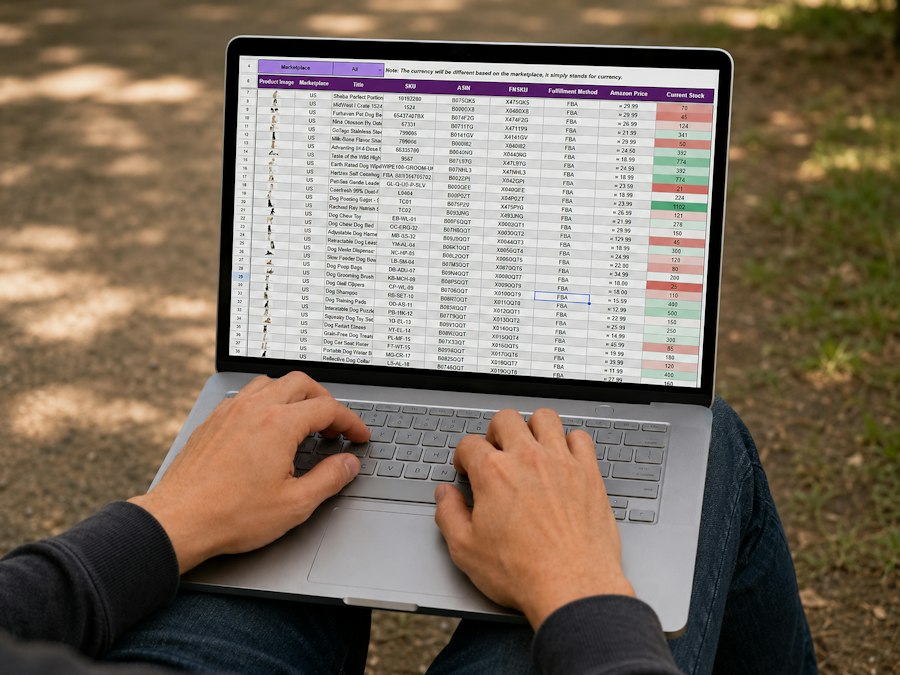
Effective communication is the lifeblood of any successful online endeavor. Whether you’re interacting with customers, collaborating with colleagues, or receiving important notifications, a reliable and professional email system is paramount. cPanel makes managing your website’s email a surprisingly simple and intuitive process, putting you in control of your digital correspondence.
Creating and Managing Email Accounts with Ease
Imagine needing to set up a new email address for a specific department or a new team member. Without cPanel, this could involve configuration files and server commands. With cPanel, it’s a matter of a few clicks.
You’ll navigate to the “Email Accounts” section within your cPanel interface. Here, you’re presented with a clear and concise form. You simply enter the desired username (e.g., “info”, “support”, or a specific name) and choose a strong, unique password. cPanel often includes a password generator to assist you in creating secure credentials. You also have the option to set a mailbox quota, preventing a single account from consuming all your server’s storage. This is particularly useful if you have multiple users and want to ensure fair resource allocation. Once you click “Create Account,” your new email address is live and ready to use.
Beyond creation, cPanel provides a centralized hub for managing all your existing email accounts. You can easily modify passwords, adjust quotas, or even delete accounts if they’re no longer needed. This level of granular control ensures that your email system remains organized and secure, reflecting the evolving needs of your website or business. You can see a list of all your created email addresses, their storage usage, and options to manage each one individually. This visibility is key to maintaining a healthy email environment.
Securing Your Communications: Spam Protection and Filters
In today’s digital landscape, spam is an unavoidable nuisance. It can clutter inboxes, waste valuable time, and even pose security risks. cPanel equips you with robust tools to combat unwanted email effectively.
You’ll find options like “Spam Filters” (often powered by Apache SpamAssassin™) that allow you to configure various levels of spam detection. You can enable automatic deletion of high-scoring spam, move suspected spam to a dedicated folder, or even set up custom rules to fine-tune the filtering process. These filters analyze incoming emails for characteristics commonly associated with spam, like suspicious links, unusual formatting, and certain keywords, assigning a score to each message. You have the power to decide what score constitutes spam and how it should be handled. This proactive approach significantly reduces the amount of junk mail reaching your primary inbox, freeing you to focus on legitimate communications.
Furthermore, you can create “Email Filters” that go beyond general spam protection. These filters allow you to define specific rules for handling incoming messages based on criteria such as the sender’s address, the subject line, or even keywords within the email body. For instance, you could set up a filter to automatically forward emails from a specific client to a particular team member, or to move all newsletter subscriptions into a dedicated folder. This level of customization empowers you to organize your inbox efficiently, ensuring that important emails are prioritized and easily accessible. You can also block specific senders or domains, effectively creating a blacklist to prevent unwanted messages from ever reaching your mailbox.
Accessing Your Email: Webmail and Client Configuration
Once your email accounts are set up, cPanel provides multiple convenient ways to access your messages.
The most immediate option is “Webmail.” With a simple click, you can access a web-based email client directly from your cPanel. This eliminates the need for any complex software installation on your computer. cPanel typically offers popular webmail clients like Roundcube, Horde, or SquirrelMail, each with its own interface and features, allowing you to choose the one that best suits your preferences. You can read, compose, reply, and manage your emails entirely within your web browser, making it ideal for accessing your email on the go or from different devices.
For those who prefer a dedicated email application on their computer or mobile device (like Outlook, Thunderbird, Apple Mail, or Gmail app), cPanel simplifies the configuration process. Within the “Email Accounts” section, you’ll find “Set Up Mail Client” options for each email address. This provides you with the necessary server settings (IMAP/POP3, SMTP, ports, and security protocols) to manually configure your chosen email client. Even better, cPanel often provides downloadable configuration scripts or step-by-step instructions that automate much of this setup, making it incredibly straightforward even for less tech-savvy users. This ensures that you can seamlessly integrate your professional email into your existing workflow, regardless of your preferred email application. You will often find options for secure SSL/TLS connections, ensuring your email communications are encrypted and protected.
Advanced Email Features for Enhanced Functionality
cPanel doesn’t stop at basic email management; it also offers a suite of advanced features to enhance your communication capabilities.
You can set up “Forwarders,” which automatically redirect emails from one address to another. This is incredibly useful for creating aliases (e.g., forwarding “sales@yourdomain.com” to “john.doe@yourdomain.com”) or for ensuring that emails sent to old or defunct addresses are still received. This ensures you never miss an important message, even if someone uses an outdated contact.
“Autoresponders” allow you to automatically send a pre-written reply to incoming emails. This is perfect for “out-of-office” messages, acknowledging receipt of customer inquiries, or providing instant information. You can customize the subject, body, and even the start and end times for your autoresponder, giving you flexibility in managing automated replies. This can significantly improve customer service and manage expectations.
“Mailing Lists” enable you to send emails to a group of subscribers simultaneously. While not a full-fledged email marketing platform, it’s useful for internal team communications, sending updates to a small group of users, or managing a basic newsletter. You can add and remove subscribers, moderate posts, and control various settings for your mailing lists, providing a simple solution for group communication.
Furthermore, “Email Deliverability” tools help you monitor your email sending reputation and identify potential issues that could lead to your emails being marked as spam. These tools often integrate with DNS records like SPF and DKIM, which authenticate your outgoing emails and help prevent spoofing. By ensuring your emails are properly authenticated, you increase their chances of reaching their intended recipients’ inboxes.
Mastering Your Website’s Databases
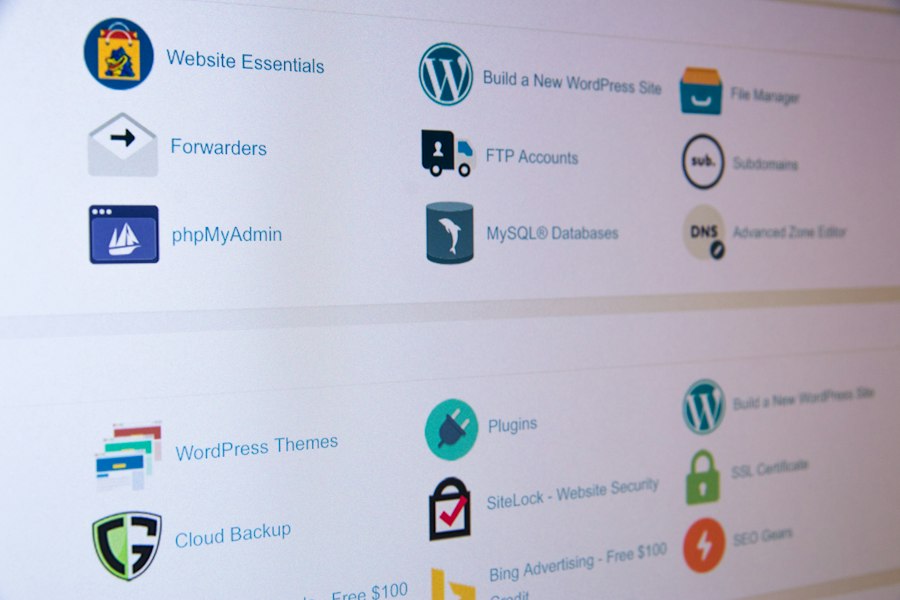
Behind every dynamic website, from a simple content management system (CMS) to a complex e-commerce platform, lies a database. This is where all your crucial data – user information, product details, blog posts, configurations – is stored and organized. Managing these databases can seem intimidating, but cPanel simplifies the process, making it accessible even if you’re not a database expert.
Creating and Managing MySQL Databases
The vast majority of modern websites rely on MySQL or MariaDB databases. cPanel provides a user-friendly interface to create and manage these essential components.
You’ll navigate to the “MySQL® Databases” section. Here, you’re presented with a straightforward tool to create a new database. You simply enter a descriptive name for your database (e.g., “wordpress_db”, “store_data”). cPanel will then prepend your cPanel username to this name, creating a unique database identifier. Once created, you’ll need to assign a user to this database. This is a critical security step, as it prevents unauthorized access.
Creating a database user is just as simple. You define a username and assign a strong password. It’s crucial to use unique, complex passwords for database users, as these credentials grant access to your website’s most valuable information. After creating the user, you then assign this user to your newly created database. During this assignment, you’ll be prompted to grant specific “privileges” to the user. These privileges determine what actions the user can perform on the database, such as reading data, writing data, modifying tables, or deleting entries. For most website applications, you’ll typically grant all privileges, but for advanced security scenarios, you might limit them. This separation of database creation and user assignment, along with granular privilege control, is a fundamental aspect of database security that cPanel makes easy to implement.
Utilizing phpMyAdmin for Database Interaction
While cPanel handles the creation and assignment of databases and users, you’ll often need a more direct way to interact with your database’s contents. This is where “phpMyAdmin” comes in.
phpMyAdmin is a web-based tool that comes pre-installed and integrated with cPanel. It provides a graphical interface for managing your MySQL databases, allowing you to perform a wide range of operations without needing to write SQL commands manually. From within cPanel, you can directly launch phpMyAdmin for any of your databases.
Once inside phpMyAdmin, you can browse through your database’s tables, view their structure, and inspect the data stored within them. You can also execute SQL queries directly, which is useful for advanced troubleshooting or data manipulation. For example, if you need to quickly update a specific value in a table or search for a particular entry, phpMyAdmin offers a visual way to do so. You can also import and export database backups, a crucial task for website migration or disaster recovery. phpMyAdmin simplifies the often-complex world of database interaction, making it accessible to users who might not be familiar with SQL syntax. You can even optimize tables, repair them, and manage user permissions within phpMyAdmin itself, though cPanel’s interface is usually preferred for initial user and database creation.
Database Backups and Restoration for Peace of Mind
Your website’s database is arguably its most critical component. Losing your database due to a technical error, a malicious attack, or even an accidental deletion can be catastrophic. cPanel provides essential tools for backing up and restoring your databases, ensuring your data is always protected.
Within the “Backups” section of cPanel, you’ll find options to download full or partial backups. For databases, you can easily download a backup of a single database in a .sql format. This file contains all the data and structure of your database, allowing you to restore it if needed. Regularly backing up your databases is a fundamental best practice for any website owner. You can schedule these backups manually or rely on your hosting provider’s automated backup solutions, but having the ability to generate an on-demand backup through cPanel is invaluable.
In the event of data loss, cPanel also simplifies the restoration process. While restoring a full website backup might be a more complex operation, restoring a single database typically involves using phpMyAdmin’s “Import” function. You simply upload your .sql backup file, and phpMyAdmin will execute the necessary commands to rebuild your database to its backed-up state. This straightforward approach to backup and restoration provides immense peace of mind, knowing that your valuable website data is protected and recoverable.
Enhancing Website Performance and Security
Beyond email and databases, cPanel offers a suite of tools designed to boost your website’s performance and fortify its security, both crucial for a successful online presence. You’re not just managing components; you’re optimizing the entire environment.
Managing Domain and Subdomain Configurations
Your domain name is your website’s address on the internet, and cPanel gives you full control over its configuration.
In the “Domains” section, you can add new domains to your hosting account, whether they are entirely new websites or “addon domains” that share resources with your primary domain. You can also manage “subdomains,” which allow you to create distinct sections of your website under your main domain (e.g., “blog.yourdomain.com”, “shop.yourdomain.com”). This is excellent for organizing content or hosting specific applications. cPanel simplifies the process of pointing these domains and subdomains to specific directories on your server, ensuring visitors reach the correct content. This flexibility in domain management is invaluable for growing your online portfolio or structuring your website logically. You can also set up “aliases” or “parked domains,” which direct multiple domain names to the same website content.
File Management and FTP Access
Managing your website’s files is a foundational task, and cPanel provides powerful, yet easy-to-use, tools for this.
The “File Manager” within cPanel is a web-based interface that allows you to browse, upload, download, edit, and delete files and folders directly on your server, similar to how you would interact with files on your personal computer. You can create new directories, move files around, and even edit code files directly within the browser, making quick edits incredibly convenient. This eliminates the need for a separate FTP client for many routine file operations.
For more extensive file transfers or for working with development teams, cPanel also provides “FTP Accounts.” You can create dedicated FTP users with specific access permissions to certain directories on your server. This enhances security by allowing you to grant limited access to collaborators without giving them full cPanel credentials. You can also configure secure FTP (SFTP) connections, encrypting file transfers for an added layer of protection against eavesdropping. This robust file management system ensures you have complete control over your website’s content and structure.
Security Features: SSL/TLS and IP Blocker
In an age of increasing cyber threats, website security is non-negotiable. cPanel provides essential tools to protect your website and your visitors.
The “SSL/TLS” section is where you can manage your website’s security certificates. SSL (Secure Sockets Layer) and its successor TLS (Transport Layer Security) encrypt the connection between your website and your visitors’ browsers, ensuring that sensitive data like login credentials and credit card information is transmitted securely. Websites without an SSL certificate are often flagged as “not secure” by modern browsers, which can deter visitors and impact your search engine rankings. cPanel often integrates with services like Let’s Encrypt, allowing you to install free SSL certificates with just a few clicks. It also facilitates the installation of commercial SSL certificates, guiding you through the certificate signing request (CSR) generation and private key management. Implementing SSL is a fundamental step in building trust and ensuring the privacy of your website users.
Furthermore, the “IP Blocker” allows you to prevent specific IP addresses or entire IP ranges from accessing your website. If you notice suspicious activity from a particular IP, such as repeated login attempts or spam comments, you can add it to the IP Blocker list, effectively denying it access. This acts as a basic firewall, helping to mitigate denial-of-service attacks or block known malicious actors from interacting with your site. These security features empower you to take proactive measures to safeguard your online assets.
In addition to exploring how cPanel simplifies website email and database management, you might find it helpful to read about the process of creating a website from scratch. A related article discusses the essential steps to build a one-page website in 10 easy steps, which can provide you with valuable insights into the overall website development process. Understanding these foundational elements can enhance your experience with cPanel and improve your website management skills.
Advanced Control and Customization Options
| Feature | Description | Benefit | Example Metric |
|---|---|---|---|
| Email Account Management | Allows easy creation, deletion, and management of email accounts directly from the cPanel interface. | Reduces time spent on email setup and maintenance. | Setup time reduced by up to 70% |
| Spam Filters and Email Forwarders | Built-in spam filters and ability to forward emails to other accounts. | Improves email security and organization. | Spam reduction rate up to 90% |
| Webmail Access | Access email through web-based clients like Roundcube or Horde. | Enables email access from any device without additional software. | 99.9% uptime for webmail services |
| MySQL Database Management | Provides tools like phpMyAdmin for easy database creation, editing, and backup. | Simplifies database administration tasks for users without technical expertise. | Database setup time under 5 minutes |
| Automated Backups | Scheduled backups of email accounts and databases. | Ensures data safety and quick recovery options. | Backup frequency customizable up to daily |
| One-Click Installers | Install popular CMS and email tools with a single click. | Speeds up deployment of email and database-driven applications. | Installation time reduced by 80% |
| Resource Usage Monitoring | Track email and database resource consumption in real-time. | Helps optimize performance and avoid overuse. | Real-time monitoring with alerts |
cPanel isn’t just about managing the basics; it also offers a deeper level of control and customization, allowing you to fine-tune your hosting environment to meet specific needs and optimize your website’s performance.
Cron Jobs for Automated Tasks
Imagine needing to run a specific script on your website at regular intervals, such as cleaning up temporary files, sending out automated reports, or updating a cache. Manually performing these tasks would be inefficient and prone to error. This is where “Cron Jobs” come in.
A cron job is a time-based job scheduler that allows you to automate commands or scripts on your server. Within cPanel, you can easily set up cron jobs by specifying the command you want to execute and the frequency (e.g., every hour, daily, weekly, or at a specific time). You can choose from various predefined intervals or define custom schedules using standard cron syntax. For example, you might set up a cron job to run a WordPress optimization script every night or to fetch data from an external API every few hours. This automation frees up your time and ensures critical background tasks are performed reliably without your constant intervention, contributing significantly to your website’s overall efficiency and upkeep.
Backups and Restore Management
While you’ve already seen how to back up databases, cPanel offers a more comprehensive backup solution for your entire website.
The “Backup” and “Backup Wizard” tools allow you to generate full backups of your home directory (which includes all your website files), databases, email forwarders, and email filters. You can choose to download these backups to your local computer, providing an essential off-site copy of your entire website. The Backup Wizard guides you through the process step-by-step, making it easy to understand and execute. This full backup capability is your ultimate safety net; in the event of a catastrophic failure or data loss, you can restore your entire website to a previous working state.
Additionally, cPanel often provides options to restore full backups or individual components directly from your hosting account, provided your host maintains backup copies. This self-service restoration capability can significantly reduce downtime and the need for immediate technical support during recovery scenarios. You gain the power to manage your own disaster recovery strategy directly through the control panel.
Software Installation and Application Management
For many website owners, starting a new website means installing a content management system (CMS) like WordPress, Joomla, or Drupal. cPanel simplifies this process dramatically.
Many hosting providers integrate “Softaculous Apps Installer” or a similar one-click installer directly into cPanel. This powerful tool allows you to install hundreds of popular web applications with just a few clicks, eliminating the need for manual database setup, file uploads, and configuration. You simply choose the application, specify your domain, define a few basic settings (like administrator username and password), and the installer handles the rest. This feature is a game-changer for beginners, allowing them to launch a fully functional website in minutes.
Beyond initial installation, these installers also help with managing your applications, offering options for easy updates, backups, and even cloning or staging environments. Keeping your CMS and other applications updated is crucial for security and performance, and cPanel’s integration with these installers makes this task incredibly straightforward. You will often receive notifications within cPanel when updates are available for your installed applications, prompting you to keep your software current.
In exploring how cPanel simplifies website email and database management, it’s also beneficial to understand the broader context of web hosting itself. For a deeper insight into the fundamentals of web hosting and its operational mechanisms, you can read this informative article on the subject. It provides valuable information that complements the features of cPanel, making it easier for users to manage their online presence effectively. You can find the article here: what is web hosting and how does it work.
Embracing the Power of cPanel for Your Online Success
You’ve now explored the breadth of capabilities cPanel offers, particularly in simplifying email and database management tasks. From the initial creation of professional email accounts and securing them against spam, to the intricate world of database setup, management, and essential backups, cPanel stands as your unwavering companion. It transforms what could be complex, technical hurdles into manageable, clickable actions, accessible to users regardless of their technical proficiency.
Think of the time and effort you save by not having to navigate obscure command-line interfaces or spending hours troubleshooting configuration files. Instead, cPanel presents a clear, organized interface that empowers you to take charge. This empowerment extends beyond mere convenience; it translates into greater efficiency, enhanced security, and ultimately, a more reliable and successful online presence. You gain the confidence to manage critical aspects of your website, knowing that you have the tools to keep everything running smoothly.
Moreover, cPanel’s impact extends to broader aspects of your website management. Its tools for file management, domain configuration, performance optimization, and advanced automation through cron jobs contribute to a holistic approach to web hosting. By centralizing these diverse functions, cPanel ensures that you have a single point of control for almost every aspect of your server and website. This unified approach reduces complexity and allows you to maintain a comprehensive overview of your digital assets.
As you continue your journey online, remember that harnessing the full potential of cPanel is a continuous process. Take the time to explore each section, experiment with its features, and leverage its extensive documentation (often available directly within the interface or through your hosting provider). The more familiar you become with cPanel, the more control you’ll exert over your website, enabling you to focus on developing your content, growing your audience, and achieving your online goals without being bogged down by technicalities. Embrace cPanel as your essential partner in navigating the digital landscape, and you’ll find that managing your website is not just a task, but an empowered experience.
FAQs
What is cPanel?
cPanel is a web-based control panel that allows website owners to easily manage various aspects of their hosting account, including email, databases, files, and more.
How does cPanel make email management easier?
cPanel provides tools for creating email accounts, setting up email forwarders, managing spam filters, and accessing webmail, making it simple for users to handle all their email needs in one place.
What features does cPanel offer for database management?
cPanel offers tools for creating and managing databases, as well as tools for importing and exporting database files. Users can also set up database users and permissions easily through the control panel.
Can cPanel help with website management tasks?
Yes, cPanel includes features for managing files, setting up domains, creating subdomains, installing SSL certificates, and more, making it a comprehensive solution for website management.
Is cPanel user-friendly for beginners?
Yes, cPanel is designed to be user-friendly, with a simple and intuitive interface that allows even beginners to easily navigate and manage their website, email, and databases without needing advanced technical knowledge.









Add comment