

Welcome to the world of WordPress, where possibilities are endless, but sometimes the journey can feel a little daunting. You’ve chosen WordPress for its flexibility, its vast ecosystem of plugins and themes, and its undeniable power in building almost any kind of website imaginable. But now you’re faced with the practicalities of managing it. How do you keep it secure, updated, and performing at its best without getting lost in a sea of technical jargon? The answer, for many, lies in two powerful allies: cPanel and WordPress Toolkit. This guide will walk you through leveraging these tools to make your WordPress management a breeze.
Before you can effectively manage your WordPress site, you need to understand the control panel that governs your hosting environment. For the vast majority of shared hosting users, and a significant number of VPS and dedicated server users, that control panel is cPanel. Think of cPanel as the central hub for your entire website infrastructure. It’s where you manage domains, emails, databases, files, and much more.
Navigating the cPanel Interface
When you first log into cPanel, you’re presented with a dashboard full of icons, each representing a different function. It might seem overwhelming at first, but with a little guidance, you’ll find it’s logically organized.
Files Section: Your Digital Filing Cabinet
This is where you’ll find tools like the File Manager, which allows you to browse, upload, edit, and delete files on your server. This is crucial for manual WordPress installations or troubleshooting. You’ll also find Backup tools here, which are indispensable for creating full or partial backups of your website data. Never underestimate the importance of regular backups; they are your safety net.
Databases Section: The Heart of Your WordPress Site
WordPress relies heavily on a database to store all its content – posts, pages, comments, user information, and settings. In this section, you’ll find phpMyAdmin, a web-based interface for managing your MySQL databases. While you might not interact with it directly often, it’s good to know where it is for advanced troubleshooting or database optimization. You can also create new databases and database users here, a common step in a manual WordPress installation.
Domains Section: Your Website’s Address Book
This is where you manage your domain names. You can add Addon Domains to host multiple websites on one cPanel account, create Subdomains for different sections of your site (e.g., blog.yourdomain.com), and manage Redirects to send visitors from one URL to another. Understanding these features is key to structuring your website effectively.
Email Section: Professional Communication
cPanel offers comprehensive email management. You can create Email Accounts with your domain (e.g., info@yourdomain.com), set up Forwarders to send emails to another address, and configure Autoresponders for automatic replies. Professional email addresses add credibility to your brand and are easily managed from here.
Metrics Section: Insights into Your Website
Here you can view various statistics about your website’s performance and visitors. Awstats and Visitors provide data on traffic, popular pages, and referral sources. While not as detailed as Google Analytics, they offer a quick overview of your site’s activity.
Security Section: Protecting Your Investment
This section is vital for your website’s health. You can set up SSL/TLS certificates to encrypt data between your server and visitors’ browsers, which is crucial for security and SEO. You can also configure IP Blocker to prevent specific IP addresses from accessing your site and manage ModSecurity rules for enhanced web application firewall protection.
Software Section: The Power Behind Your Applications
This is where things get really interesting for WordPress users. You’ll often find a one-click installer like Softaculous Apps Installer here. This tool simplifies the process of installing WordPress (and many other web applications) with just a few clicks. It’s a lifesaver for beginners and a time-saver for experienced users. This is also where the WordPress Toolkit resides, which we’ll delve into next.
If you’re looking to enhance your WordPress management skills, you might find our related article on effective communication with your hosting provider quite useful. It covers essential tips on how to reach out for support and resolve issues efficiently, which can complement your understanding of managing WordPress through cPanel and the WordPress Toolkit. You can read more about it here: Effective Communication with Your Hosting Provider.
Introducing WordPress Toolkit: Your All-in-One WordPress Manager
While cPanel provides the underlying infrastructure management, WordPress Toolkit is designed specifically for, you guessed it, WordPress. It’s an invaluable add-on that centralizes many common WordPress management tasks, making your life significantly easier. Think of it as a specialized dashboard within cPanel dedicated solely to your WordPress installations.
Installing and Managing WordPress Sites
WordPress Toolkit streamlines the entire lifecycle of your WordPress sites, from initial setup to ongoing maintenance.
Effortless WordPress Installation
Forget manual database creation, file uploads, and configuration. With WordPress Toolkit, installing a new WordPress instance is incredibly simple. You just click a few buttons, provide some basic information like your site title and admin credentials, and Toolkit handles the rest. It sets up the database, downloads WordPress files, and configures everything automatically. This dramatically reduces the time and technical knowledge required to get a new site up and running.
Cloning and Staging Environments
One of the most powerful features of WordPress Toolkit is its ability to create clones and staging environments. This is an absolute game-changer for development and testing.
Why Staging Matters
A staging site is a complete copy of your live website, hosted on a separate subdomain or directory. You can use it to test new themes, plugins, updates, or code changes without affecting your live site. If something breaks on the staging site, your live audience is unaffected. Once you’re confident everything works correctly, you can then push those changes to your live site with a single click. This eliminates the fear of “breaking the internet” with every change you make.
How to Clone and Push
WordPress Toolkit provides intuitive options to create a clone or staging site. Once created, you can access the staging site and make your modifications. When you’re ready, the “Copy Data to Existing Installation” or “Sync” feature allows you to push the changes from staging to your live site, or even pull the live site content back to staging to refresh it. This workflow is essential for professional WordPress development.
Security and Maintenance with WordPress Toolkit
Beyond installation and cloning, WordPress Toolkit offers a robust suite of tools to keep your WordPress sites secure, updated, and performing optimally.
One-Click Updates for Core, Themes, and Plugins
Keeping your WordPress core, themes, and plugins updated is paramount for security and performance. Outdated software is the most common entry point for hackers. WordPress Toolkit simplifies this process significantly.
Automated Updates
You can configure automatic updates for core WordPress, themes, and plugins. This ensures your site is always running the latest, most secure versions without you having to manually check and click “update” every time. While convenient, always exercise caution with automatic updates, especially for major core versions or highly customized themes/plugins, as they can sometimes introduce conflicts. It’s often best to test major updates on a staging site first.
Manual Updates and Rollbacks
If you prefer more control, you can still perform manual updates directly from the Toolkit interface. And in the unfortunate event that an update causes an issue, WordPress Toolkit often provides a rollback option, allowing you to revert to a previous working state, minimizing downtime.
Security Hardening and Vulnerability Checks
WordPress Toolkit includes features designed to enhance your site’s security, often referred to as “hardening.”
Applying Security Measures
You can apply various security measures with a single click, such as disabling file editing from the dashboard, protecting the wp-config.php file, changing the database prefix, and more. These are common security best practices that might otherwise require manual code edits or specialized plugins. Toolkit simplifies their implementation, making your site more resilient against common attacks.
Monitoring for Vulnerabilities
The Toolkit can also scan your WordPress installations for known vulnerabilities in themes and plugins. It provides alerts and recommendations, allowing you to address potential security holes before they are exploited. This proactive approach to security is invaluable.
Database Management and Optimization
While phpMyAdmin is available in cPanel for detailed database work, WordPress Toolkit offers some convenient database management features specific to WordPress.
Database Backup and Restore
You can create backups of your WordPress database directly from Toolkit, which is a critical step before any major changes or updates. The ability to restore a database from a backup is equally important for disaster recovery.
Database Optimization
Over time, your WordPress database can accumulate overhead and become fragmented, potentially slowing down your site. WordPress Toolkit often includes an option to optimize your database, which can improve performance by cleaning up unnecessary data and optimizing table structures.
Advanced WordPress Management with cPanel & WordPress Toolkit
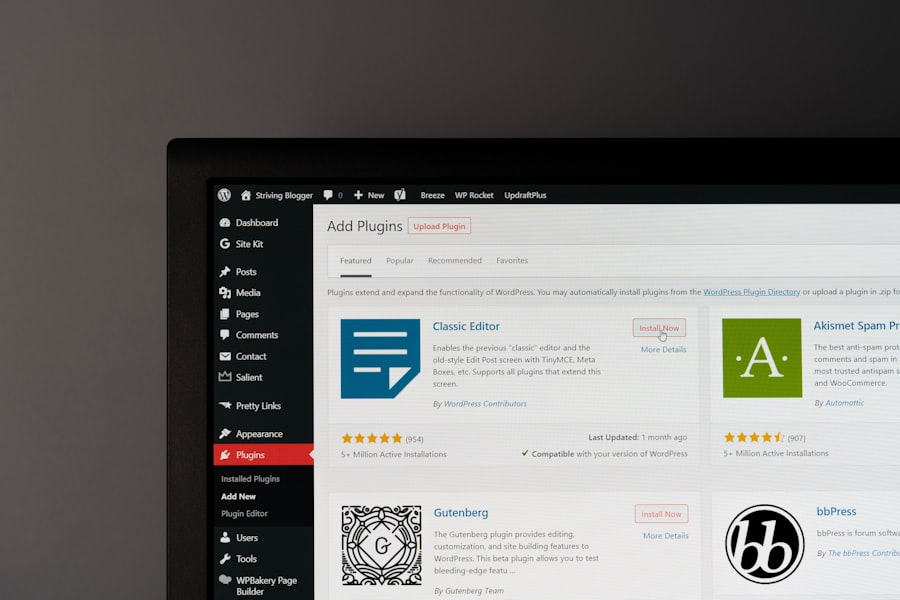
Beyond the everyday tasks, cPanel and WordPress Toolkit offer tools for more advanced management scenarios.
Performance Optimization
A fast website is crucial for user experience and SEO. Both cPanel and WordPress Toolkit offer ways to boost your site’s speed.
Caching Strategies
cPanel often integrates with caching solutions at the server level, such as LiteSpeed Cache if your host uses LiteSpeed Web Server. This can significantly reduce server load and improve page load times. WordPress Toolkit itself might offer basic caching options or integrate with popular WordPress caching plugins. Understanding and implementing a caching strategy is one of the most effective ways to speed up your site.
Image Optimization
Large, unoptimized images are a common culprit for slow websites. While cPanel doesn’t directly optimize images, it gives you access to the server where you can manually optimize images before uploading or use WordPress plugins that integrate with services like TinyPNG. WordPress Toolkit might highlight image optimization as a recommendation.
PHP Version Management
The PHP version your server runs has a direct impact on WordPress performance and security. Newer PHP versions are generally faster and more secure. In cPanel’s Select PHP Version tool, you can easily switch between different PHP versions. It’s highly recommended to use a supported and up-to-date PHP version (e.g., PHP 8.1 or newer for current WordPress versions) for optimal performance and security.
If you’re looking to enhance your WordPress management skills, you might find it beneficial to explore the article on the importance of domain strategies for Pakistani businesses. This resource provides insights into how a strong domain can impact your online presence, which is crucial when using tools like cPanel and WordPress Toolkit. You can read more about this topic in the article titled The Power of .pk and .com: A 2025 Domain Strategy for Pakistani Businesses.
Troubleshooting and Debugging
Eventually, every website experiences an issue. Knowing how to diagnose and resolve problems is a valuable skill.
Error Logs and Debugging Mode
cPanel provides access to your server’s Error Logs, which can be invaluable for identifying the root cause of website errors. When WordPress encounters a fatal error, details are often logged here.
WordPress Toolkit might also offer a convenient way to enable WordPress Debugging Mode. This setting, when active, displays more detailed error messages on your site, helping developers pinpoint issues. Remember to disable debugging mode on live sites as it can expose sensitive information.
File Permissions
Incorrect file permissions are a common cause of WordPress issues, preventing WordPress from writing to directories or accessing files. Using cPanel’s File Manager, you can inspect and change file and folder permissions. Generally, files should be 644 and directories 755.
Migrating WordPress Sites
Whether you’re moving hosts or moving a site from a subdomain to the main domain, migration is a task you might face.
Manual Migration through cPanel
A manual migration involves backing up your WordPress files (using cPanel’s File Manager) and database (using phpMyAdmin), then transferring them to the new location and reconfiguring the wp-config.php file. This method offers granular control but can be complex.
WordPress Toolkit’s Migration Feature
Some versions of WordPress Toolkit offer a built-in migration tool. This can simplify the process of moving an existing WordPress installation from one server or location to another, automating many of the steps involved in a manual migration. This can save significant time and reduce the potential for errors.
Best Practices for Managing WordPress with cPanel and WordPress Toolkit
To truly master your WordPress management, combine the power of these tools with sound best practices.
Regular Backups are Non-Negotiable
This cannot be stressed enough. Always have a robust backup strategy. Use cPanel’s backup features, WordPress Toolkit’s backup options, and consider a reliable WordPress backup plugin. Store backups in multiple locations (e.g., local computer, cloud storage). A recent backup can save you from catastrophic data loss.
Keep Everything Updated
Make it a habit to regularly update WordPress core, themes, and plugins. Utilize WordPress Toolkit’s update features, but always test major updates on a staging site first. Updates patch security vulnerabilities and introduce new features and performance improvements.
Monitor Security
Leverage WordPress Toolkit’s security hardening and vulnerability scanning features. Use strong, unique passwords for all your WordPress, cPanel, and database accounts. Consider additional security measures like a web application firewall (WAF) or a robust security plugin.
Optimize for Performance
Regularly check your site’s speed. Use caching, optimize images, and ensure you’re running on an up-to-date PHP version. Tools like Google PageSpeed Insights and GTmetrix can help you identify areas for improvement.
Utilize Staging Environments
For any significant change – a new theme, a major plugin update, custom code – use a staging environment. This is the single most effective way to prevent breaking your live site and ensures a smooth user experience.
Learn to Troubleshoot
Familiarize yourself with cPanel’s error logs and WordPress’s debugging mode. Knowing how to diagnose basic issues will save you time and potentially money by reducing reliance on support.
Stay Informed
WordPress and web technologies evolve rapidly. Keep up with the latest WordPress news, security alerts, and best practices. Follow reputable WordPress blogs and communities.
By diligently using cPanel and WordPress Toolkit, you empower yourself to manage your WordPress sites efficiently, securely, and with confidence. These tools are designed to simplify complex tasks, allowing you to focus on what truly matters: creating compelling content and growing your online presence. You’re no longer just a WordPress user; you’re a skilled WordPress administrator.
FAQs
1. What is cPanel and WordPress Toolkit?
cPanel is a web hosting control panel that allows users to manage their websites and servers. WordPress Toolkit is a feature within cPanel that provides tools for managing WordPress installations.
2. What can be done with cPanel and WordPress Toolkit?
With cPanel and WordPress Toolkit, users can easily install, update, and manage WordPress websites. They can also manage themes, plugins, backups, and security settings for their WordPress installations.
3. How do I access cPanel and WordPress Toolkit?
To access cPanel, users can log in to their web hosting account and navigate to the cPanel dashboard. From there, they can find the WordPress Toolkit icon to access the WordPress management tools.
4. Can I use cPanel and WordPress Toolkit to manage multiple WordPress sites?
Yes, cPanel and WordPress Toolkit allow users to manage multiple WordPress installations from a single interface. This makes it convenient for users with multiple websites to efficiently manage their WordPress sites.
5. Are there any limitations to using cPanel and WordPress Toolkit?
While cPanel and WordPress Toolkit provide a wide range of tools for managing WordPress sites, there may be some limitations in terms of advanced customization and development tasks. Users may need to use additional tools or access the server directly for more advanced tasks.







Add comment