

You’re an agency or enterprise, and you’re staring down a mountain of websites. Perhaps you manage hundreds of client sites, each needing individual attention and updates. Or maybe your large organization has numerous departments, brands, or regional offices, all demanding their own online presence. You’re feeling the strain of duplicated efforts, inconsistent branding, and inefficient resource allocation. The good news? You don’t have to keep struggling. The solution you’re seeking might just be WordPress Multisite.
This powerful feature of WordPress allows you to create and manage a network of websites, all from a single WordPress installation. Imagine the efficiency boost, the standardization capabilities, and the sheer scalability you can achieve. This article will guide you through the process of leveraging WordPress Multisite to revolutionize your web management, offering a robust framework for agencies and enterprises alike.
Before you dive headfirst into implementation, it’s crucial to grasp what WordPress Multisite truly is and, more importantly, what it isn’t. It’s a powerful tool, but like any powerful tool, it needs to be wielded with understanding and foresight.
What is WordPress Multisite?
At its core, WordPress Multisite allows you to run multiple independent websites using a single set of WordPress core files, themes, and plugins. Each site in the network shares the same database but has its own set of tables for content, users, and settings. This architecture provides a centralized administration point for you, the network administrator, while still granting individual site administrators considerable autonomy.
Key Benefits for Agencies and Enterprises
The advantages of implementing a Multisite network for your organization are numerous and impactful, directly addressing the pain points you likely experience with a disparate collection of individual WordPress installations.
Centralized Management and Updates
Imagine updating dozens, even hundreds, of websites with a single click. Instead of logging into each site individually to perform updates for WordPress core, themes, and plugins, you can do it once from your network dashboard. This dramatically reduces the time and effort required for routine maintenance.
Standardized Theme and Plugin Deployment
Ensuring brand consistency across multiple client sites or internal departmental websites can be a nightmare. With Multisite, you can install a core set of themes and plugins once, and then make them available (or even force-activate them) across all sites in your network. This guarantees a uniform foundation and helps maintain your brand guidelines.
Efficient Resource Allocation
Instead of maintaining separate hosting environments and database instances for each site, you consolidate your resources. This can lead to significant cost savings on hosting and server management, as well as a more streamlined development and deployment workflow. You’re no longer duplicating efforts for every new site.
Scalability and Onboarding
As your agency grows or your enterprise expands, new websites become a common occurrence. With Multisite, provisioning a new site can be as simple as a few clicks, making onboarding new clients or departments incredibly efficient. You can pre-configure templates and settings, accelerating the creation process.
Granular User Role Management
While you maintain overall control as the Super Administrator, you can delegate site-specific management to individual site administrators. They can manage their content, users, and specific settings without having access to the entire network’s configuration, offering a balance of control and autonomy.
When managing a multi-site WordPress network for agencies and enterprises, optimizing website performance is crucial for delivering a seamless user experience. A related article that provides valuable insights on this topic is available at How to Optimize Your Website’s Loading Speed and Improve User Experience. This resource offers practical tips on enhancing loading speeds, which can significantly impact user engagement and satisfaction across multiple sites within a network.
Planning Your Multisite Network Architecture
Before you even touch a line of code or click a button, thoughtful planning is paramount. Rushing into a Multisite setup without a clear strategy can lead to headaches down the line. Consider your organizational needs, future growth, and potential complexities.
Domain Structures: Subdomains vs. Subdirectories
This is one of the most fundamental decisions you’ll make during your Multisite setup. It dictates how your individual sites will be URL-addressed.
Subdomains (e.g., site1.youragency.com)
This structure is often preferred for agencies offering individual client websites, branded portals, or separate departments within a large enterprise. Each site gets its own distinct subdomain. It offers better SEO separation between sites than subdirectories. You’ll need to configure wildcard subdomains on your server for this to work seamlessly.
Subdirectories (e.g., youragency.com/site1)
This structure is frequently used for blogs within a larger company website, language-specific versions of a site, or smaller internal microsites. All sites share the same primary domain, with individual sites residing in subfolders. This setup tends to be simpler to configure initially, as it doesn’t require wildcard DNS.
Hosting Requirements for Multisite
Multisite, by its nature, handles more traffic and data than a single WordPress installation. Your hosting environment needs to be up to the task.
Scalable Hosting Provider
Look for a hosting provider that understands and supports WordPress Multisite. Shared hosting might work for a very small network, but for agencies and enterprises, you’ll need at least a good VPS (Virtual Private Server) or dedicated hosting. Managed WordPress hosting providers often have optimized environments for Multisite.
Adequate Server Resources
Ensure you have sufficient RAM, CPU, and disk space. As your network grows, so will the demands on your server. Database performance is also critical, so consider managed database services or optimizing your database regularly.
SSL Certificate Management
For subdomain setups, you’ll need a wildcard SSL certificate (*.youragency.com) to secure all your subdomains simultaneously. For subdirectory setups, a standard SSL certificate for the primary domain will suffice.
Implementing and Configuring Your Multisite Network

Once your planning is solid, it’s time to roll up your sleeves and get your hands dirty. The actual implementation process involves a few key steps, from preparing your existing WordPress installation to configuring network-wide settings.
Pre-Installation Steps
Before you enable Multisite, there are a few prerequisites you need to address.
Backup Your Existing WordPress Site
This step is non-negotiable. Always, always, always back up your entire WordPress installation (files and database) before making any major changes. This is your safety net in case anything goes wrong.
Disable All Plugins
To avoid potential conflicts during the conversion process, it’s best practice to deactivate all active plugins on your existing WordPress site. You can reactivate them after Multisite is enabled.
Ensure Clean Permalinks
Multisite requires clean permalinks to function correctly. Go to Settings > Permalinks and ensure you’re using a “Post name” or similar structure, not “Plain.”
Enabling Multisite in wp-config.php
This is the core step to activate the Multisite feature.
Add the Define Code
Open your wp-config.php file (located in the root of your WordPress installation) and add the following line just above the / That's all, stop editing! Happy publishing. / line:
“`php
define(‘WP_ALLOW_MULTISITE’, true);
“`
Complete the Network Setup
After saving wp-config.php, refresh your WordPress admin area. You’ll now see a new Network Setup option under Tools. Follow the on-screen instructions to select your domain structure (subdomains or subdirectories) and generate the necessary code snippets for your wp-config.php and .htaccess files. Copy and paste these snippets into their respective files.
Network Administration and Site Creation
With Multisite enabled, you now have a new My Sites menu in your admin bar and a Network Admin dashboard.
Configuring Network Settings
From the Network Admin dashboard (/wp-admin/network/), you can manage global settings:
- Settings > Network Settings: Configure network name, admin email, registration settings (e.g., open for new user registrations, site registrations, or both), and default email sender.
- Themes: Install and activate themes for the entire network. Individual site administrators can only use themes that have been “Network Enabled” by you.
- Plugins: Install plugins for the entire network. You can choose to “Network Activate” plugins, forcing them to be active on all sites, or allow individual site administrators to activate them on their respective sites after you’ve “Network Enabled” them.
Creating New Sites
From the Network Admin, you can easily add new sites:
- Sites > Add New: Fill in the site address (subdomain or subdirectory), site title, admin email, and select a language. The new site will be instantly provisioned and ready for use.
Managing Themes, Plugins, and Users Across the Network
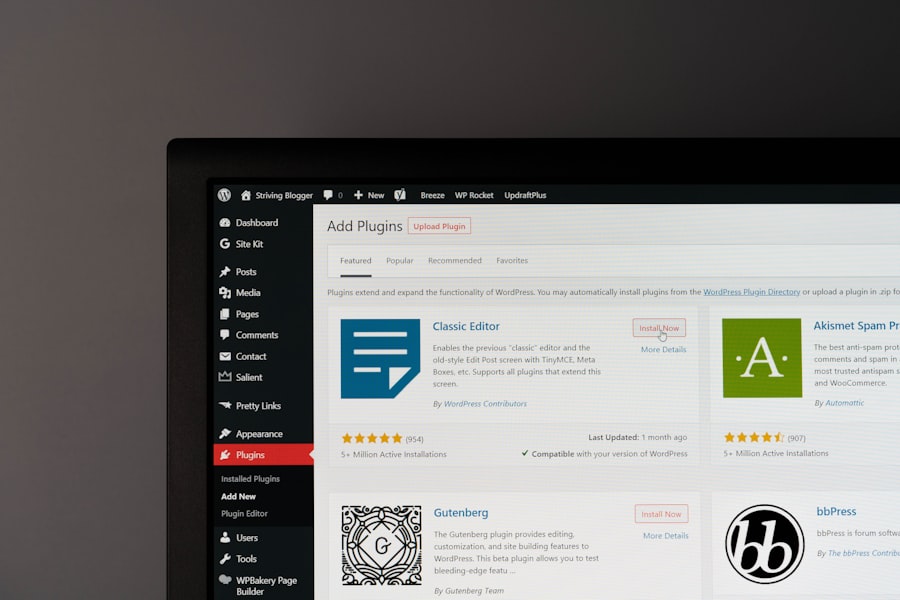
Effective management of your network requires a strategic approach to themes, plugins, and user roles to maintain efficiency and security.
Centralized Theme and Plugin Management
This is where much of the efficiency of Multisite truly shines for agencies and enterprises.
Network-Enabled vs. Network-Activated
Understand the crucial difference:
- Network Enabled: You, as the Super Administrator, install a theme or plugin and then “network enable” it. This makes it available for individual site administrators to activate on their specific sites. This is ideal for a library of optional tools.
- Network Activated: You install a theme or plugin and “network activate” it. This forces the theme or plugin to be active on all sites across the entire network. This is perfect for foundational themes, essential security plugins, or analytics tools that all sites must use.
Custom Themes and Child Themes
For agencies managing numerous client sites with similar base functionality but unique branding, developing a robust parent theme and then creating child themes for each client is a highly efficient strategy. Your parent theme contains the core logic and features, while child themes handle the client-specific CSS and template modifications.
User Role Management in a Multisite Context
User management is slightly more nuanced in Multisite than in a single WordPress installation.
Super Administrator
This is you. You have full control over the entire network, including network settings, themes, plugins, and all individual sites. There can be multiple Super Admins.
Site Administrator
A user with administrative privileges for a specific site within the network. They can manage posts, pages, users, themes, and plugins for their site, but cannot access Network Admin settings or make changes to other sites in the network.
Other WordPress Roles
Standard WordPress user roles (Editor, Author, Contributor, Subscriber) function as usual within each individual site.
Granting Access and Delegating
You can delegate site administration to specific individuals or client representatives, empowering them to manage their content while you retain control over the network’s infrastructure and overall health.
When considering the scalability and performance of multi-site WordPress networks for agencies and enterprises, it’s essential to also focus on the underlying infrastructure. A related article discusses the benefits of upgrading to faster NVMe storage for business plans, which can significantly enhance website speed and reliability. For more insights on optimizing your hosting environment, check out this informative piece on upgrading to faster NVMe storage.
Security, Performance, and Maintenance Best Practices
| Metrics | Agencies | Enterprises |
|---|---|---|
| Number of Sites | Multiple client sites | Large number of internal sites |
| Scalability | Ability to handle growth of client base | Support for high traffic and large number of users |
| Security | Secure client data and prevent breaches | Protection of sensitive enterprise information |
| Customization | Ability to tailor sites to individual client needs | Customization for different departments and teams |
| Management | Centralized management of multiple sites | Efficient control and oversight of all sites |
Running a Multisite network amplifies the importance of security, performance, and diligent maintenance. A breach on one site can potentially affect the entire network, and a slow network can impact all client or departmental sites.
Robust Security Measures
Your entire network is only as strong as its weakest link. Implementing comprehensive security practices is non-negotiable.
Regular Backups
Automate daily backups of your entire WordPress installation, including all files and the database. Store these backups off-site to ensure recovery in case of catastrophic server failure.
Strong Passwords and Two-Factor Authentication (2FA)
Enforce strong password policies for all users, especially those with administrative privileges. Implement 2FA for all Super Administrators and, ideally, for all site administrators.
Security Plugins
Use reputable security plugins (e.g., Wordfence, Sucuri) on a network-wide basis. Configure them to monitor for vulnerabilities, block malicious traffic, and scan for malware.
Keep Everything Updated
This cannot be stressed enough. Promptly apply updates for WordPress core, themes, and plugins across your network. Outdated software is a primary attack vector.
Limit Plugin and Theme Installs
Be judicious about which themes and plugins you allow to be network-enabled or network-activated. Every additional plugin or theme introduces potential vulnerabilities and performance overhead. Vet new additions thoroughly.
Optimizing for Speed and Performance
A slow website is a frustrating website. Performance optimization is crucial for user experience and SEO.
Caching Plugins
Implement a robust caching solution (e.g., WP Super Cache, W3 Total Cache) on a network-wide basis. Caching significantly reduces server load and speeds up page delivery.
Content Delivery Networks (CDNs)
Integrate a CDN (e.g., Cloudflare, MaxCDN) to serve static assets (images, CSS, JavaScript) from geographically closer servers, drastically improving loading times for users worldwide.
Image Optimization
Train your site administrators or implement automated tools to ensure images are optimized for the web (compressed, correctly sized) before they are uploaded.
Database Optimization
Regularly clean and optimize your WordPress database. Delete old post revisions, spam comments, and transient options to keep your database lean and fast.
Ongoing Maintenance and Monitoring
Multisite requires continuous attention to detail.
Regular Audits of Plugins and Themes
Periodically review the themes and plugins in your network. Remove any unused ones and ensure all active ones are legitimate, well-maintained, and secure.
Site Health Checks
Utilize WordPress’s built-in Site Health tool and complement it with monitoring services that can alert you to downtime, performance issues, or security breaches across your network.
User Management Review
Regularly audit user accounts, especially those with administrative access. Remove inactive accounts or those no longer needing high-level permissions.
You’ve embarked on a journey to simplify complex web management, and WordPress Multisite is your compass. By understanding its architecture, planning meticulously, implementing diligently, and maintaining vigilantly, you can transform your agency’s or enterprise’s web presence from a chaotic collection of individual sites into a streamlined, efficient, and powerful network. Embrace the scalability, standardization, and centralized control that Multisite offers, and watch as your web operations become more manageable, more secure, and infinitely more effective.
FAQs
What is a multi-site WordPress network?
A multi-site WordPress network is a feature of WordPress that allows a single installation of WordPress to host multiple sites. Each site within the network can have its own domain or subdomain.
What are the benefits of using a multi-site WordPress network for agencies and enterprises?
Using a multi-site WordPress network can streamline the management of multiple websites, reduce maintenance costs, and provide a consistent user experience across all sites. It also allows for centralized updates and security management.
How does a multi-site WordPress network differ from separate WordPress installations?
With a multi-site WordPress network, all sites share the same WordPress installation, plugins, and themes. This makes it easier to manage and update multiple sites from a single dashboard. Separate installations require individual maintenance and updates for each site.
What are some considerations for building a multi-site WordPress network for agencies and enterprises?
Considerations include planning for scalability, ensuring proper server resources, implementing a robust backup and disaster recovery plan, and establishing clear governance and user access controls for the network.
What are some best practices for managing a multi-site WordPress network for agencies and enterprises?
Best practices include regularly updating plugins and themes, monitoring site performance and security, providing training and support for network administrators, and establishing clear communication channels for site owners within the network.









Add comment