

You are embarking on the journey of establishing an online store, and WooCommerce is your chosen platform. This guide will walk you through the essential steps to configure your WooCommerce installation effectively, ensuring a robust and functional e-commerce presence.
Before you can sell products, you need a foundational setup. This section details the initial steps for getting WooCommerce installed and configured on your WordPress site.
1.1 WordPress Installation Prerequisites
Your WooCommerce store requires a stable WordPress installation. Ensure your hosting environment meets the minimum WordPress requirements, including PHP 7.4 or greater, MySQL 5.6 or greater OR MariaDB 10.1 or greater, and HTTPS support. A reliable hosting provider is crucial for performance and security. You should select a host that offers sufficient resources to handle your projected traffic and product catalog. Consider managed WordPress hosting for optimized performance and support.
1.2 Plugin Installation via WordPress Dashboard
Navigate to your WordPress dashboard. From the left-hand menu, select “Plugins” and then “Add New.” In the search bar, type “WooCommerce.” The official WooCommerce plugin will appear as the primary result. Click “Install Now” and then “Activate Plugin.” This action initiates the core WooCommerce functionalities on your site.
1.3 WooCommerce Setup Wizard Walkthrough
Upon activation, WooCommerce will typically prompt you to run a setup wizard. This wizard streamlines the initial configuration of your store.
1.3.1 Store Location and Currency
The first step in the wizard involves specifying your store’s location. This setting is vital for tax calculations, shipping zones, and payment gateway availability. Select your country, state, and city. You will also need to choose your store’s primary currency. This currency will be used for all product pricing and transactions.
1.3.2 Product Type Selection
Next, you will indicate the types of products you intend to sell. Options include physical products, digital products, or both. This selection influences the default settings for each product you add. For instance, if you select physical products, shipping options will be more prominent during product creation.
1.3.3 Business Details and Tax Settings
Provide details about your business, such as whether you are selling to businesses or consumers. This information can influence tax settings. The wizard often asks if you will be charging sales tax. You can choose to configure tax settings immediately or defer this until later. It is advisable to address tax considerations early to avoid complications.
1.3.4 Shipping Configuration
The wizard will guide you through setting up basic shipping zones and rates. You can define flat rates, free shipping, or local pickup. These initial settings provide a starting point, and more granular control is available in the WooCommerce settings later.
1.3.5 Payment Gateway Integration
You will be presented with initial payment gateway options during the setup. Common options include Stripe, PayPal, and offline payment methods like bank transfer or cash on delivery. You can enable these or skip for later configuration. It is recommended to enable at least one primary online payment gateway to facilitate immediate transactions.
If you’re looking to enhance your online store’s performance after following the WooCommerce Setup Guide for Online Stores, consider reading the article on how to boost your business with faster NVMe storage. This resource provides valuable insights into optimizing your website’s speed and efficiency, which can lead to improved customer experience and increased sales. You can find the article here: Boost Your Business with Faster NVMe Storage.
2. Product Management and Catalog Setup
With the basic store established, your focus shifts to populating it with products. Effective product management is central to an operational online store.
2.1 Adding Your First Product
Navigate to “Products” > “Add New” in your WordPress dashboard.
2.1.1 Product Data and Type
Enter a compelling product name and a detailed description. In the “Product Data” section, select the product type: Simple Product, Grouped Product, External/Affiliate Product, or Variable Product. Simple products are straightforward items with no options. Variable products allow for variations like size or color.
2.1.2 General Product Information
Input the regular price and, if applicable, a sale price. The sale price can have a scheduled start and end date.
2.1.3 Inventory Management
Enable “Manage stock?” to track inventory levels. Assign a unique SKU (Stock Keeping Unit) to each product. Set the stock quantity and choose whether to allow backorders. This is critical for preventing overselling.
2.1.4 Shipping Dimensions and Weight
For physical products, accurately enter the weight, dimensions (length, width, height). This data is essential for accurate shipping cost calculations by shipping carriers.
2.1.5 Linked Products (Upsells/Cross-sells)
Utilize upsells and cross-sells to recommend related products. Upsells suggest more expensive or premium alternatives, while cross-sells recommend complementary items. These can increase average order value.
2.1.6 Product Attributes and Variations
For variable products, define attributes such as “Color” or “Size.” For each attribute, create different values (e.g., Red, Blue; Small, Medium, Large). Then, generate variations based on these attributes, setting prices, stock, and images for each specific variation.
2.1.7 Product Images and Gallery
Upload a high-quality main product image. Add additional images to the product gallery to provide comprehensive visual representation from different angles. Clear, well-lit images contribute significantly to conversion rates.
2.1.8 Product Categories and Tags
Assign products to relevant categories (e.g., “Men’s Apparel,” “Electronics”). Use product tags for more specific keywords (e.g., “denim,” “smartphone”). This helps customers find products through filtering and search.
3. Shipping and Tax Configuration
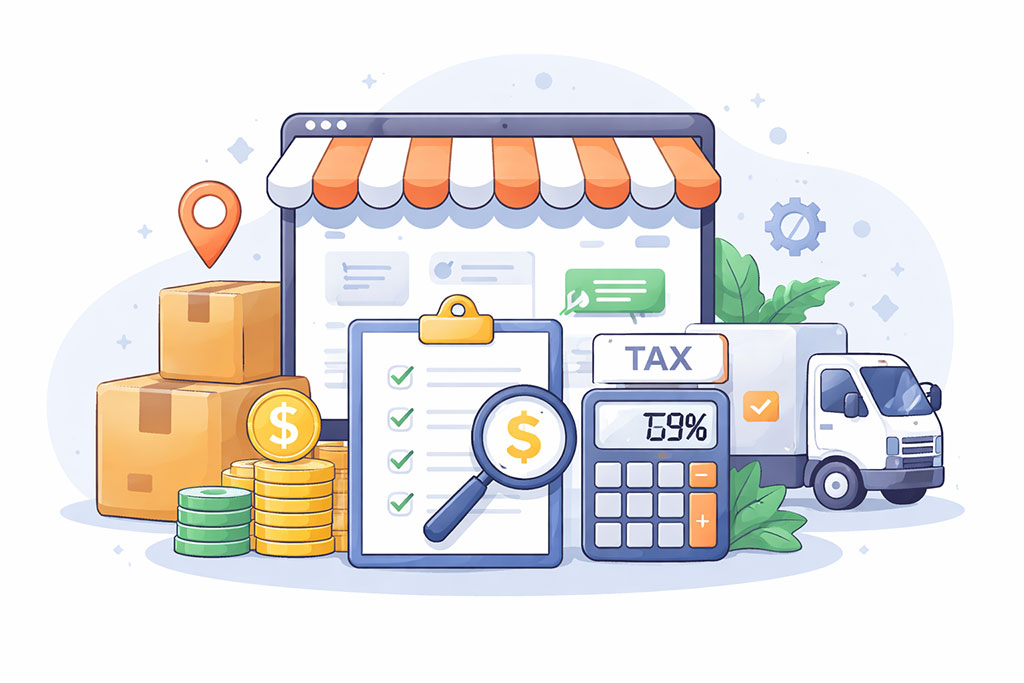
Accurate shipping and tax calculations are not optional; they are a legal and logistical necessity.
3.1 Establishing Shipping Zones
Go to “WooCommerce” > “Settings” > “Shipping” > “Shipping Zones.”
3.1.1 Defining Geographical Zones
Create shipping zones based on geographical regions (e.g., “United States,” “Europe,” “Local”). You can include specific countries, states, or even postal codes within a zone.
3.1.2 Adding Shipping Methods
Within each zone, add relevant shipping methods. Common options include:
- Flat Rate: A fixed cost applied per order or per item.
- Free Shipping: Offered under specific conditions (e.g., minimum order amount).
- Local Pickup: Allows customers to collect their orders directly from your location.
3.1.3 Configuring Shipping Classes
Shipping classes allow you to group products with similar shipping characteristics (e.g., “Heavy Items,” “Fragile Items”). You can then assign different shipping costs based on these classes within your shipping methods. This offers more granular control over shipping fees.
3.2 Setting Up Tax Rates
Navigate to “WooCommerce” > “Settings” > “Tax.”
3.2.1 Enabling Tax Calculations
Ensure “Enable tax rates and calculations” is checked.
3.2.2 Tax Options
Configure how tax is calculated. You can choose to enter prices inclusive or exclusive of tax. Determine the tax basis (e.g., shipping address, billing address, store base address). Also, decide if shipping costs are taxable.
3.2.3 Standard Tax Rates
Go to “Standard rates” and click “Insert row.” Enter the country code, state code (if applicable), postcode (if applicable), city (if applicable), and the tax rate. Assign a tax name for clarity. Repeat for all relevant tax jurisdictions.
3.2.4 Reduced Rate and Zero Rate Taxes
If your products fall under different tax classifications, you can set up reduced rate or zero rate tax classes. This is common for items like food or essential goods which may have different tax obligations.
4. Payment Gateway Integration
Your store’s ability to process transactions is paramount. This section covers connecting your store to payment gateways.
4.1 Core Payment Gateways
Go to “WooCommerce” > “Settings” > “Payments.”
4.1.1 PayPal Standard
Enable PayPal Standard. You will need a PayPal Business account. Input your PayPal email address. Configure settings such as IPN (Instant Payment Notification) URL and API credentials for more robust integration.
4.1.2 Stripe
For credit card payments, Stripe is a widely used and reliable option. Install the official WooCommerce Stripe Gateway plugin. You will need a Stripe account. Connect your Stripe account to WooCommerce by entering your publishable and secret API keys, which you obtain from your Stripe dashboard.
4.1.3 BACS (Bank Transfer)
BACS, or direct bank transfer, allows customers to pay by transferring funds directly to your bank account. Enable this option, and provide your bank account details. Orders will remain on hold until you confirm receipt of payment.
4.1.4 Cash on Delivery
Cash on Delivery (COD) is suitable for local deliveries or specific business models. Enable COD and provide instructions for customers regarding payment.
4.2 Additional Payment Solutions
Consider other payment gateways based on your target audience and regional preferences. This might include:
- Payment Gateways for Specific Regions: Many regions have preferred local payment methods (e.g., SEPA in Europe, iDEAL in the Netherlands). Research and integrate these as needed.
- Installment Payment Options: Offer platforms like Affirm or Klarna to allow customers to pay in installments, which can increase conversion rates for higher-priced items.
- Digital Wallet Integrations: Support Apple Pay, Google Pay, or other digital wallets for streamlined checkout.
When setting up your online store with WooCommerce, it’s essential to consider the type of hosting that will best support your e-commerce needs. A related article that provides valuable insights on this topic is What is Shared Hosting and Is It Good for You?, which discusses the advantages and disadvantages of shared hosting. Understanding these factors can help you make an informed decision, ensuring your WooCommerce store runs smoothly and efficiently.
5. Store Customization and Optimization
<?xml encoding=”UTF-8″>
| Step | Description |
|---|---|
| 1 | Choose a domain name and hosting provider |
| 2 | Install WordPress |
| 3 | Install WooCommerce plugin |
| 4 | Set up payment gateways |
| 5 | Add products and categories |
| 6 | Customize store design |
| 7 | Set up shipping options |
| 8 | Configure taxes |
| 9 | Test and launch the store |
Beyond functionality, your store’s appearance and performance are critical for customer experience and business success.
5.1 Theme Selection and Customization
Your store’s appearance significantly influences customer perception.
5.1.1 Choosing a WooCommerce-Compatible Theme
Select a WordPress theme specifically designed for or fully compatible with WooCommerce. Themes such as Storefront (WooCommerce’s official theme), Astra, OceanWP, or GeneratePress are popular choices known for their integration and flexibility.
5.1.2 Customizing Brand Identity
Utilize the WordPress Customizer (Appearance > Customize) to modify your theme. Upload your logo, establish your brand colors, select appropriate fonts, and configure header and footer layouts. Consistency in branding builds trust.
5.1.3 Homepage and Shop Page Layouts
Design an inviting homepage that showcases your best products, promotions, and brand message. Create a clear and intuitive shop page layout that allows customers to browse and filter products easily.
5.2 Essential WooCommerce Extensions & Plugins
While WooCommerce provides core functionality, extensions enhance your store’s capabilities.
5.2.1 SEO Optimization (Yoast SEO, Rank Math)
Install an SEO plugin like Yoast SEO or Rank Math. Configure product meta descriptions, titles, and schema markup to improve your product visibility in search engine results. This is fundamental for organic traffic.
5.2.2 Security (Wordfence, Sucuri)
Implement a robust security plugin (e.g., Wordfence Security, Sucuri Security). This will protect your store from malware, brute-force attacks, and other vulnerabilities. Regular security scans and firewall protection are indispensable.
5.2.3 Performance Optimization (WP Rocket, LiteSpeed Cache)
Optimize your site’s speed with caching plugins (e.g., WP Rocket, LiteSpeed Cache). Fast loading times are crucial for user experience and SEO. Optimize images, minify CSS and JavaScript, and leverage browser caching.
5.2.4 Backup Solutions (UpdraftPlus, BackWPup)
Implement a reliable backup plugin (e.g., UpdraftPlus, BackWPup). Regular backups ensure you can restore your site in case of data loss or unforeseen issues. Store backups offsite.
5.2.5 Customer Support and Communication (Live Chat, Help Desk)
Integrate customer support tools such as a live chat plugin or a help desk system (e.g., Zendesk, Help Scout). Prompt and effective customer communication enhances satisfaction and builds loyalty.
5.3 Ongoing Maintenance and Monitoring
Your store requires continuous attention for optimal performance and security.
5.3.1 Regular Updates
Regularly update WordPress, WooCommerce, your theme, and all plugins. Updates often include security patches, bug fixes, and new features. Create backups before performing any major updates.
5.3.2 Performance Monitoring
Monitor your site’s performance using tools like Google Analytics and Google PageSpeed Insights. Identify any bottlenecks or slow-loading elements and address them promptly.
5.3.3 Security Audits
Periodically conduct security audits to identify potential vulnerabilities. Ensure SSL certificates are current and all sensitive data is encrypted.
5.3.4 Inventory Management and Order Processing
Maintain accurate inventory levels and streamline your order processing workflow. Efficient fulfillment ensures customer satisfaction.
By meticulously following these steps, you will establish a robust and effective WooCommerce store, capable of handling transactions, managing products, and providing a positive customer experience. This foundation is critical for sustainable e-commerce operations.
FAQs
1. What is WooCommerce?
WooCommerce is a free, open-source WordPress plugin that enables online store functionality on a website. It allows users to sell products and services, manage inventory, process payments, and more.
2. How do I install WooCommerce on my website?
To install WooCommerce, you need to have a WordPress website. You can install the WooCommerce plugin from the WordPress dashboard by navigating to the “Plugins” section and clicking “Add New.” Then, search for “WooCommerce,” install the plugin, and activate it.
3. What are the key features of WooCommerce for online stores?
WooCommerce offers features such as customizable product pages, inventory management, secure payment processing, shipping options, tax calculations, and various extensions for additional functionality. It also provides detailed reporting and analytics tools.
4. How can I set up products and categories in WooCommerce?
To set up products and categories in WooCommerce, you can navigate to the “Products” section in the WordPress dashboard. From there, you can add new products, set pricing and inventory details, assign categories, and customize product attributes.
5. What payment gateways are supported by WooCommerce?
WooCommerce supports a wide range of payment gateways, including PayPal, Stripe, Square, and many others. Users can choose the payment gateways that best suit their business needs and integrate them into their online store.









Add comment