

In the digital realm, where your website and its underlying data represent a valuable asset, robust security measures are not merely recommended; they are imperative. Imagine your cPanel account as the control room of your website: it grants access to your files, databases, emails, and numerous critical configurations. A compromise of this control room could lead to data breaches, website defacement, malicious code injections, and significant reputational damage. While a strong password acts as the primary lock on this control room door, it is susceptible to various threats, including brute-force attacks, phishing attempts, and keyloggers.
This is where Two-Factor Authentication (2FA) enters the picture, acting as a crucial secondary barrier. It demands a second form of verification beyond your password, making it significantly harder for unauthorized individuals to gain access, even if they somehow manage to acquire your primary credentials. Think of it as requiring not just the key (your password) but also a unique identification card (the second factor) to enter your control room. Even if an intruder obtains your key, they will be stymied without that secondary identification. Implementing 2FA on your cPanel account is a proactive and highly effective step towards fortifying your website’s security posture and protecting your digital assets from a multitude of evolving cyber threats. It’s an investment in peace of mind and the continued operational integrity of your online presence.
To enhance the security of your cPanel account, it’s essential to implement two-factor authentication (2FA). For a comprehensive guide on this topic, you can refer to the article titled “Setting Up Two Factor Authentication To Lock Down Your cPanel” available at Hostings House Blog. This resource provides step-by-step instructions on enabling 2FA, ensuring that your account remains protected against unauthorized access.
Prerequisites and Initial Considerations
Before embarking on the 2FA setup process, a few essential prerequisites and considerations will streamline your experience and ensure a smooth implementation. Addressing these points upfront minimizes potential roadblocks and ensures you are fully prepared for the security enhancement.
Accessing cPanel
The fundamental requirement, of course, is a working cPanel account with administrative privileges. You will need to log in to your cPanel interface to access the security settings. Ensure you have the correct username and password readily available. If you manage multiple cPanel accounts, confirm you are logged into the specific one for which you intend to enable 2FA.
Time Synchronization
For many 2FA methods, particularly those relying on Time-based One-time Passwords (TOTP), accurate time synchronization between your cPanel server and your 2FA authenticator application is paramount. A discrepancy of even a few seconds can invalidate the generated codes, leading to failed login attempts.
Server Time Synchronization
Most hosting providers maintain accurate server time. However, it’s beneficial to be aware of this dependency. If you encounter consistent issues with 2FA codes, inquiring about server time synchronization with your hosting provider might be a valuable troubleshooting step.
Device Time Synchronization
Equally important is the time on the device you will be using for your authenticator application (e.g., your smartphone). Ensure your device’s time is set to automatically synchronize with network time servers (NTP). Manual time settings, or settings that drift over time, are a common cause of 2FA failures. Verifying your device’s date and time settings before initiating the setup process is a simple yet crucial step.
Choosing an Authenticator Application
The most common and recommended method for cPanel 2FA involves a software-based authenticator application installed on a mobile device. These applications generate time-limited, unique codes that serve as your second factor.
Popular Authenticator Options
- Google Authenticator: A widely used and straightforward option, available for both Android and iOS. Its simplicity is a key advantage.
- Microsoft Authenticator: Offers additional features like cloud backup for accounts and integration with Microsoft services. Available for Android and iOS.
- Authy: Provides cloud synchronization of your 2FA accounts across multiple devices, offering a convenient backup solution. Available for a wider range of platforms including desktop.
- FreeOTP: An open-source alternative for those who prefer software with transparent code.
Consider your personal preferences, device compatibility, and any additional features you might desire (like cloud backup) when selecting your authenticator application. All these applications serve the same core purpose: generating the secure, time-based one-time passwords required for 2FA.
Navigating to the Two-Factor Authentication Interface
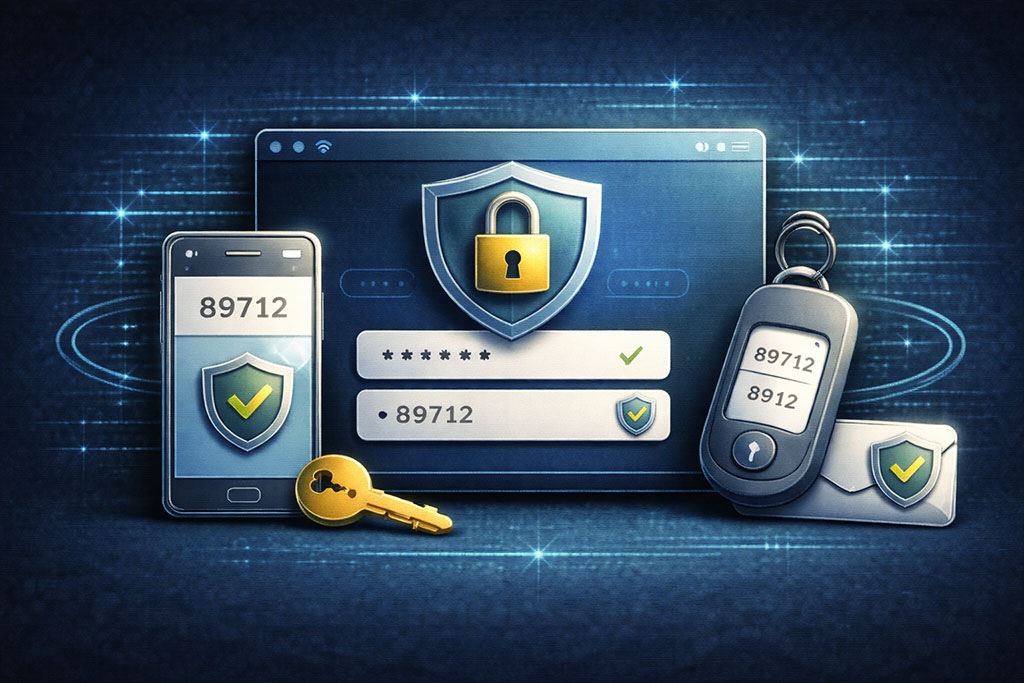
The path to enabling 2FA within cPanel is intuitive and designed for user accessibility. Once you are logged into your cPanel account, the security features are typically grouped together for easy discovery.
Locating the Security Section
Upon logging into your cPanel dashboard, you will be presented with various sections and icons. Look for a section explicitly labeled “Security” or similar. This section typically houses a range of tools related to securing your website and account, including IP Blocker, SSL/TLS, and ModSecurity.
Identifying the Two-Factor Authentication Icon
Within the “Security” section, you should find an icon or link labeled “Two-Factor Authentication” or “2FA.” This is your gateway to initiating the setup process. Click this icon to proceed. You might also find it by using the search bar within cPanel if your interface is particularly crowded. The cPanel interface is designed to be user-friendly, and the 2FA option is a standard security feature, so it should be prominently displayed.
Step-by-Step Setup Process
With the prerequisites met and the interface accessed, you are now ready to implement 2FA for your cPanel account. This process involves a series of clear steps to link your authenticator application with your cPanel account.
Step 1: Setting up Two-Factor Authentication
Upon clicking the “Two-Factor Authentication” icon, you will be presented with a dedicated page. If 2FA is not yet configured, you will see an option to “Set Up Two-Factor Authentication.” This initiates the pairing process.
Generating the QR Code and Account Key
cPanel will generate a unique QR code and a corresponding secret account key. This QR code serves as a visual representation of your cryptographic key, which your authenticator application will use to generate your one-time passwords. The account key is the alphanumeric string equivalent of the QR code, provided as a backup in case you cannot scan the QR code (e.g., if you are setting up 2FA on a device where you cannot directly scan the screen, or if your device camera is malfunctioning).
- QR Code: This square image contains encrypted information that links your authenticator app to your cPanel account.
- Account Key (Secret Key): This alphanumeric string acts as a manual input option for the same cryptographic key if scanning is not feasible. Copy this key and store it securely if you intend to use it later, though scanning is generally preferred for its simplicity and reduced chance of error.
Step 2: Configuring Your Authenticator Application
Now, turn your attention to your chosen authenticator application on your mobile device. The goal here is to import the cryptographic key generated by cPanel into your app.
Adding a New Account
Within your authenticator application, locate the option to “Add Account” or “Add a new site.” This is often represented by a “+” icon. Tapping this will typically present you with two options: “Scan a QR code” or “Enter a setup key manually.”
Scanning the QR Code
This is the recommended and simplest method. Position your device’s camera to scan the QR code displayed on your cPanel screen. The authenticator application will automatically detect and process the information, adding a new entry for your cPanel account. Upon successful scanning, you will see a new entry appear in your authenticator app, typically showing your cPanel username or domain, and a six-digit code that refreshes every 30-60 seconds.
Entering the Account Key Manually
If scanning the QR code is not possible, select the “Enter a setup key manually” option in your authenticator app. You will then be prompted to input the secret account key provided by cPanel. Pay close attention to capitalization and ensure there are no typos, as even a single incorrect character will prevent accurate code generation. You may also be asked to provide an account name for easy identification within your authenticator app (e.g., “MyWebsite cPanel”).
Step 3: Verifying the Configuration
This is a critical step to ensure that the 2FA setup has been successful and that your authenticator application is generating correct codes.
Entering the Security Code
After your authenticator app has successfully added the cPanel account, it will immediately start generating six-digit security codes. On the cPanel 2FA setup page, there will be a field labeled “Security Code” or “Verification Code.” Enter the current six-digit code displayed in your authenticator application into this field. Be mindful of the time limit; if the code is about to expire, wait for a new one to be generated.
Confirming the Setup
Click the “Configure Two-Factor Authentication” or “Verify and Enable” button within cPanel. If the entered code is correct and within the valid time window, cPanel will confirm that Two-Factor Authentication has been successfully enabled for your account. You will typically see a confirmation message indicating that 2FA is now active.
From this point forward, every time you attempt to log in to your cPanel account, you will first enter your username and password, and then be prompted to enter a security code from your authenticator application.
Setting up two-factor authentication to lock down your cPanel is an essential step in enhancing your website’s security. For those looking to optimize their website’s performance alongside security measures, understanding the differences in storage technology can be beneficial. You might find it interesting to read about the speed differences between NVMe and SSD drives, which can significantly impact dynamic websites. For more information, check out this article on NVMe vs SSD speed differences.
Managing Two-Factor Authentication
<?xml encoding=”UTF-8″>
| Metric | Description | Typical Value/Range | Importance |
|---|---|---|---|
| Setup Time | Time required to enable and configure 2FA in cPanel | 5-10 minutes | Medium |
| Authentication Methods Supported | Types of 2FA methods available (e.g., TOTP, SMS, Email) | 1-3 methods (commonly TOTP apps like Google Authenticator) | High |
| Login Success Rate | Percentage of successful logins after 2FA implementation | 95-99% | High |
| Reduction in Unauthorized Access | Decrease in unauthorized login attempts after enabling 2FA | Up to 90% reduction | Very High |
| User Adoption Rate | Percentage of users who enable 2FA after rollout | 60-85% | Medium |
| Backup Codes Provided | Number of one-time use backup codes generated for account recovery | 5-10 codes | High |
| Support Tickets Related to 2FA | Number of support requests due to 2FA issues per month | Low (1-3 tickets) | Medium |
| Impact on Login Time | Additional time added to login process due to 2FA | 5-15 seconds | Low |
Once 2FA is enabled, it’s not a set-it-and-forget-it feature. Understanding how to manage it, including disabling it when necessary or reconfiguring it, is crucial for maintaining control over your account security.
Disabling Two-Factor Authentication
While highly discouraged for security reasons, there may be instances where you need to temporarily or permanently disable 2FA for your cPanel account. Perhaps you are transferring account ownership, or troubleshooting a specific access issue that you suspect is related to your 2FA setup.
Accessing the 2FA Interface
To disable 2FA, you will need to log in to your cPanel account using both your password and a valid 2FA code. Navigate back to the “Two-Factor Authentication” interface within the “Security” section.
Removing the Account
On the “Two-Factor Authentication” page, you will now see an enabled status. There will be an option, typically a button, labeled “Disable Two-Factor Authentication” or “Remove my 2FA configuration.” Clicking this button will usually prompt you for confirmation. Confirming your choice will remove 2FA from your cPanel account. This means subsequent logins will only require your username and password.
Removing from Authenticator App
After disabling 2FA in cPanel, it is good practice to also remove the corresponding cPanel entry from your authenticator application. This helps keep your authenticator app organized and prevents confusion. Most authenticator apps allow you to long-press or swipe on an account entry to reveal an option to delete or remove it.
Reconfiguring Two-Factor Authentication (Changing Devices)
A common scenario for reconfiguring 2FA is when you get a new mobile device. Since the cryptographic keys are stored on the device, a new device requires a fresh setup.
Disabling on Old Device (if accessible)
If you still have access to your old device and can log into cPanel, the most straightforward approach is to first disable 2FA entirely as described in the previous section. Then, proceed with a fresh setup on your new device from Step 1, “Setting up Two-Factor Authentication,” as if it were your first time enabling it.
Disabling from Backup Codes (if applicable)
Some 2FA solutions provide backup codes that can be used to log in if your authenticator device is lost or inaccessible. While cPanel’s native 2FA doesn’t typically generate these, if your hosting provider offers an alternative 2FA solution or a broader control panel with backup codes, you might be able to use them to log in and disable 2FA before re-enabling it.
Contacting Hosting Support
If you have lost your device, disabled it, or it is otherwise inaccessible and you cannot log in to cPanel due to 2FA, your last resort is to contact your hosting provider’s support team. They will have protocols in place to verify your identity and disable 2FA for your account. Be prepared to provide extensive proof of identity as this is a sensitive security operation. They will need to ensure you are the legitimate account owner before granting access.
Managing Multiple Users and Accounts
For users managing multiple cPanel accounts or for shared hosting environments where several individuals might require access, the management of 2FA becomes even more critical.
Individual User Enforcement
cPanel’s native 2FA is tied to individual user accounts. Each cPanel user (e.g., the primary account holder, or sub-accounts created for developers or designers) can independently enable 2FA for their specific login. This decentralized approach means that one user enabling 2FA does not automatically enable it for all users on a server. It falls to each individual user to secure their own access.
Best Practices for Shared Environments
In shared management scenarios, it is highly recommended that all individuals with cPanel login access enable 2FA. This creates a collective security posture. Consider implementing internal policies that mandate 2FA for any access to critical systems like cPanel. Regular security audits and communication are key to ensuring adherence to these best practices across all team members. The weakest link in the chain can compromise the entire infrastructure.
By understanding these management aspects, you maintain full control over your 2FA settings and can adapt to changing circumstances (like new devices) without compromising your account’s security.
Setting up two-factor authentication to lock down your cPanel is an essential step in enhancing your website’s security. For those looking to further protect their online presence, it is also important to understand the basics of starting a blog securely. You can find valuable insights in this article on how to begin your blogging journey while keeping your site safe. Check it out here for tips on ensuring your blog is both engaging and secure.
Troubleshooting Common Issues
Even with a straightforward setup process, you might occasionally encounter issues with Two-Factor Authentication. Many of these common problems have simple solutions.
Incorrect Security Code
This is by far the most frequent issue encountered.
Time Synchronization Discrepancies
As discussed earlier, the most common reason for incorrect codes is a time mismatch.
- Device Time: Ensure your smartphone or tablet’s time is set to automatically synchronize with network time. Navigate to your device’s date and time settings and verify that “Automatic date & time” or “Use network-provided time” is enabled.
- Server Time: While less common for modern hosting, if you consistently experience issues even with correct device time, contact your hosting provider to confirm their server’s time synchronization.
Code Expiration
Authenticator codes are time-sensitive, often refreshing every 30 or 60 seconds. If you wait too long after a code is generated before entering it into cPanel, it might expire. Always use the freshest possible code. If you see the timer in your authenticator app about to reset, wait for the new code.
Manual Entry Errors
If you manually entered the secret key during setup, double-check that there were no typos. A single incorrect character will lead to permanently incorrect codes. If you suspect this is the case, the easiest solution is to disable 2FA (if you can still access cPanel with a valid code or through support) and then re-enable it by scanning the QR code, which eliminates manual entry errors.
Lost or Inaccessible Authenticator Device
This is a more serious issue, as it directly prevents you from logging in.
Backup Codes
If you proactively generated and securely stored backup codes (which some other 2FA systems offer, though not standard with cPanel’s built-in solution), you would use one of these codes to log in and disable 2FA. Note: cPanel’s native 2FA might not provide these, so this advice applies generally if you have another 2FA provider tied to similar systems.
Contacting Hosting Support
If you have lost your device and have no other means of accessing cPanel, your hosting provider’s support team is your ultimate resource. They have procedures in place to verify your identity (which will be stringent as it involves overriding a security measure) and disable 2FA for your account. Be prepared to provide account details, recent payment information, or other proofs of ownership to expedite this process. Do not expect instant access; expect rigorous verification.
Authenticator App Issues (e.g., App Crash, Data Loss)
While authenticator apps are generally robust, software can sometimes encounter issues.
Checking App Updates
Ensure your authenticator app is up to date. Developers frequently release updates that address bugs and improve performance.
Reinstallation (as a last resort)
If the app is malfunctioning, a clean reinstallation might resolve the issue. However, be aware that reinstalling most authenticator apps will delete all your stored 2FA accounts. Therefore, if you resort to reinstallation, you will need to re-add every 2FA account from scratch, which means disabling and re-enabling 2FA for every service (like cPanel) to generate new QR codes/secret keys. Only attempt this if other troubleshooting has failed.
Cloud Backup Feature
Some authenticator apps (e.g., Authy, Microsoft Authenticator) offer cloud backup features. If you enabled this feature, you might be able to restore your 2FA accounts on a new device or after reinstalling the app. This is a significant advantage for disaster recovery.
By calmly approaching these issues and systematically checking potential causes, you can often quickly resolve 2FA challenges and regain access to your cPanel account. The initial inconvenience pales in comparison to the security benefits that 2FA provides.
FAQs
What is Two Factor Authentication (2FA) in cPanel?
Two Factor Authentication (2FA) in cPanel is an additional security layer that requires users to provide two forms of identification before accessing their account. Typically, this involves entering a password plus a time-sensitive code generated by an authentication app.
Why should I enable Two Factor Authentication on my cPanel account?
Enabling 2FA significantly enhances the security of your cPanel account by reducing the risk of unauthorized access. Even if someone obtains your password, they cannot log in without the second authentication factor, which helps protect your website and data.
How do I set up Two Factor Authentication in cPanel?
To set up 2FA in cPanel, log in to your cPanel account, navigate to the “Security” section, and select “Two-Factor Authentication.” Follow the prompts to scan a QR code with an authenticator app (such as Google Authenticator or Authy) and enter the generated code to complete the setup.
Can I use any authenticator app for cPanel Two Factor Authentication?
Yes, cPanel supports any standard Time-based One-Time Password (TOTP) authenticator app. Popular options include Google Authenticator, Authy, Microsoft Authenticator, and others that generate time-sensitive codes compatible with cPanel.
What should I do if I lose access to my Two Factor Authentication device?
If you lose access to your 2FA device, you can use backup codes provided during the setup process to regain access. If you did not save backup codes, you may need to contact your hosting provider or server administrator to disable 2FA or reset your authentication settings.







Add comment